Melodious v0.56.0: the chat-first director
Melodious v0.56.0 replaces the old studio screens with a chat. You add a song, the director listens to it, asks numbered questions and offers three video ideas. You pick one, read the plan, then see a storyboard before the video. Before you pick a length you see what it needs, and every paid step appears as a card with its price, so nothing is spent until you tap it. New accounts start with 50 credits for 7 days, which cover ideas, the plan and chat. The storyboard and the video need a plan.
Plans from $29/month, cancel anytime. Starter makes a 30-second video with lip sync a month.
What changed from the old studio
The short answer: Melodious v0.56.0 replaces the old studio screens with a chat. You add a song, the director listens to it, asks numbered questions and offers three video ideas. You pick one, read the plan, then see a storyboard before the video. Before you pick a length you see what it needs, and every paid step appears as a card with its price, so nothing is spent until you tap it. New accounts start with 50 credits for 7 days, which cover ideas, the plan and chat. The storyboard and the video need a plan.
Melodious is a music video generator: you bring a song and it plans, draws and edits the video. Until this release, the studio was a run of screens: a brief, a song map, settings, a storyboard page, a render page. You had to know which came next. The new one is a conversation with one director that always shows where you are and what comes next.
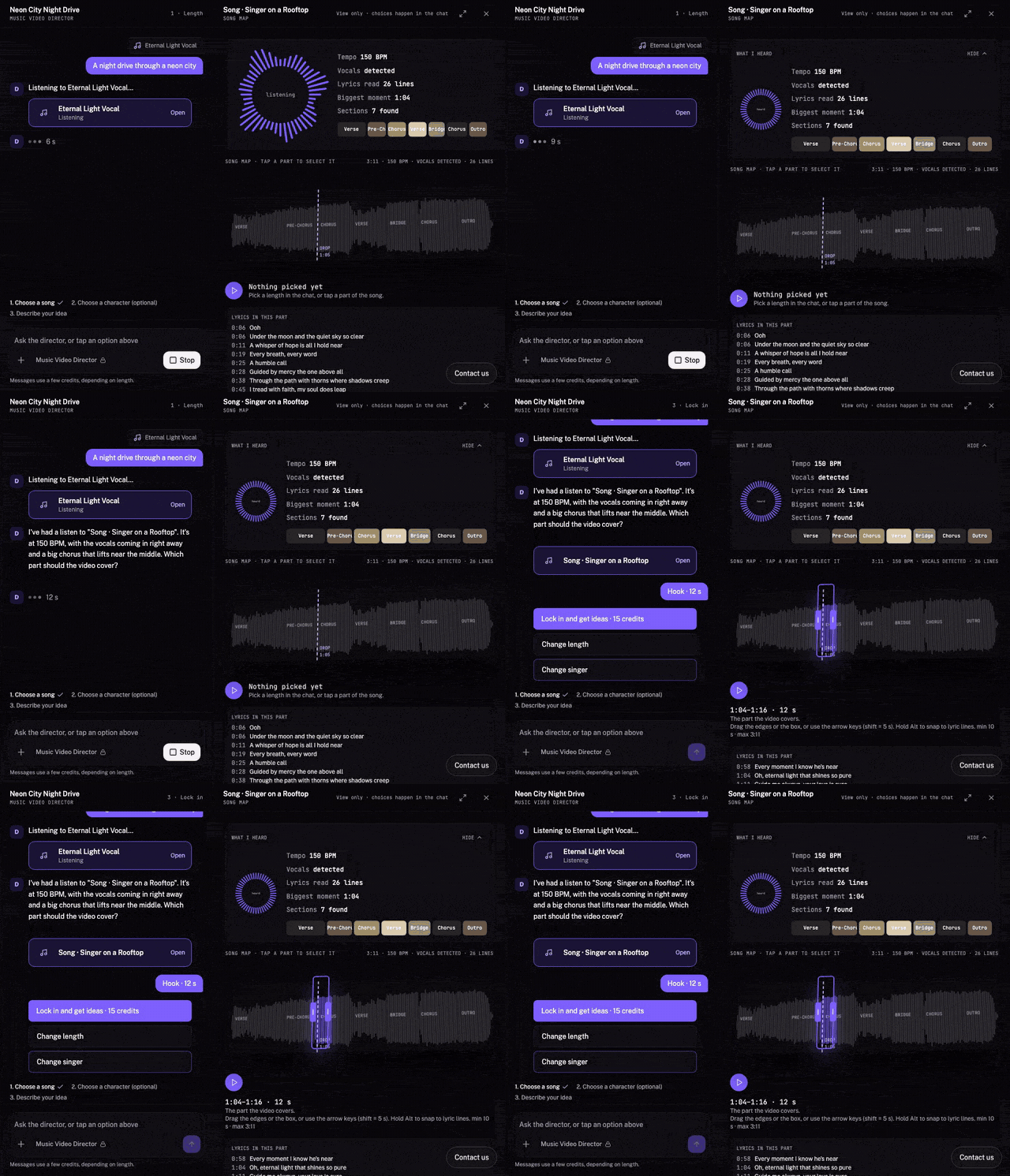
Here is the whole thing in one pass, from the moment your song has been read to the director's first question.
| What | How it works in Melodious v0.56.0 |
|---|---|
| Starting point | A song and one sentence, from a box with a three-step hint |
| Song reading | Saved after analysis and reused when available |
| Questions | Numbered questions from the director, only what it cannot work out |
| Who sings | Named on every idea and on the plan, with lip sync available |
| Prices | Each length shows the plan it needs; every paid step is one card with its price |
| Before the video | A storyboard to review, then you approve the video |
| Instrumentals | No invented lyrics, no fake singing |
The screenshots show the studio with example media. They illustrate the steps; the price for your own song depends on its length and your choices. For a guide to the whole process, start with how to make a music video with your song.
Step 1: add your song and save its reading
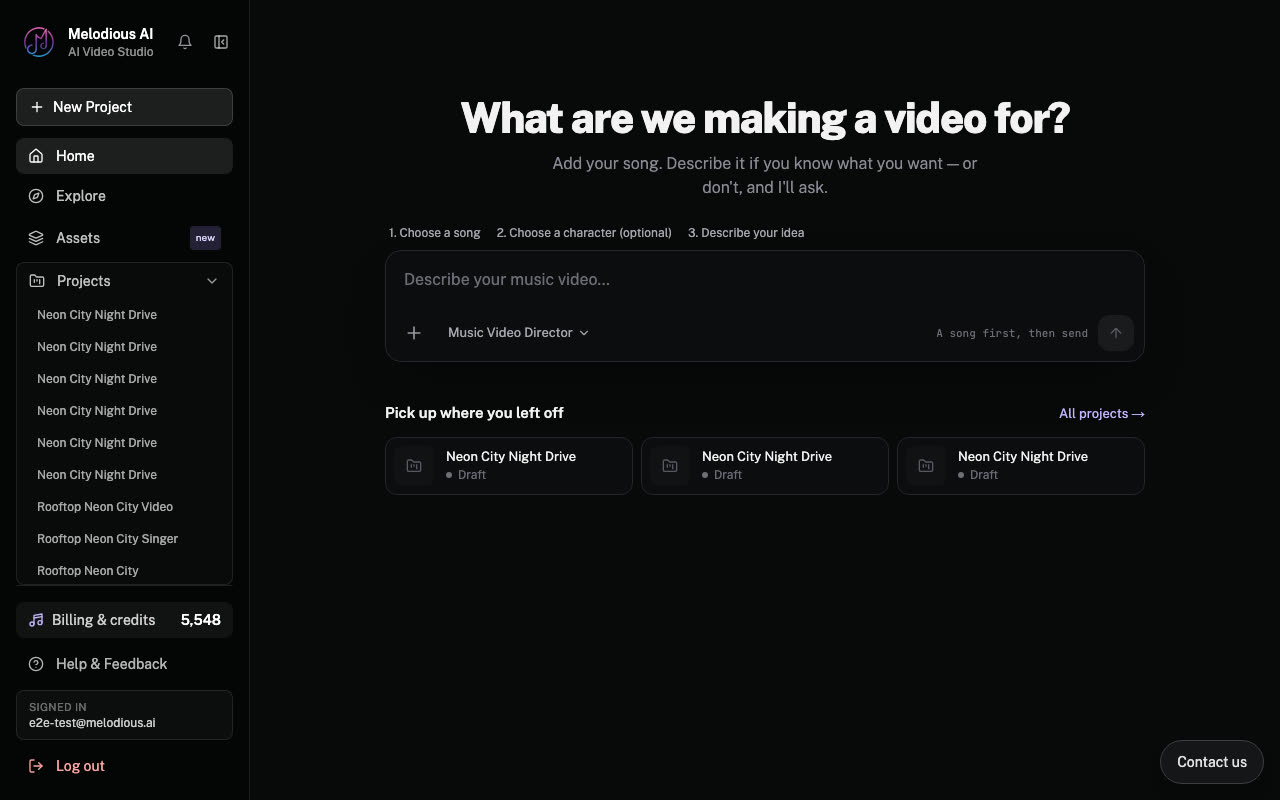
Open the studio and you see a box with a three-step hint above it: 1. Choose a song, 2. Choose a character (optional), 3. Describe your idea. The hint ticks off as you go, and the line beside the button says what comes next.
Press + and choose Upload a song. The chip shows a waveform and "Uploading your track", then fills in the length, the tempo and whether it found vocals, with the song's sections laid along the waveform.
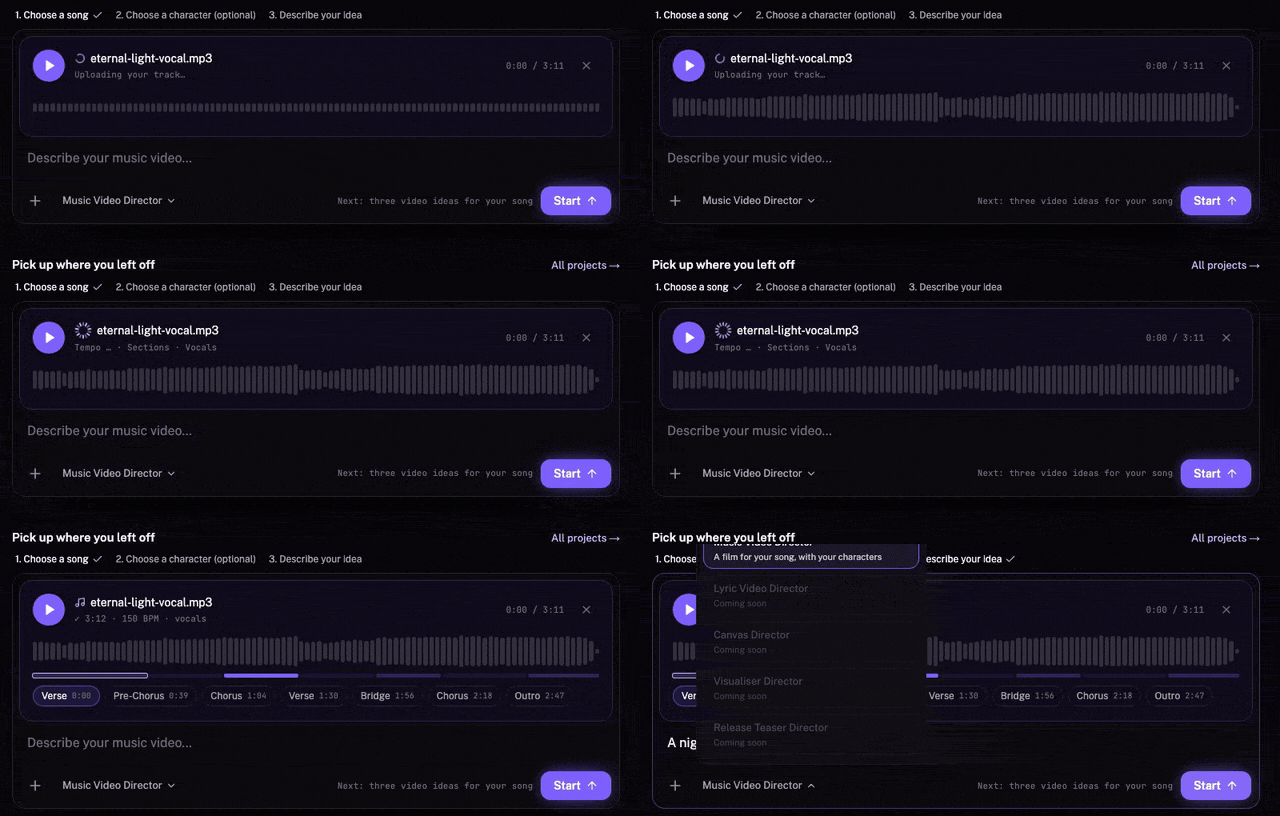
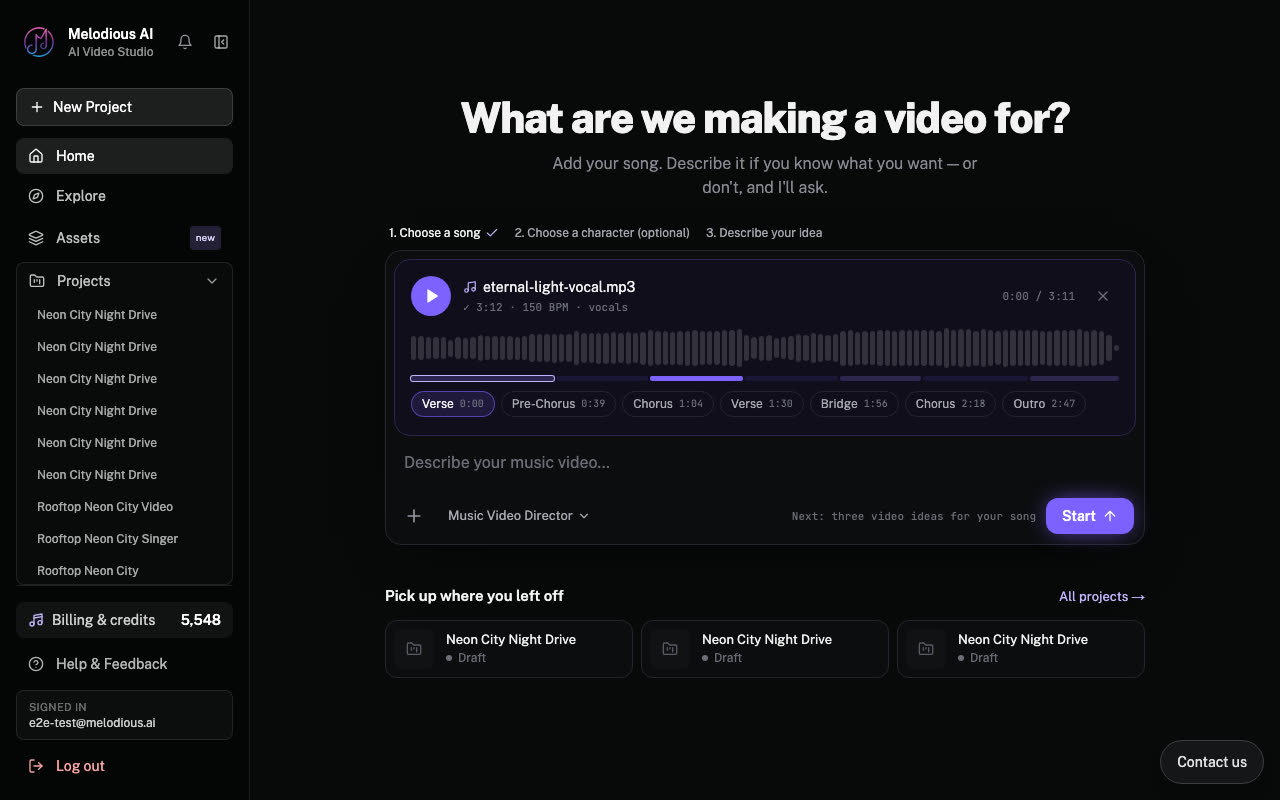
The reading is saved after upload. The tempo, sections, loudest moment, lyrics and who is singing are saved with the song as one asset. Use the same song in a second project and Melodious starts from what it already knows.
Step 2: the + menu and the director
The + menu has three items, the same on the start screen and inside the chat: Upload a song, Upload a photo of the singer and Choose from my assets.
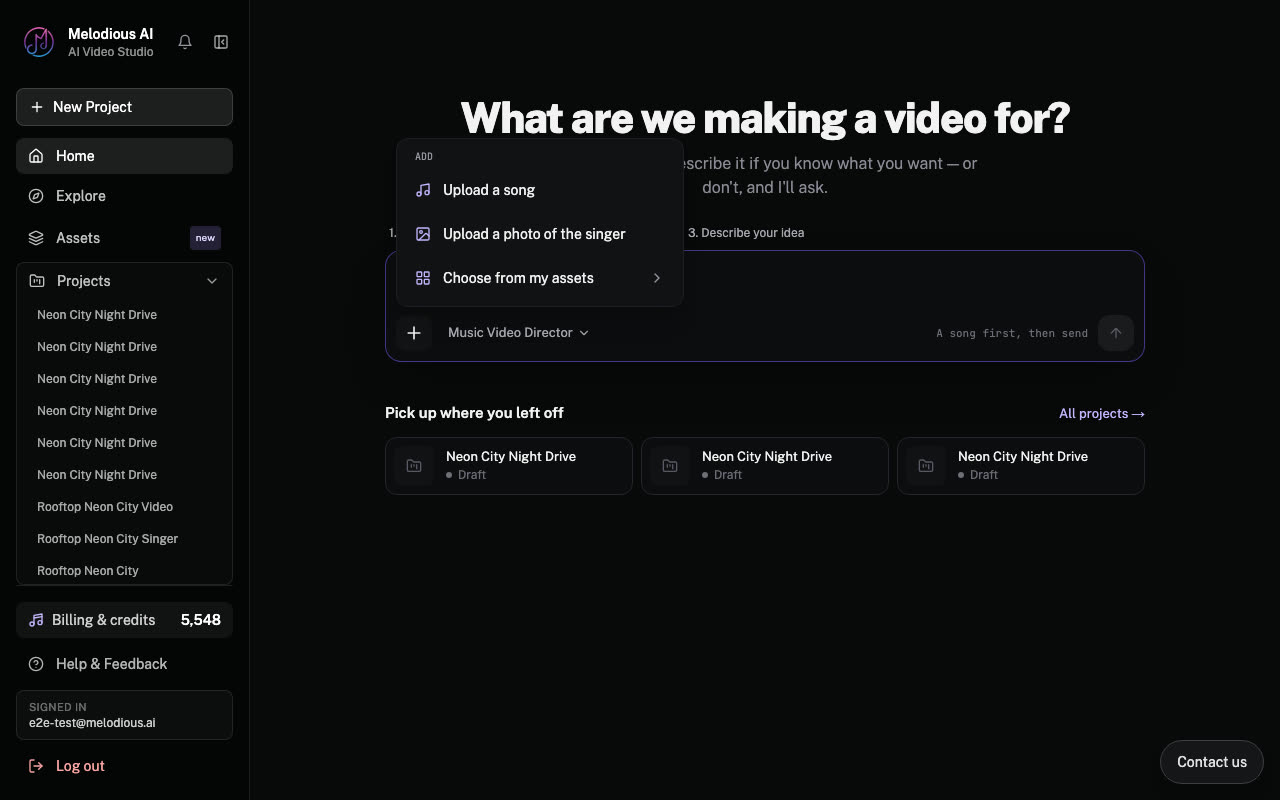
Beside it is the director, set to Music Video Director. If you add a photo of a real singer, Melodious asks for your permission to use the likeness first. Make a photo sing your song covers how a photo becomes a singer on screen.
Write a sentence about your idea, or leave it short and let the director ask. Press Start.
Step 3: the director listens, then asks numbered questions
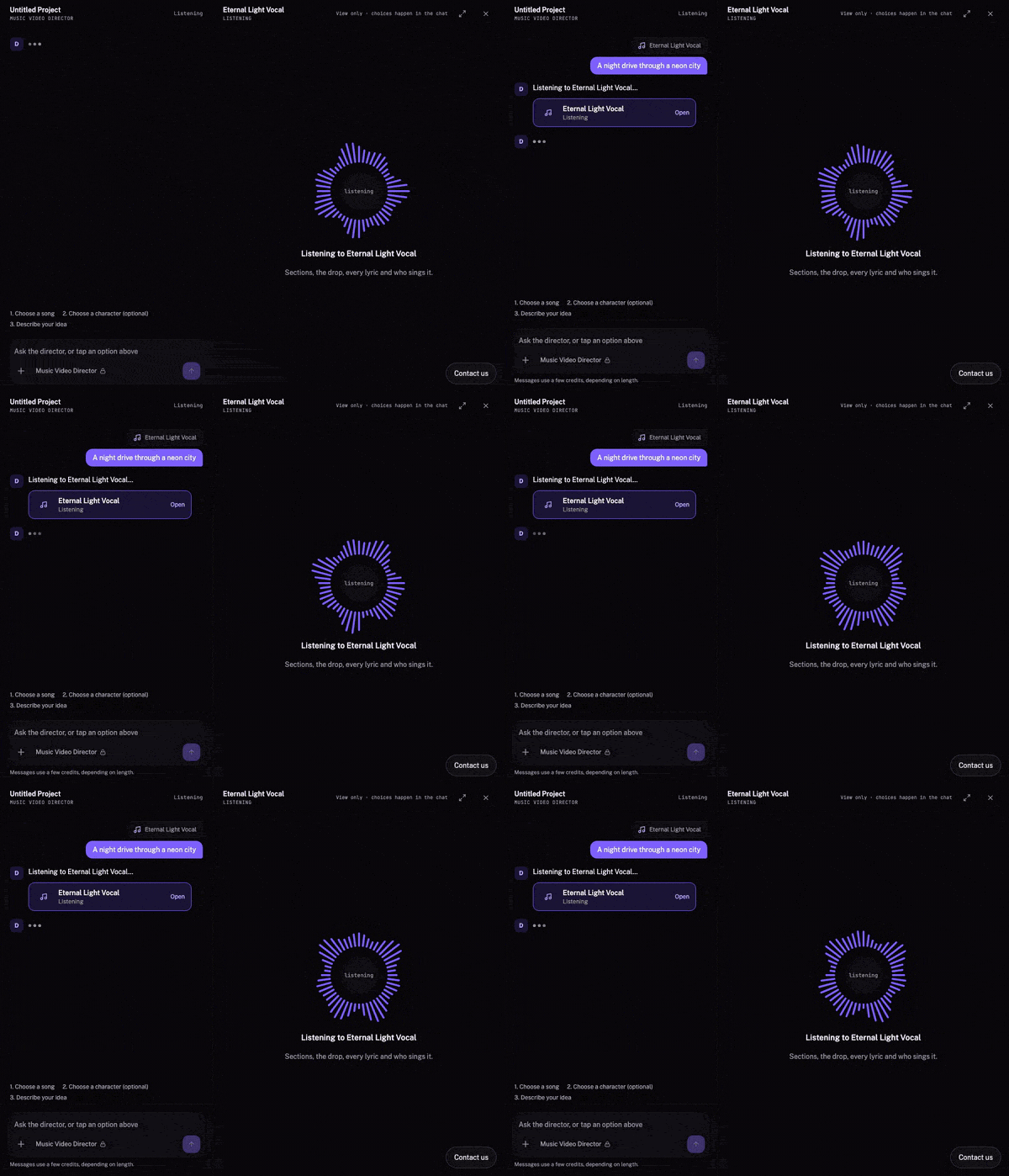
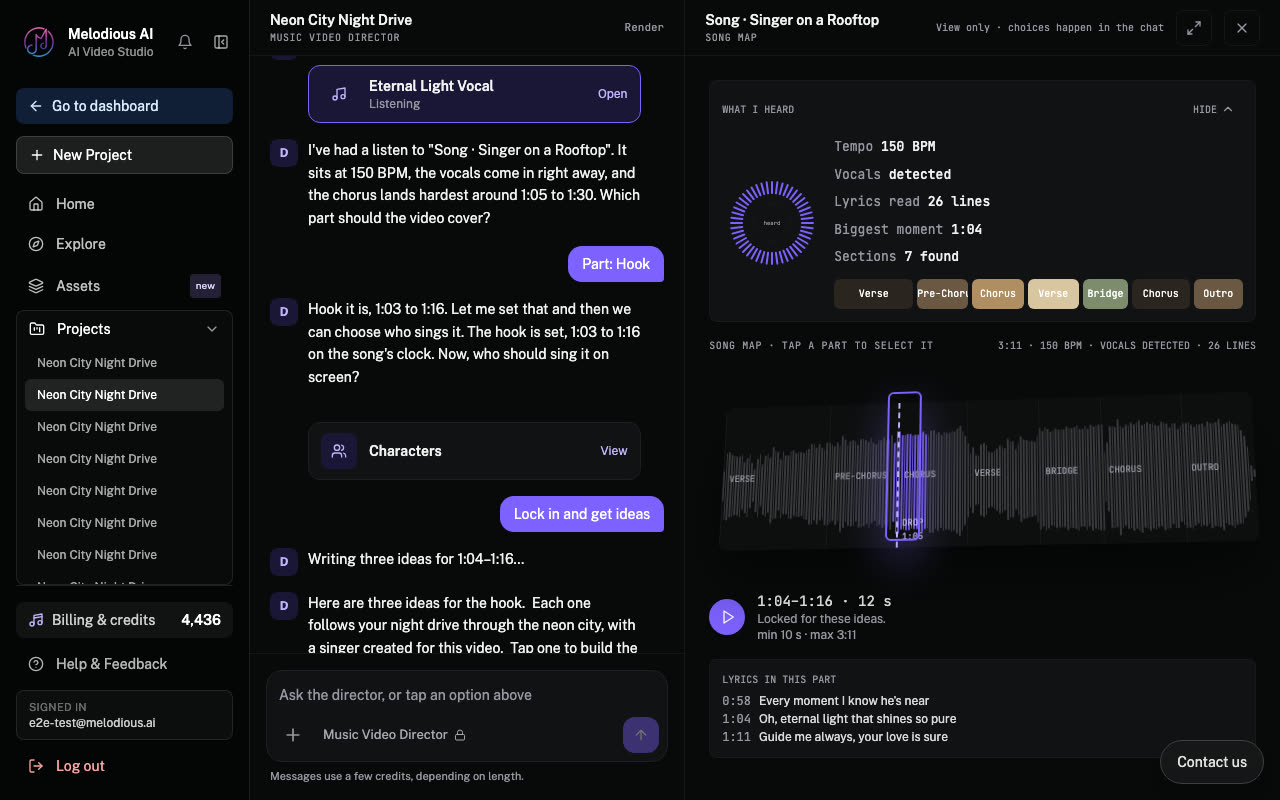
You land in the chat. The director says it is listening, and the panel beside it shows a ring of bars while it works through the sections, the drop, every lyric and who sings it.
When it has finished it says what it heard and asks its first question. Every question is a short card with numbered options you can tap, or you can answer in your own words. The first is which part of the song the video should cover: the hook, the chorus, verse plus chorus, the full song, or a part you write in.
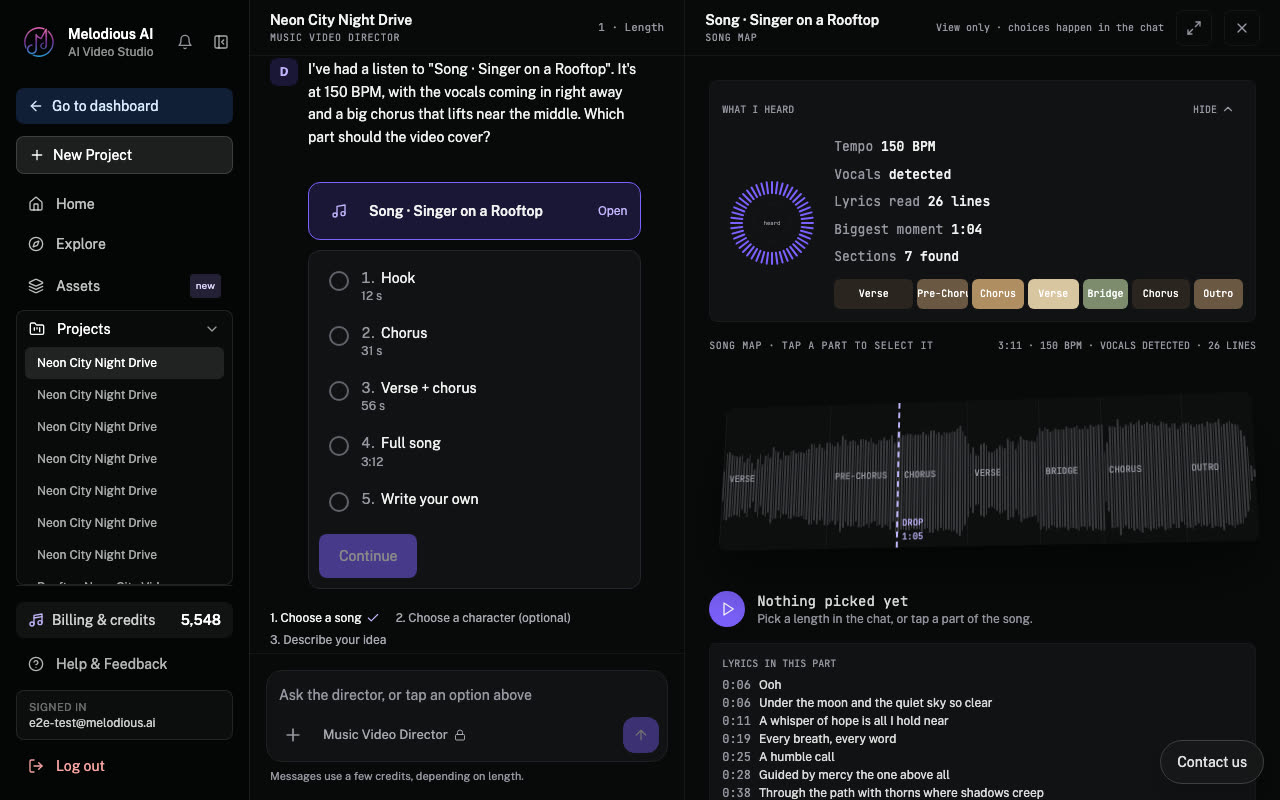
When the song has singing and you have not added a singer, the director also asks who should sing it on screen, and you can change the answer before it writes ideas.
Step 4: three ideas, a plan, a storyboard and the video
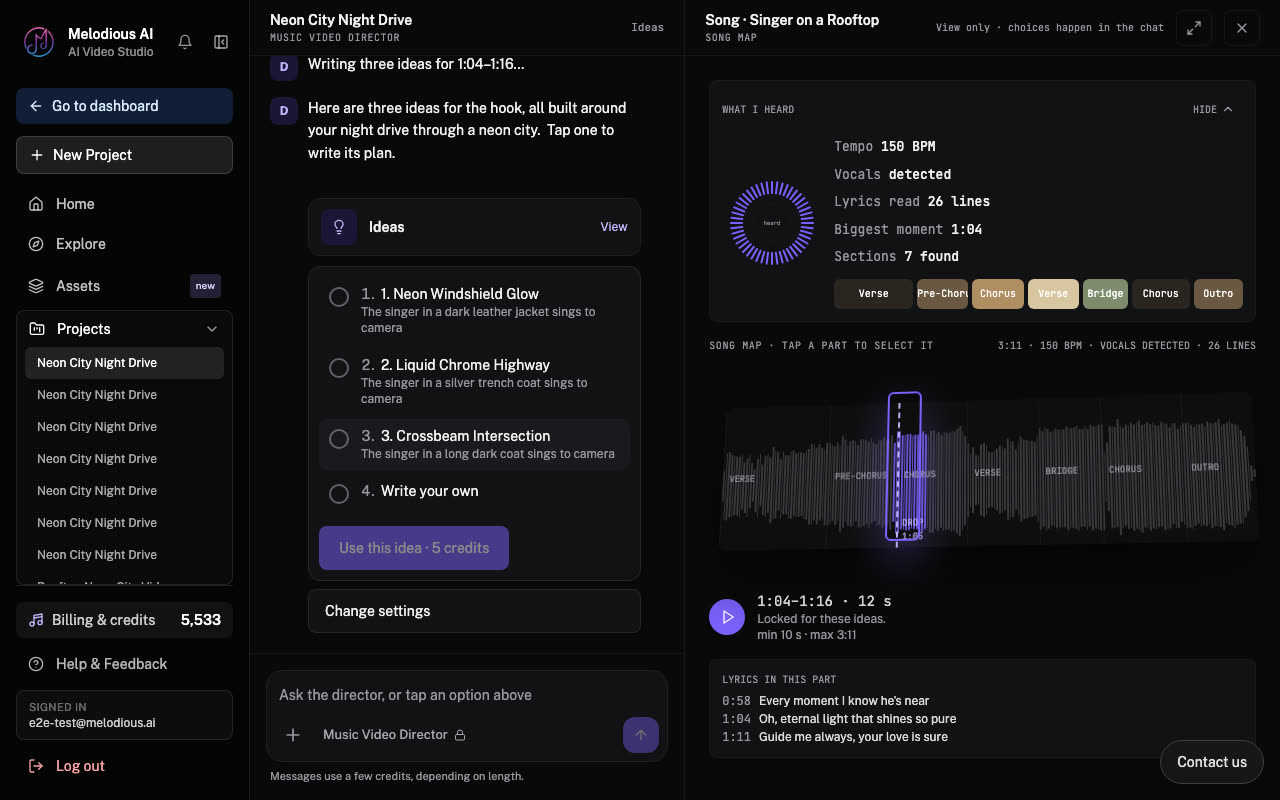
The director writes three ideas. Each says who sings it, in a line under its title.
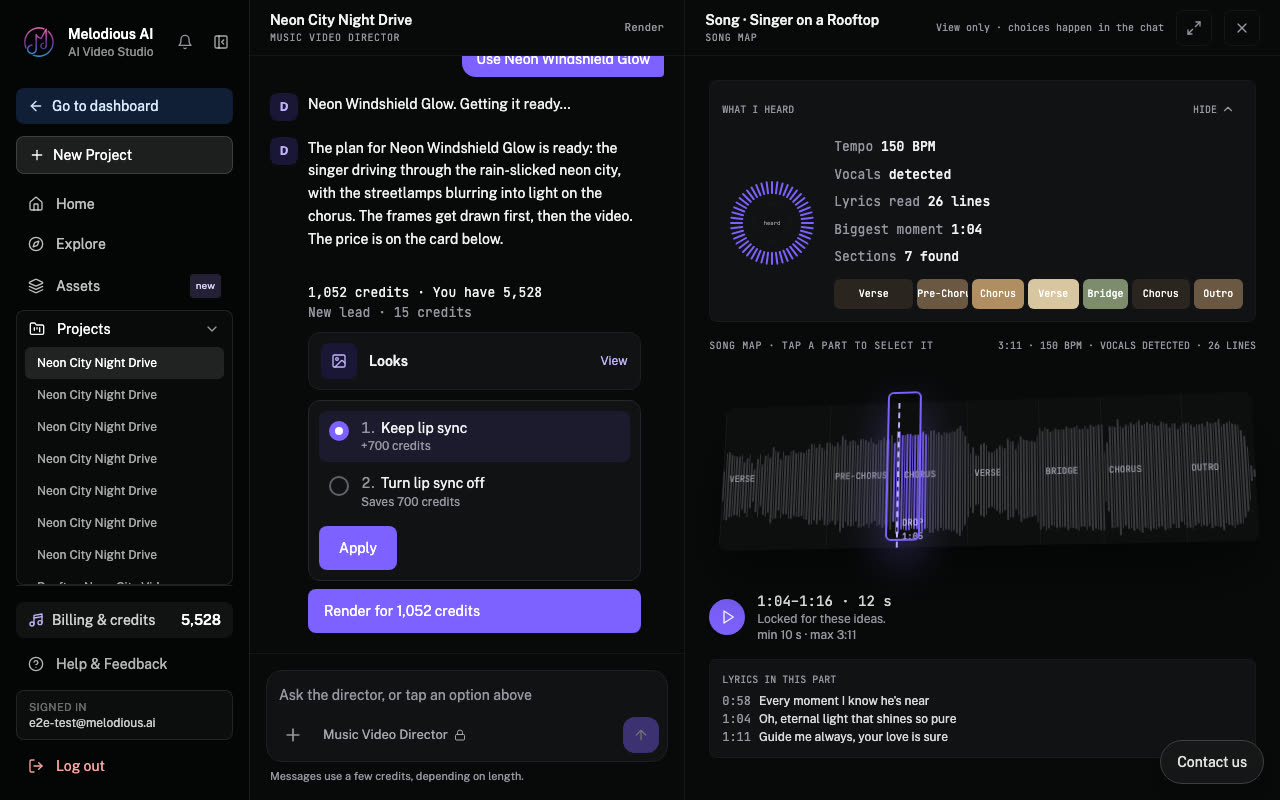
Pick one and the director writes the plan: a few sentences on how the video unfolds and the singer line, with the choice to keep or turn off lip sync. The plan can cover the hook, the chorus, a part you pick or the full song.
Next comes the storyboard, and this is where the paid steps start. Drawing the frames is one card. The button names the step and its price, for example "Draw the storyboard" with its credits, and nothing is spent until you tap it. After you tap, the card reads "Approved" with the credits spent. If you would rather change something, type it in the box under the card ("Tell me what to change...") and the director works it in first.
The director then tells you to look at the frames. The video is the next card, with its own price, and it only starts when you approve it.
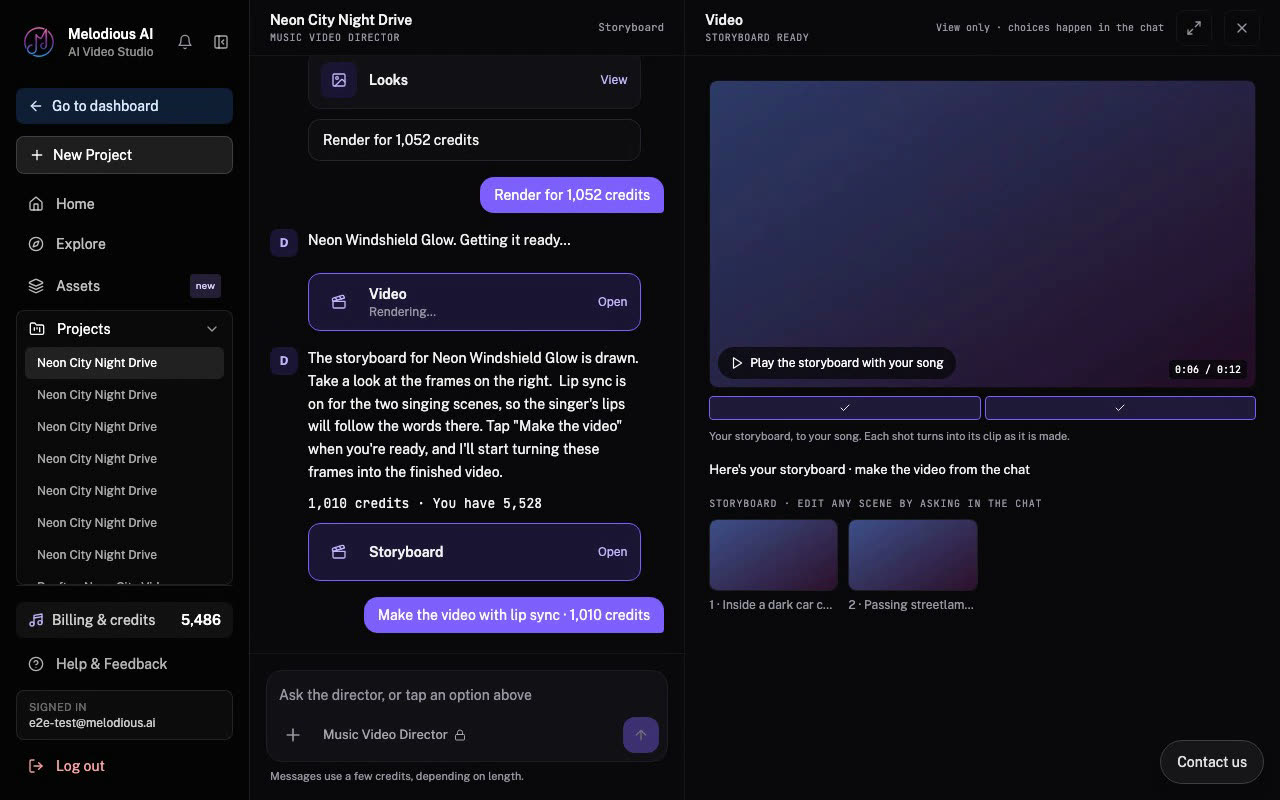
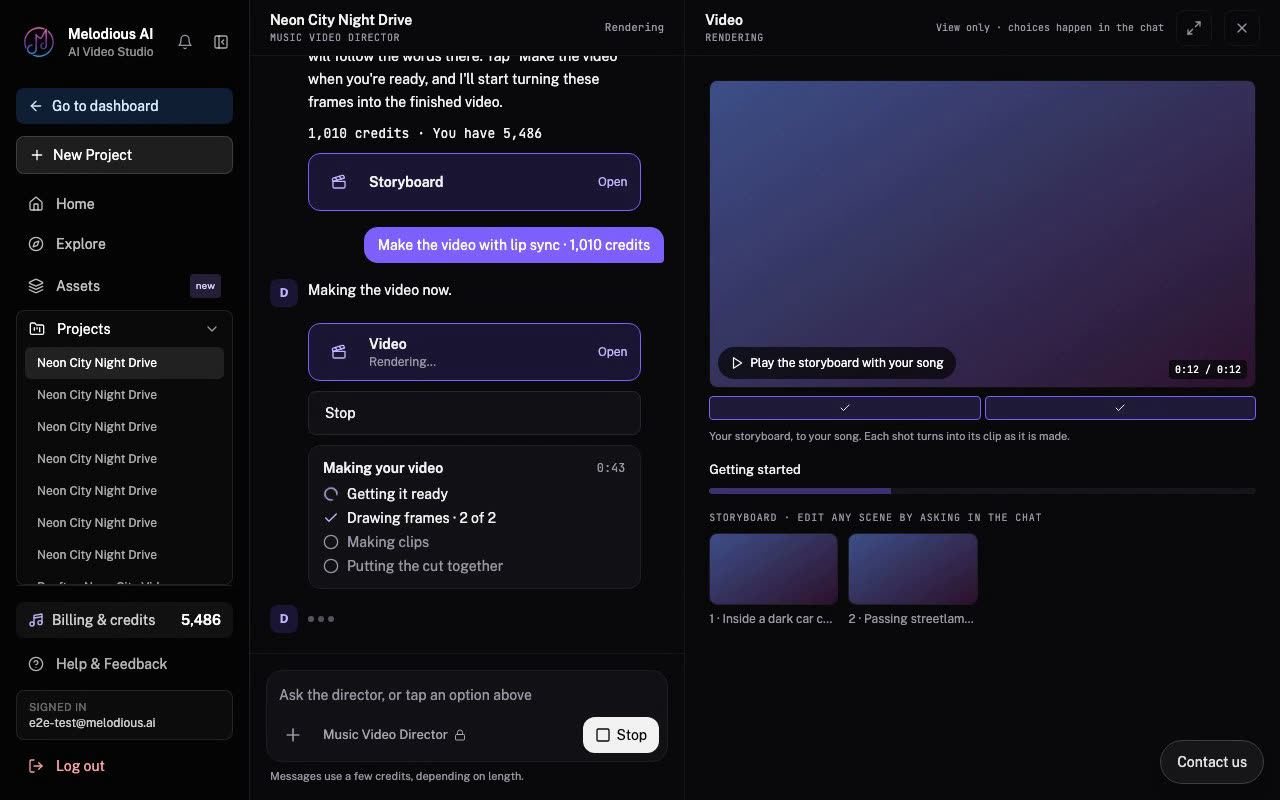
A progress card then walks through getting ready, drawing frames, making clips and putting the cut together.
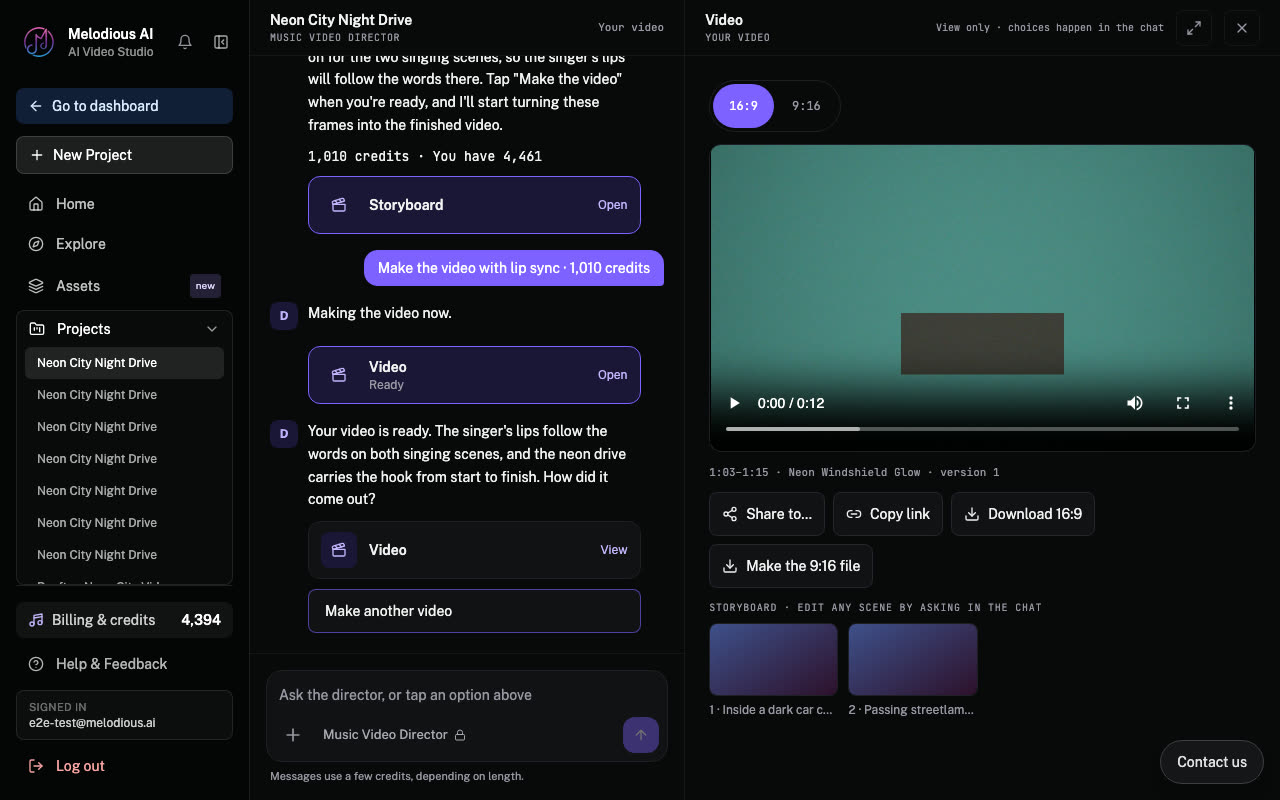
The finished video lands in the same chat, with the player, Share, Copy link, a 16:9 download and a button for the 9:16 file.
To see your frames before anything renders, read preview your music video before rendering. For saving and sharing, see download and share your music video.
Every paid step is a card with a price
This is the change we care about most. In the old studio you found out what a step cost on a separate screen. Now the price sits in the conversation, on the step it belongs to, next to the button that spends it.
- One card per paid step. Frames and video each get their own card with the quote.
- The button is the approval. It names the step and shows the price, and tapping it is the only thing that spends credits. Afterwards the card reads "Approved" with the credits spent.
- Or type a change. Type "make it a close-up at night" in the box under the card instead and the director works it in.
- Lip sync is part of the quote. If you keep it on, its cost is already in the number.
The quote depends on your length, resolution and singing shots, so we do not print one fixed price here. You see the real number before you decide.
Instrumentals, handled honestly
A song with no singing used to be the awkward case: a planner that expects lyrics will invent some, and a video model will then have someone mime to them.
The new reading checks for vocals in the audio itself, then looks for words on the vocal. If that evidence is not there, the song is treated as an instrumental: no lyrics are written for it, no singing shots are planned, and the plan says nobody sings. If the reading cannot tell, the director asks you once whether there is singing instead of guessing.
Your 50 starting credits
New accounts start with 50 credits that last 7 days. They cover video ideas, the written plan and messages to the director, so you can go from a song to a plan you like before you decide on anything else.
The storyboard and the video are not covered by them. Those steps need a plan, and the card shows the price first.
Try it
Open the studio, add a song and write one sentence. The director asks for the rest. To get more from the first sentence, read how to make a music video from one sentence, and for keeping one singer across every scene, reusable characters.
Try the director with your own song
Add a song and read three ideas. New accounts start with 50 credits for 7 days. The storyboard and the video need a plan, and the price comes first.
Open the studioFrequently asked questions
What is the chat-first director in Melodious?
It is the new way to make a video in Melodious v0.56.0. Instead of working through separate screens, you add a song and talk to the director. It listens to your song, asks numbered questions, offers three ideas, writes a plan, then shows a storyboard before the video is made.
How do the 50 starting credits work?
New accounts start with 50 credits that last 7 days. You can spend them on video ideas, the written plan and messages to the director. The storyboard and the video are not covered by them and need a subscription.
When am I charged for a step?
Only when you tap the card. Each paid step shows up in the chat as one card with its price on the button, such as Draw the storyboard with its credits. You can also type a change in the box under the card instead of approving it, and the director works that change in before you decide.
Does the video lip sync to my song?
Lip sync is available when your song has a singer. The plan says who sings and lets you keep or turn off lip sync, and the quote includes it, so the price you see is the price of that choice.
What happens if my song has no vocals?
The director plans it as an instrumental. It does not invent lyrics and it does not plan singing shots, so the video is built around the music and the story.
Can I use a photo of a real singer?
Yes. Choose Upload a photo of the singer in the + menu, or pick a saved character from Choose from my assets. Melodious asks for your permission to use the likeness before the photo is used.