How to Make an AI Music Video (From a Song): A Step-by-Step Guide
To make a music video with AI from a song, start by uploading the track so the tool can analyze its tempo, sections, and lyrics once. Then pick a director style to set the visual lens, and describe your vision in plain language. The AI plans a storyboard shot by shot against the real song structure. Review and adjust the shots, save any recurring character as a reusable asset so the same face holds across every scene, then generate: each shot becomes a keyframe image, then an animated clip, then the clips are stitched together and synced to your audio into one finished video you can download. The whole loop runs from a single chat — no camera, editor, or crew.
Your first 30-second storyboard is free. Plans from $19/month.
What does it take to make a music video with AI?
The short answer: To make a music video with AI from a song, start by uploading the track so the tool can analyze its tempo, sections, and lyrics once. Then pick a director style to set the visual lens, and describe your vision in plain language. The AI plans a storyboard shot by shot against the real song structure. Review and adjust the shots, save any recurring character as a reusable asset so the same face holds across every scene, then generate: each shot becomes a keyframe image, then an animated clip, then the clips are stitched together and synced to your audio into one finished video you can download. The whole loop runs from a single chat — no camera, editor, or crew.
A traditional music video means a location, a camera, lighting, a performer, and days in an editor. The AI version collapses all of that into a conversation: you bring a song and a vision, and the model handles the shot planning, the imagery, the motion, and the final cut. The rest of this guide walks the whole pipeline step by step — what each stage does, where you make the creative calls, and the mistakes that quietly ruin a first attempt.
Step 1: How do you choose and upload a song?
Everything starts with the audio, because the song is the timeline. (A song made with Suno goes in the same way; here is the route from Suno to a finished video.) When you upload a track, the tool analyzes it once — pulling out the tempo, the section structure (intro, verse, chorus, bridge), and the lyrics with their timings. That analysis is what lets the storyboard line up visual beats with the real song instead of a generic clock.
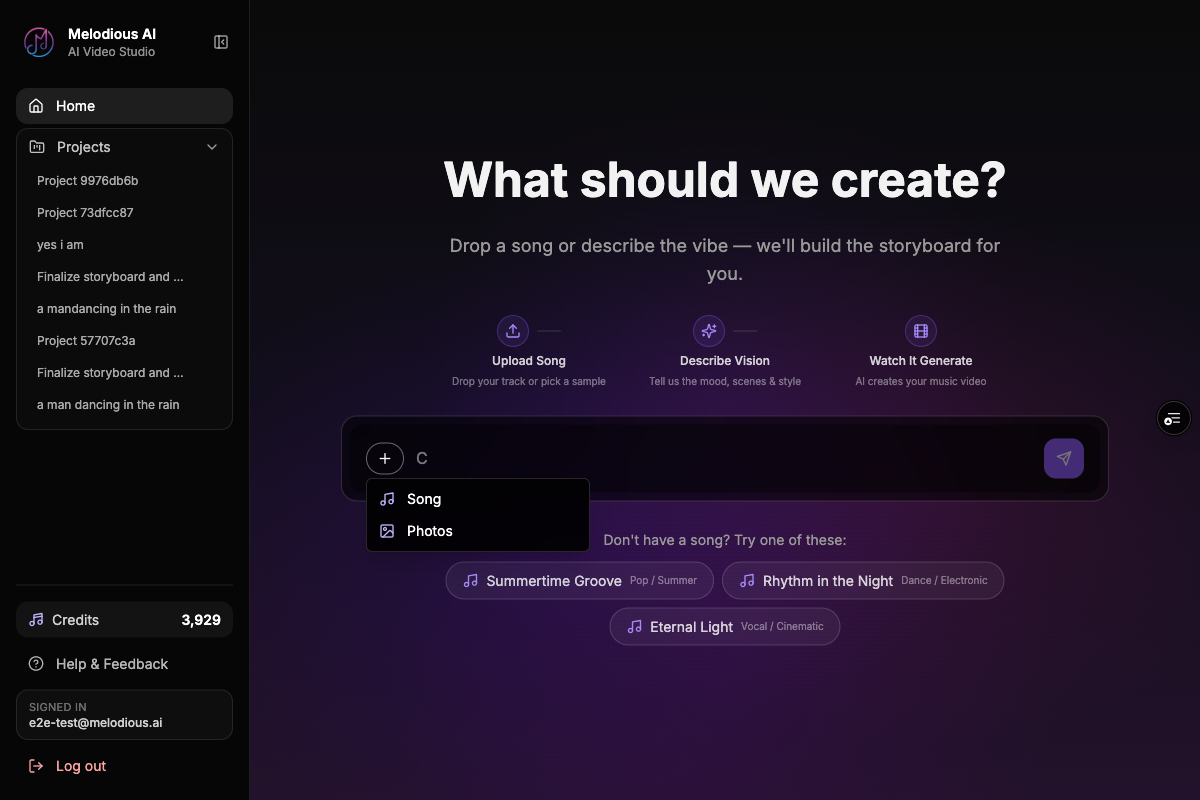
The important detail: in Melodious a song is analyzed once on first use, and the analysis is stored on the song itself. Every later reuse loads instantly — no sitting through an "analyzing audio" wait on every new project. A song is treated like a parsed document: parse it a single time, reference the parsed bundle forever after.
You don't even need your own track to start. Every account is seeded with three free demo songs, so you can run the entire flow — director style, storyboard, characters, generation — before you upload anything. If you're just testing whether AI music video generation fits your workflow, start with a demo song and skip the upload entirely — and when you're ready, you can make a video from your own track or make one without filming anything.
Step 2: How do you set the creative direction?
This is the step most people skip, and it's the one that decides whether your video looks intentional or generic. Before your first message, you pick a director style from the composer's + menu — the same "styles" pattern you've seen in ChatGPT or Claude. It sets the visual lens for the entire project.
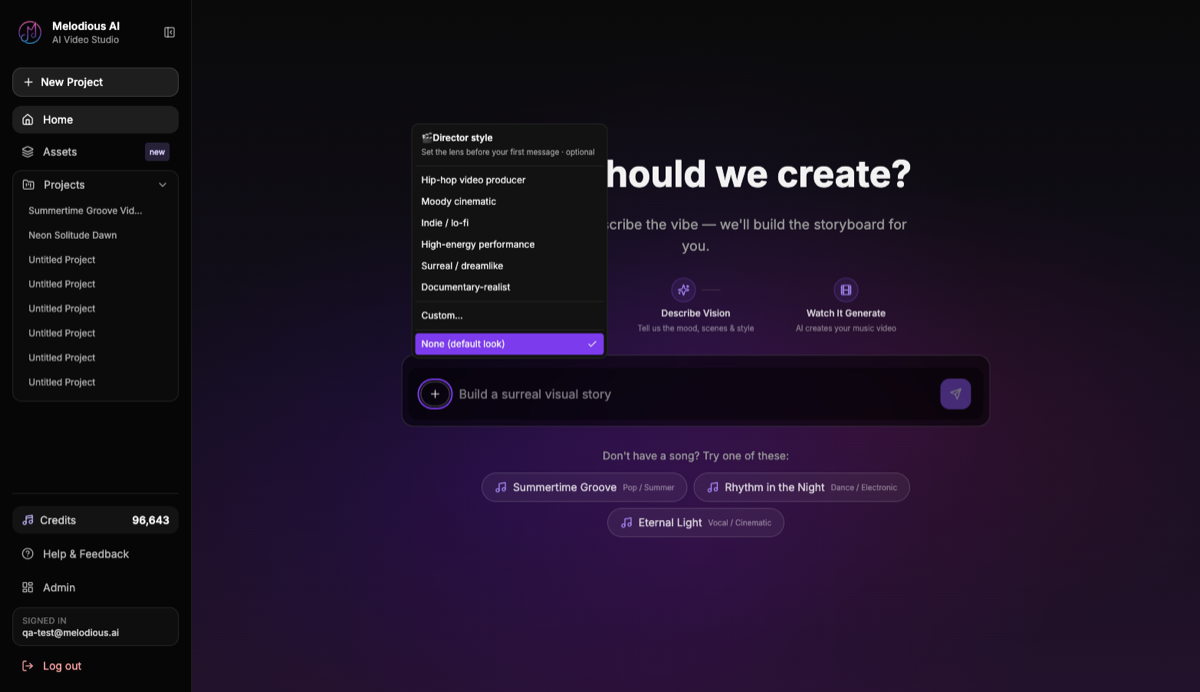
Melodious ships six preset director styles, plus a custom option:
| Director style | The look it steers toward |
|---|---|
| Cinematic | Filmic framing, dramatic lighting, wide establishing shots |
| Hip-hop | High-energy, performance-forward, bold urban settings |
| Indie | Warm, lo-fi, intimate and handheld |
| Performance | The artist front-and-centre, stage-and-spotlight focus |
| Surreal | Dreamlike, impossible spaces, unexpected transitions |
| Documentary | Grounded, observational, real-world texture |
The reason this matters: the same song produces a visibly different storyboard under a different style. Pick "cinematic" and you get sweeping, filmic shots; pick "hip-hop" and the same track gets high-energy performance framing. (If "cinematic" is the look you're after, these six choices are what actually produce it — worth reading before you write your brief.) You can also write a short custom brief if none of the presets fit. Set this before you start describing your vision so your very first turn is already steered in the right direction — changing it later means regenerating shots to apply it.
Step 3: How do you describe your vision to the AI?
Once the style is set, you describe what you want in plain language — the same way you'd brief a human director. "A late-night city video, neon reflections, a lone singer walking through empty streets." You don't write shot lists or technical prompts; you describe the feeling and the story — if you're short on a concept, these AI music video ideas are a good place to start — and the AI translates that into concrete shots.
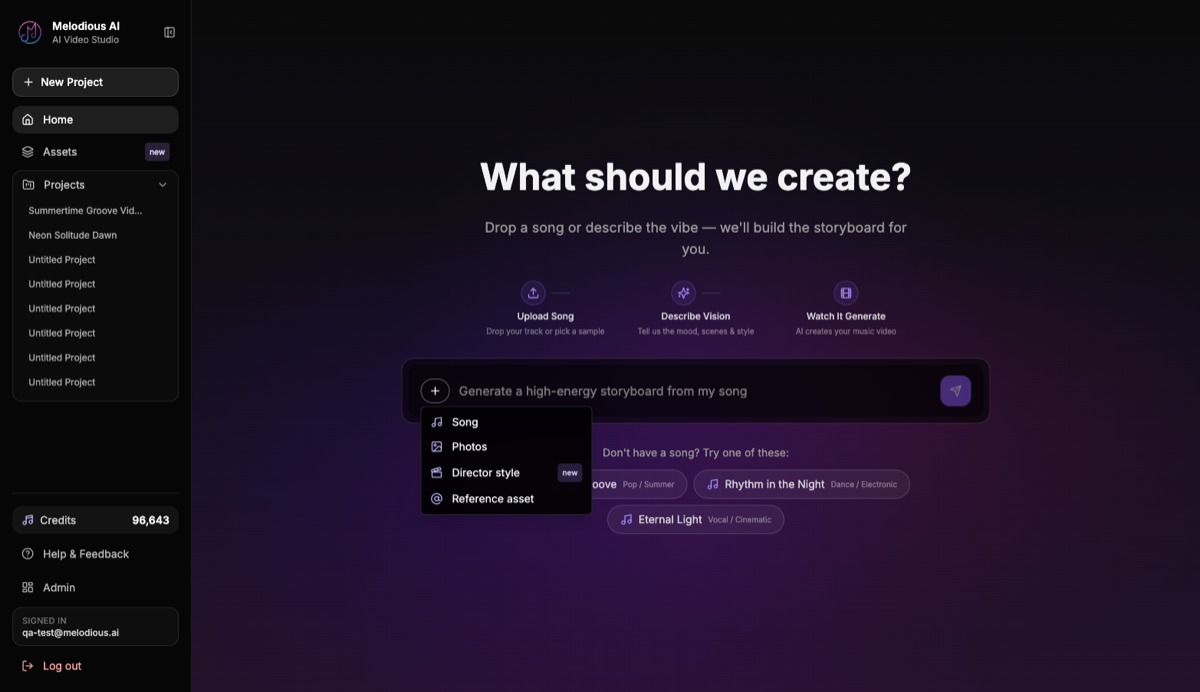
This is a conversation, not a one-shot prompt (and one sentence plus a song is enough to start). You can refine across turns: ask for a different mood, add a location, change the time of day. The model holds the context of your song's structure and your director style the whole way, so each adjustment lands against the real song instead of resetting.
One creative decision belongs here, before the storyboard: who or what is the recurring subject? If your video features a singer, a band, or a character who should appear in multiple scenes, that's your cue to set up character consistency — which is the single hardest problem in AI video, and the next step.
Step 4: How do you keep characters consistent across scenes?
Here's the trap that ruins most AI music videos: one-shot text-to-video tools generate each scene independently, so the singer in your first verse becomes a different person by the chorus. For a music video — where the artist usually is the subject — that's a dealbreaker.
The fix isn't a better prompt. It's giving the model a reference image it conditions on for every keyframe. In Melodious, you save a reusable AI character once — a reference image (your own photo works) plus a short brief like "auburn curls, olive bomber jacket, gold hoop earrings" — and then drop it into any scene with an @mention. The saved image is fed into the keyframe generator as a conditioning input, so the same face is anchored across every shot instead of guessed from scratch.
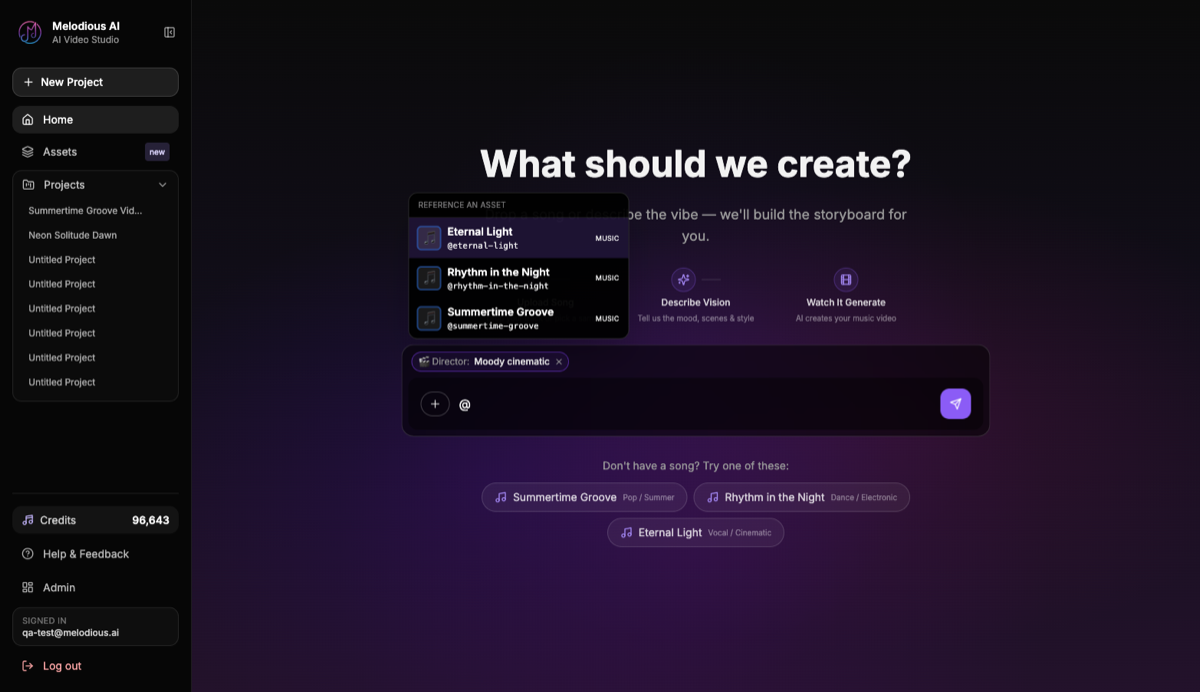
Because the character lives in your asset library, you reuse it across projects, not just scenes — build a recurring artist persona once and bring it to every release. This is deep enough to deserve its own walkthrough: see Reusable AI Characters for Music Videos for how many reference images you actually need, what to write in a character brief, and why references beat prompts for holding identity.
Step 5: How does the AI build the storyboard?
With your song, style, vision, and characters in place, the AI plans a storyboard — the shot-by-shot blueprint of the video. Each shot gets a description, a keyframe prompt, and a place on the timeline that maps to the real song structure. The chorus gets chorus shots; the bridge gets a visual shift. Nothing is generated yet — this is the cheap, reviewable stage where you make changes before spending on rendering. What the planner is doing inside that step — song analysis through to a finished shot list — is worth knowing if you want to steer it rather than accept what it hands you.
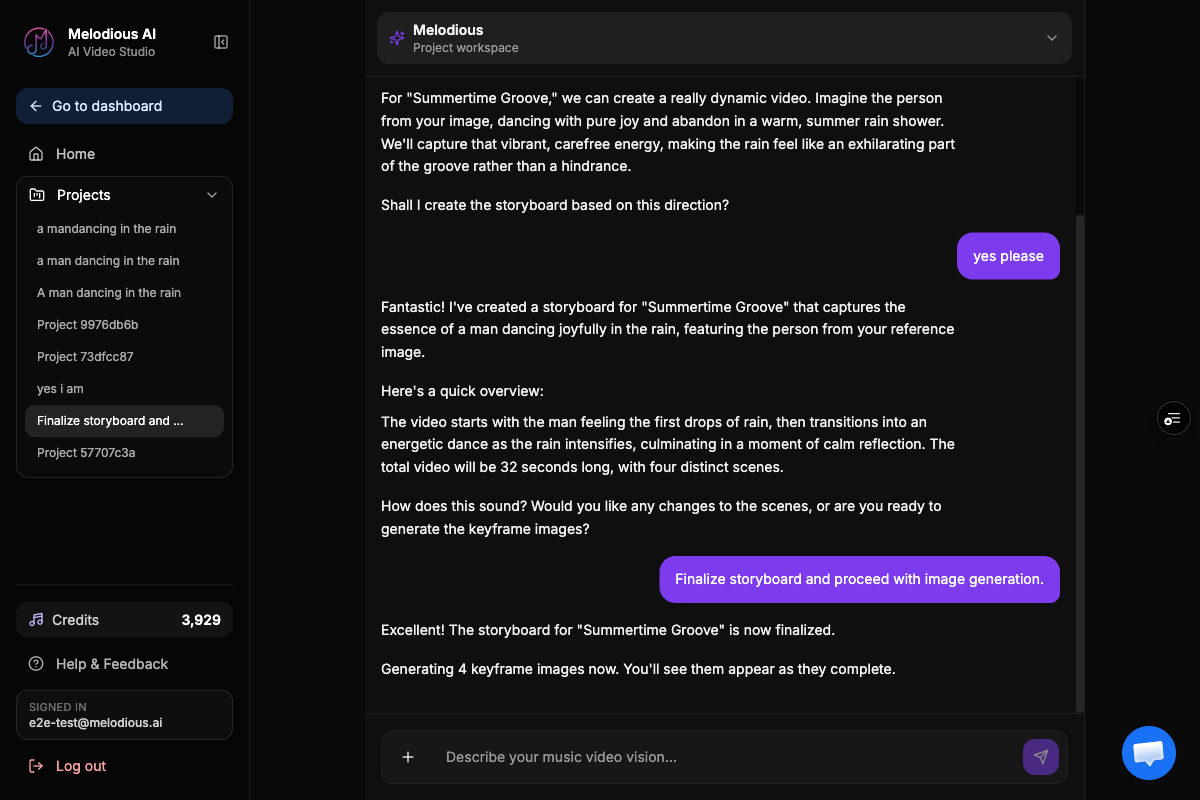
Review the shots like a director reviewing a shot list; what you can change on each shot, and what stays free, is written up separately. You can modify individual shots, ask for a different setting, or regenerate. This is where you catch problems early — a scene that doesn't fit, a missing character @mention, a transition that's wrong. Because regenerating the storyboard only re-plans (and re-keyframes), it's cheap: you're not re-rendering video every time you tweak an idea. Get the storyboard right here, before you generate, and the expensive stage goes smoothly.
Step 6: How do you generate the video?
Once you approve the storyboard, you hit generate and the pipeline runs each shot through three stages:
- Keyframe — each shot becomes a still image. If the shot references a saved character, the keyframe generator conditions on that reference image so the face is preserved; otherwise it generates the still from the shot's prompt.
- Clip — each keyframe is animated into a short video clip that matches the shot's motion and mood.
- Stitch and sync — every clip is concatenated in order, and your original audio is muxed onto the cut, producing one finished video synced to the song.
You don't touch an editor. There's no timeline to align, no manual audio sync, no export-from-a-video-app step. The finished video appears in your workspace as a player, and you can export it at the right size for each platform — 16:9 for YouTube, 9:16 for TikTok and Reels. And because generated keyframes, clips, and final videos all auto-save to your library, nothing is lost between sessions — if you close the tab mid-render, the work is still there on reload. That's the difference between a one-off generation and a production workflow you can run every release.
What are the most common mistakes when making an AI music video?
| Mistake | What happens | Do instead |
|---|---|---|
| Skipping the director style | Generic, style-less shots | Pick a style before your first message |
| Relying on prompts for character consistency | A new face every scene | Save a character asset and @mention it |
| Generating before reviewing the storyboard | Expensive re-renders to fix ideas | Fix shots at the cheap storyboard stage |
| Re-uploading the same song each project | Repeated "analyzing audio" waits | Reuse the saved song — it's analyzed once |
| Writing a vague character brief | The look drifts across scenes | Lead with concrete features (hair, face, wardrobe) |
| Naming a real artist for a look | Trademark and brand-safety risk | Describe the aesthetic with concrete features |
The thread running through every one of these: make your decisions at the cheap stages. Style, vision, characters, and storyboard are all reviewable and nearly free to change. Generation is the expensive part. The people who get great results front-load the creative calls and treat the storyboard as the real edit — by the time they generate, they're confirming a plan, not gambling on a prompt.
Music video with AI vs. the traditional way
| Traditional music video | AI music video | |
|---|---|---|
| What you need | Camera, crew, location, performer, editor | A song and a vision |
| Time to a first cut | Days to weeks | One session |
| Changing a scene | Reshoot or re-edit | Regenerate at the storyboard stage |
| Character across scenes | Same human, naturally | A saved reusable character, conditioned each shot |
| Cost per iteration | High (people and time) | Cheap until the generate step |
This isn't a replacement for a full production with a budget and a vision that demands real cameras. But for an independent artist shipping a single, a creator working on a tight budget, or anyone who'd otherwise have no music video at all, the AI path turns an impossible project into an afternoon — at a fraction of a traditional shoot's cost. The leverage is in iteration: you can try five director styles on the same song and see five different videos before committing to one.
What's the full workflow, start to finish?
Here's the whole loop in order, the way you'd actually run it:
- Upload a song (or pick a free demo song) — it's analyzed once and reused instantly forever after.
- Pick a director style from the
+menu so the whole storyboard shares one visual lens. - Describe your vision in plain language — the mood, the story, the setting.
- Save any recurring character as a reusable asset and
@mentionit so the same face holds across scenes. - Generate and review the storyboard — fix shots here, at the cheap stage, before rendering.
- Generate the video — keyframes become clips, clips are stitched and synced to your audio.
- Download the finished video from your workspace — and reuse the same song and character on your next single with zero setup repeated.
That last point is the real unlock. Three weeks later, when the follow-up track drops, your character is already in your library and an already-analyzed song loads instantly. The first video is the slow one; every video after that is fast, because the song bundle and your characters carry over.
Turn your first song into a finished AI music video from $19/month — pick a director style, describe your vision, and watch a song become a finished video without a camera or an editor. Three demo songs are included if you'd rather not upload your own track yet.
Frequently asked questions
How do I make a music video with AI from my own song?
Upload your song so it's analyzed once for tempo, sections, and lyrics, pick a director style, then describe your vision in chat. The AI builds a storyboard against the real song structure, you review the shots, then generate — each shot becomes a keyframe, then a clip, then everything is stitched and synced to your audio.
Do I need video editing skills to make an AI music video?
No. The storyboard, keyframe generation, clip animation, stitching, and audio sync are all handled for you. You direct in plain language and review the shots; you don't touch a timeline or an editor.
Can the same character appear in every scene of an AI music video?
Yes. Save the character once as a reusable asset — a reference image plus a short brief — then reference it with an @mention in every scene. The saved image conditions each keyframe, so the same face holds across shots instead of a new person every time.
What is a director style and why does it matter?
A director style is a creative lens — like cinematic, hip-hop, indie, performance, surreal, or documentary — that you pick before your first message. It threads through the storyboard and every shot, so the same song produces a visibly different video depending on the style you choose.
Can I try making an AI music video for free?
Yes. Every Melodious account is seeded with three free demo songs, so you can run the whole flow — director style, storyboard, characters, generation — without uploading anything first.
How long does a song stay 'analyzed'?
Permanently. A song is analyzed once on first use and the analysis is stored on the song, so every later reuse loads instantly with no waiting through audio analysis again.
Make your next music video in Melodious
Attach your song and an AI director builds the storyboard scene by scene — with characters that stay consistent the whole way through. Your first 30-second storyboard is free; plans to render start at $19/month, cancel anytime.
Start your video