Melodious v0.60.0 — say your idea and get a video cut on the beat
Melodious v0.60.0 makes the first video easier to start and better to watch. Your song, plan and storyboard now live in one Storyboard card that grows into the finished video, with one play button and scenes that light up as the song plays. The Song map shows beats and scene changes. A microphone takes your idea, new videos of 45 seconds or more are cut on the song's biggest hits, and lip sync stays on the words for the whole video, checked before delivery. On paid plans, chatting with the director no longer uses credits, up to a daily limit.
Plans from $29/month, cancel anytime. Starter makes a 30-second video with lip sync a month.
What changed in v0.60.0
The short answer: Melodious v0.60.0 makes the first video easier to start and better to watch. Your song, plan and storyboard now live in one Storyboard card that grows into the finished video, with one play button and scenes that light up as the song plays. The Song map shows beats and scene changes. A microphone takes your idea, new videos of 45 seconds or more are cut on the song's biggest hits, and lip sync stays on the words for the whole video, checked before delivery. On paid plans, chatting with the director no longer uses credits, up to a daily limit.
Melodious is an AI music video maker: you bring a song, a director plans it with you, and it draws and cuts the video. The chat-first director in v0.56.0 made that a conversation. This release works on three parts of it: the first minute on the dashboard, one card that holds your whole project, and the way the finished video is cut.
| What | What it does in v0.60.0 |
|---|---|
| Storyboard card | Song, plan, what Melodious heard and every scene in one card that grows into the finished video; one play button, scenes light up as it plays |
| Song map | Beat ticks and scene-change lines, zoom from your part to the whole song |
| Starting | "Starting your video…" shows the moment you tap Make the video |
| Chat | On paid plans, questions, project checks and problem-solving use no credits, up to a daily limit |
| Dashboard | A 3D song ring, a mic beside Start, a first-video checklist |
| Cutting | Videos of 45 s or more are cut on the beat from longer takes, on the song's biggest hits; clips up to 15 s on Gemini Omni 1.2 |
| Lip sync | Timed to the sung words, lead voice only, mouths closed between lines, on the words for the whole video and checked before delivery |
| Backup video model | A scene refused because its face was mistaken for a famous person is made on a backup model, same picture, same credits |
| Storyboard plan | The treatment and each scene's frame description on the storyboard before anything is drawn; edit scenes, or rewrite the plan from a note |
| Ideas and singer | Each idea invents its own look; type who sings, even "a frog"; a photo in the chat is the singer at once |
| Plan cards | Exact video length with and without lip sync, one Choose a plan button |
| Tempo | BPM no longer reads some songs a third too fast |
One Storyboard card, from plan to video
Your project used to spread over several panels. Now there is one Storyboard card. Your song, the plan, What I heard and every scene sit in the same card, and it grows as you go: first the plan, then the drawn storyboard, then the finished video at the bottom. Nothing moves to a new place when the next step lands.
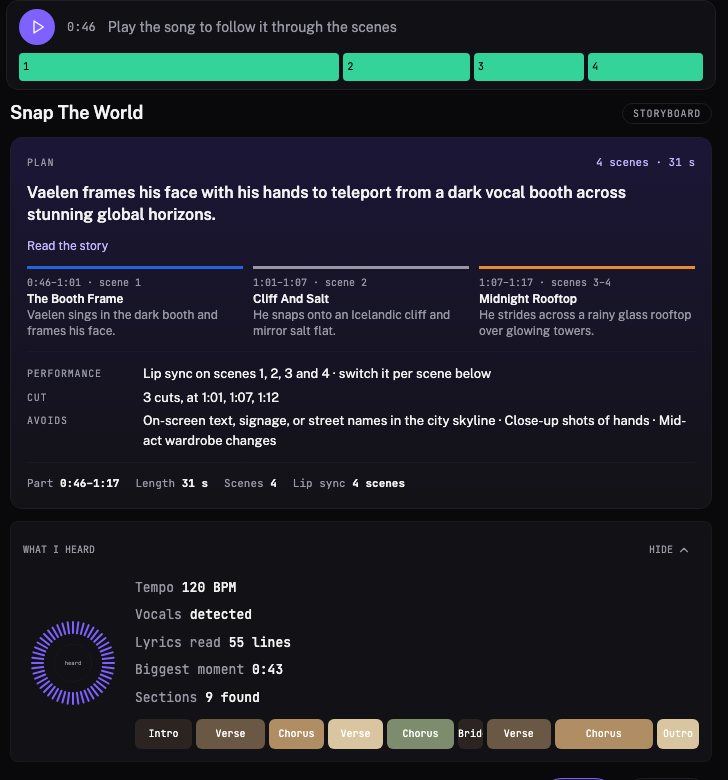
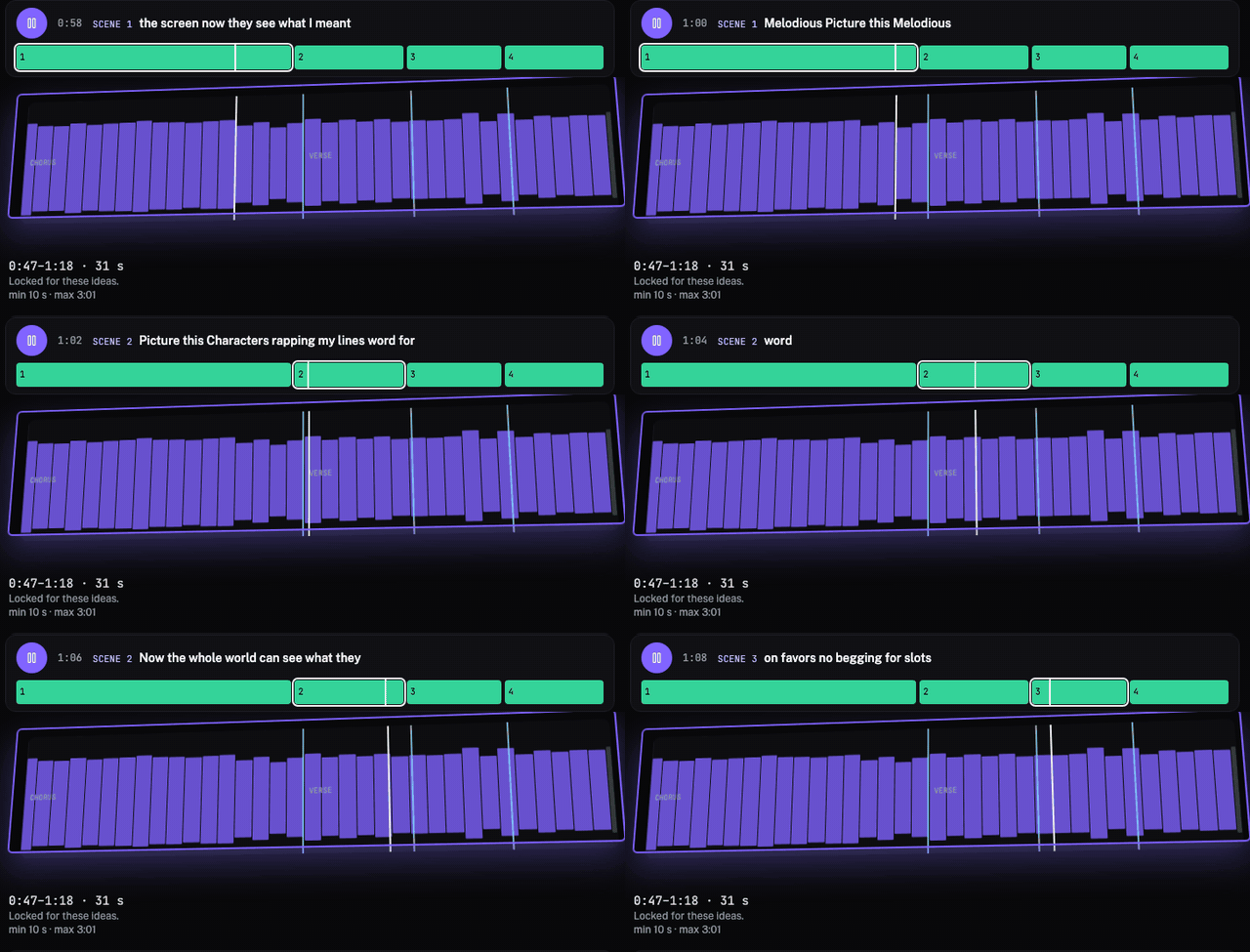
There is one play button, at the top. Press it and your song plays. The scene that is playing lights up in the song bar, the line being sung shows beside the time, and the playhead moves across the Song map below.
When you tap Make the video, the card now says Starting your video… straight away, instead of sitting still for a few seconds before anything happens.
The beats on your Song map
The Song map shows more of what the edit is doing. A line marks each place the scene changes, and for a song analysed in v0.60.0 small ticks mark the beats that land hardest. It opens zoomed on your part of the song, and Whole song zooms out to show where that part sits in the track.
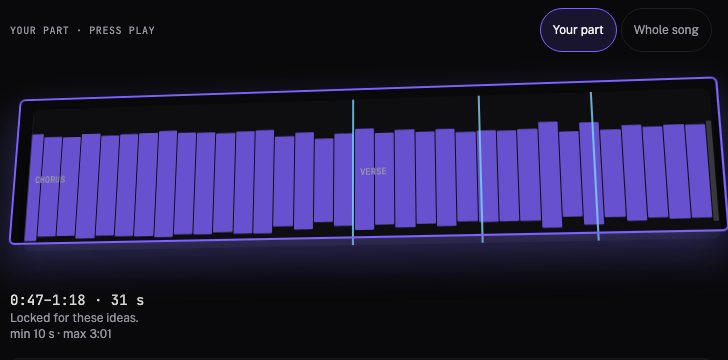
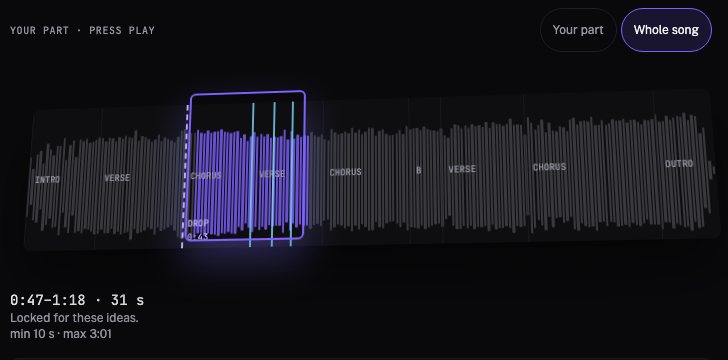
The pictures above are a song analysed before beats were measured, so they show scene-change lines but no beat ticks.
New in the same release, cuts on the big hits. Each new song's beats are measured for how hard they land, and scene changes and cuts go on the biggest hits, so the video looks cut to the music and not just to any beat. Songs analysed before this release keep their current cuts.
A first screen that says what to do
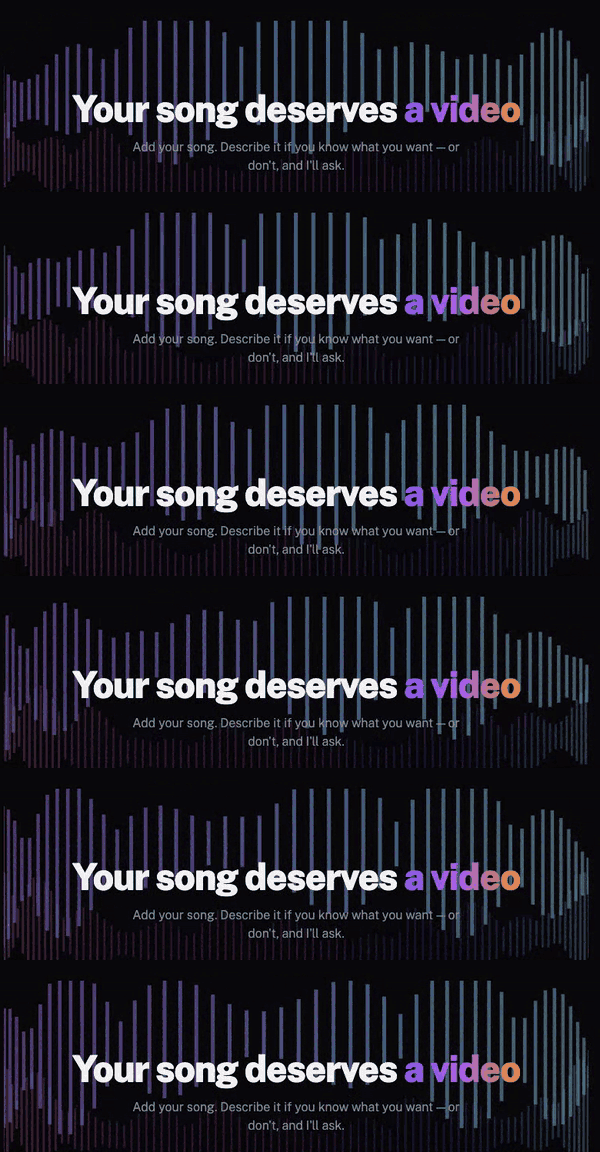
The dashboard now opens on "Your song deserves a video", over a 3D ring of sound bars that pulses on the beat.
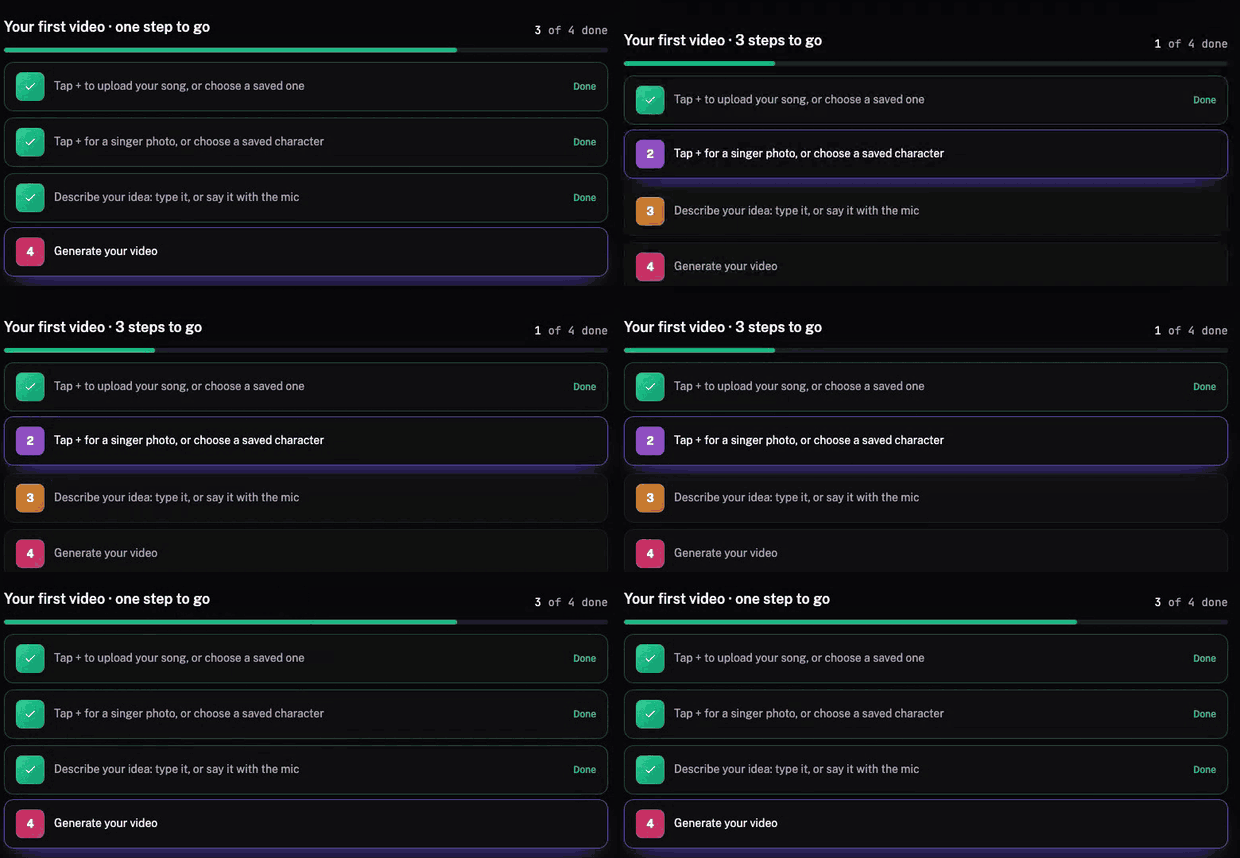
Under the box sits a checklist for your first video, four steps in order:
- Tap + to upload your song, or choose a saved one.
- Tap + for a singer photo, or choose a saved character.
- Describe your idea: type it, or say it with the mic.
- Generate your video.
The steps tick themselves off as you go, including the idea step, which follows what is in the box. It appears for accounts that have not made a video yet and goes away once you have.
Say your idea
A microphone now sits beside Start on the dashboard and beside Send in the chat. Tap it and a listening line appears under the box with a level meter, a timer and a Done button. Your words land in the box as they are heard. You read them, fix anything, and send them yourself.
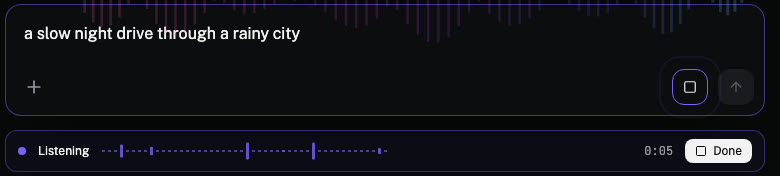
Speech to text runs in your browser, so it works in Chrome and Edge, and the button is hidden where it is not supported.
Videos that cut on the beat
The edit now decides where to cut from the music. On a newly planned video of 45 seconds or more, a chorus can use two longer takes of the same moment, cut between on the beat, and a quieter section can hold one continuous take. When both takes are lip-synced, they use the same song timing, so the mouth stays in time across the cut. Shorter, hook-length videos and plans made before this release keep the previous split.
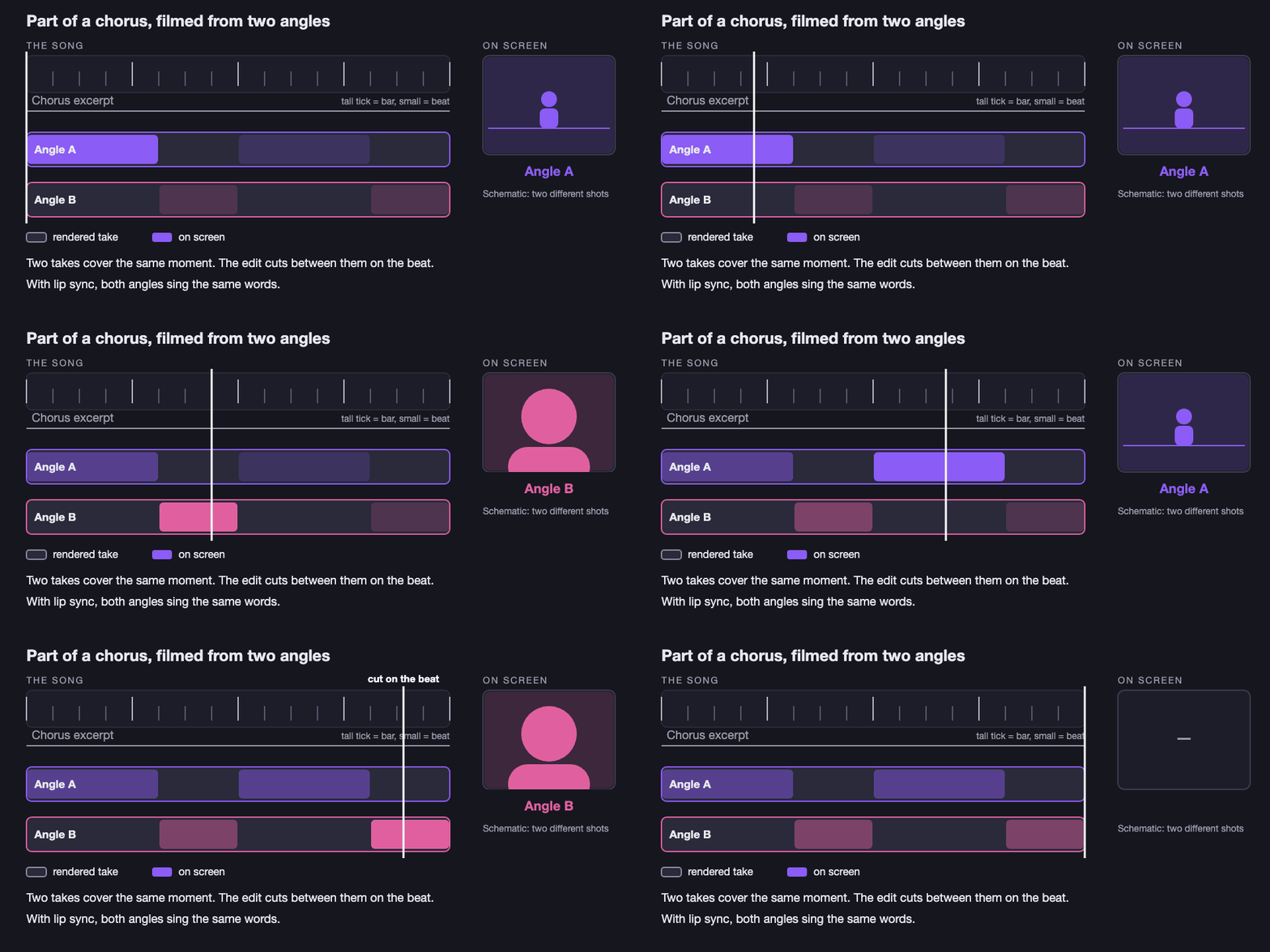
Once the storyboard is drawn, these shots are labelled Angle A, cut on the beat and Angle B · close-up. Other beat-cut shots read Cut on the beat, and continuous shots read One long take.
Filming extra angles costs credits, so the quote for the video already includes it, and by default you see that quote on a card before you tap.
Clips can now run up to 15 seconds from a first frame, and up to 10 seconds when a shot has to end on a set frame. Every shot is rendered on the newer Gemini Omni 1.2 video model. In our test of five music-video shots rendered on both versions, 1.2 removed a jump cut in the middle of a shot and followed big camera moves more closely, while 1.1 still followed a slow push-in a little better. The credit price per second did not change with the new model.
The AI director behind the chat was rebuilt too. When you ask for a change to your video, such as a new shot, a different look or another cut, the change you meant landed in 47 of 66 test runs, against 24 of 66 before, about twice as often.
Lip sync that follows the sung words
Four fixes make lip sync look like singing instead of talking:
- Timed to the audio. On fast rap, our word timing could drift up to 5 seconds early on some verses. Lyric times now come from the audio itself, so the mouth starts with the first word, not before it.
- Lead voice only. When one singer carries the song, backing and second-voice lines are no longer put in the lead's mouth.
- On the words for the whole video. Cutting to the beat used to speed up or slow down sung shots slightly, which could pull the mouths up to a second off the words. Sung shots now always play at their own speed on their own moment of the song, and every video is checked for that before it is delivered.
- Closed between lines. A shot of the singer that is not lip-synced keeps the mouth closed instead of looking like speech out of time with the song. Short ad-libs, like "Yeah, let's go", are now lip-synced.
For how the feature works end to end, read AI music video lip sync.
A backup video model when a face is refused
Sometimes our main video model refuses a scene because it wrongly takes the face in it for a famous person, even when the face is your own. Until now that scene stayed missing, and pressing Retry sent the same picture again, so it failed again.
Now that scene goes to a backup video model instead, then a second one if needed, from the same picture and at the same length, for the credits you were already quoted. The storyboard tile says where it is, "Backup model 1 rendering", then "Made on a backup model" once it is done. If no model can make the scene, the tile says "No model could make it" and that scene's credits come back to you.
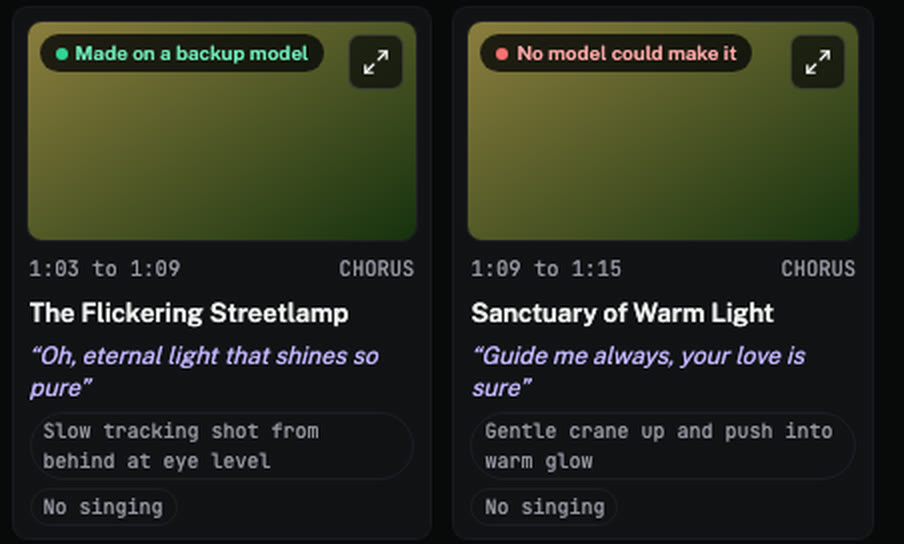
Backups are only used for a face we invented or the singer photo you added. A scene that asks for a famous person, a look-alike, children or revealing clothes is never sent to another model.
See the plan before anything is drawn
The storyboard now opens with your plan before a single frame is drawn: a treatment that tells the story, each scene's title and what happens in it, and a written description of each scene's frame. Open Read the story for the full treatment.
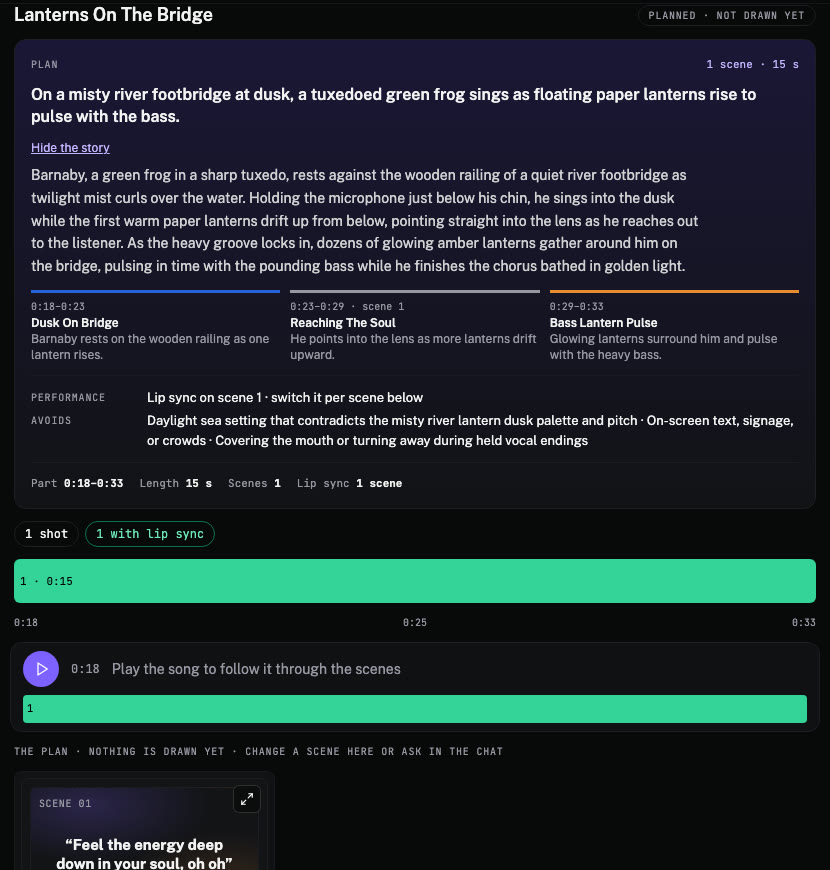
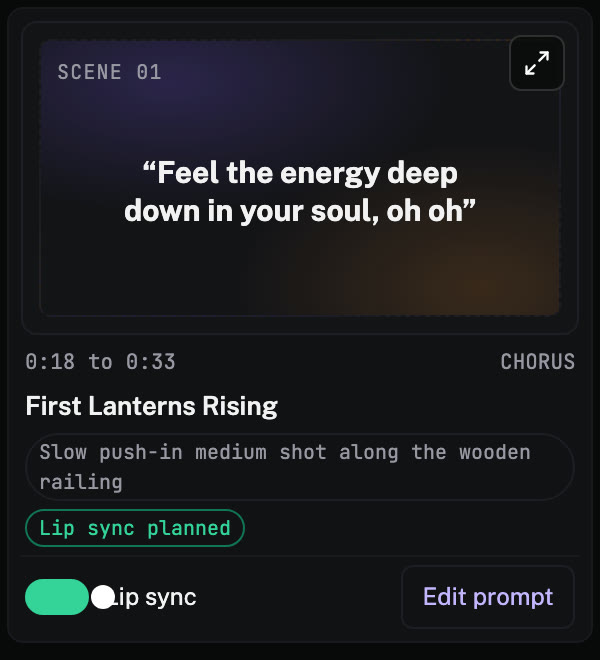
Before anything is drawn, you can change the plan itself. Each scene with words has a Lip sync switch, so you decide scene by scene where the singer's mouth moves, and an Edit prompt button that opens the text the scene's frame is built from. Your edits stay on the board, and the storyboard's price card in the chat lists them, until you tap Lock in plan and draw storyboard there, which saves them as one new plan version.
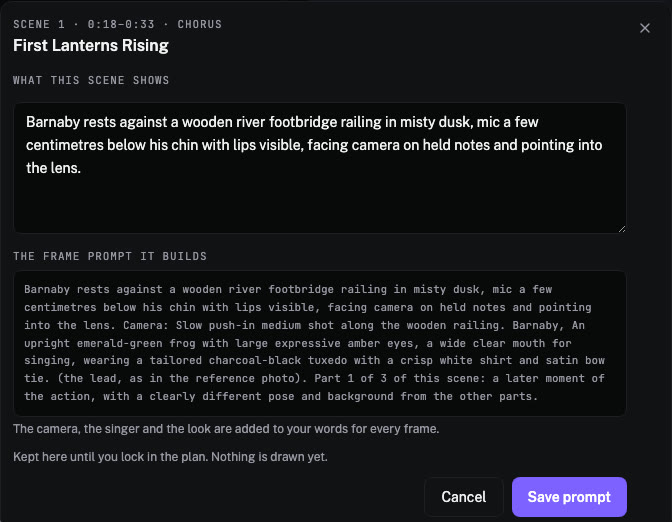
If you want a different direction for the whole video, ask for the plan to be rewritten from a note, such as "set it by the sea in daylight". It becomes a new version while the current one stays as it is.
Choose who sings, and a look of its own
Type who sings and the director takes you at your word. If you write "a frog", the ideas, the storyboard and the singer all use a frog, not the person from your idea. If your idea says the singer is a woman or a man, the singer matches it even when the song's voice is the other. A photo you attach in the chat becomes the singer at once, and the ideas and the plan use it. Each idea also invents its own look, a name and a palette drawn from your song and your idea, instead of reusing a stock golden-hour, neon or vintage tile. For more on singers, see make a photo sing your song and reusable AI characters.
Chat with the director without spending credits
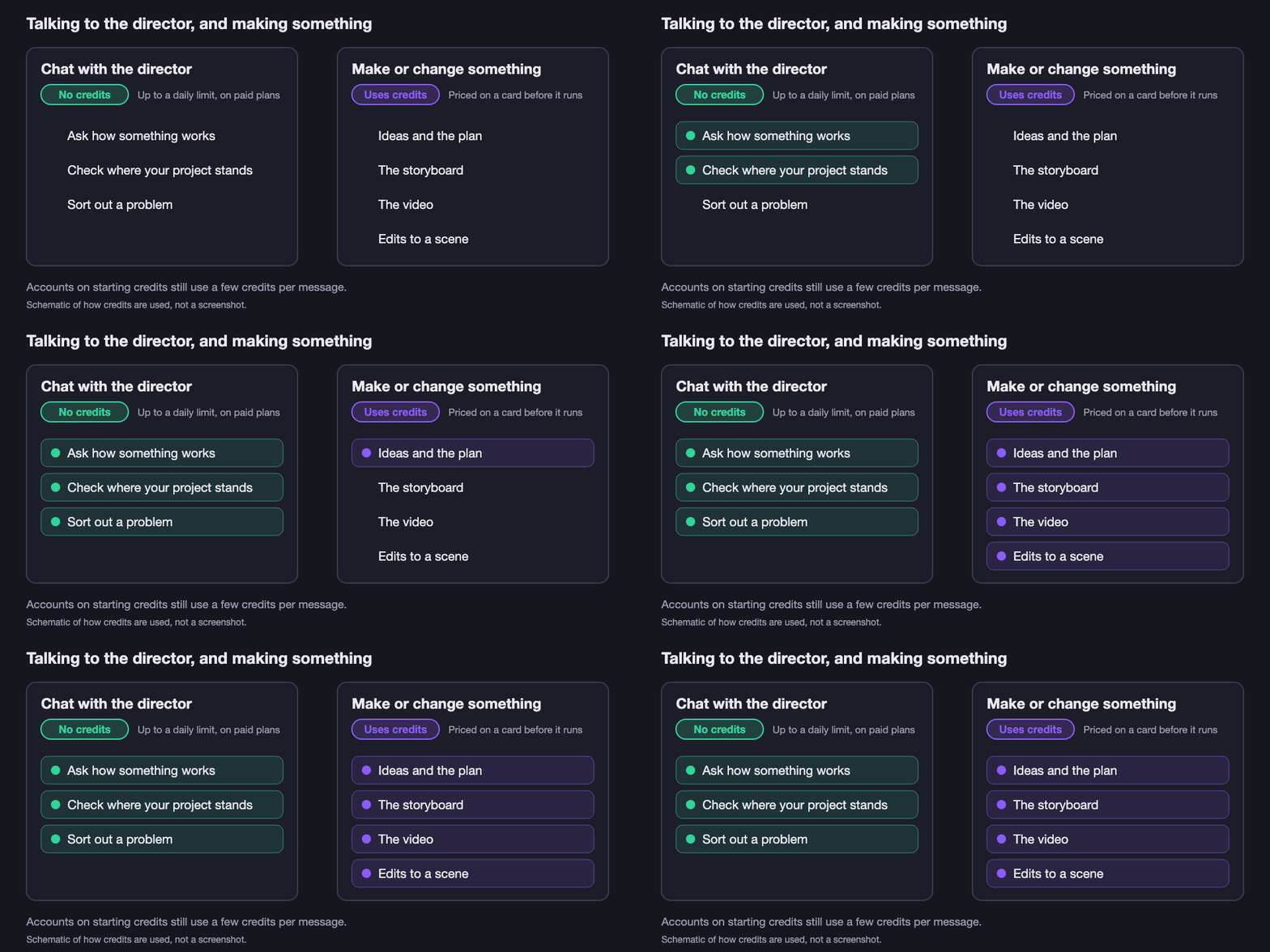
On paid plans, talking to the director no longer uses credits for the things you do most while you decide. Asking a question, checking where your project stands and sorting out a problem use no credits, up to a daily limit. Anything that makes something still uses credits: ideas, the plan, the storyboard, the video and edits. Those are priced on a card before they run, as before. Accounts on starting credits still use a few credits per message.
Plans that state their length
Every plan card now says how long a video it makes in a month, with and without lip sync, instead of "one full song". A real video lip-syncs only its sung shots, and a video cut on the beat renders some footage it does not show, so the exact price of each video is in its quote, shown by default on its card before you tap.
| Plan | Price | Credits a month | HD video, no lip sync | Lip sync on every shot |
|---|---|---|---|---|
| Starter | $29 | 1,725 | up to 1 min 10 s | 30 s |
| Artist | $97 | 5,200 | up to 3 min 30 s | 1 min 40 s |
| Label | $147 | 8,500 | up to 5 min 50 s | 2 min 50 s |
When a video needs a plan, the chat shows one Choose a plan button. It opens Billing with every plan and its price, then brings you back to your project.
More accurate tempo
The BPM finder and song analysis no longer read some songs about a third too fast. A 92 BPM track was being read as 120, and 92 is no longer rounded down to 90. You can check any track with the BPM finder.
Try it
Open the dashboard, tap +, add your song and say or type one sentence. The checklist shows you what is left. For the full process, start with how to make a music video from your song.
Make your first video with your own song
Add a song and say or type your idea, and read the plan before anything is drawn. Drawing the storyboard and making the video are each priced before they run: by default you see the credit quote on a card and tap to go, and with the Approvals setting on Don't ask, just do it you reply yes and get a receipt. If you have edited scenes on the plan board, the card in the chat reads Lock in plan and draw storyboard, which saves them first.
Open the studioFrequently asked questions
What is the Storyboard card in Melodious?
It is one card on the right of your project that holds your song, the plan, what Melodious heard in your song, the Song map and every scene. It grows as you go, from the plan to the drawn storyboard to the finished video at the bottom. One play button plays your song, and each scene lights up as it plays.
Does chatting with the director use credits?
On paid plans, asking questions, checking your project and sorting out problems no longer uses credits, up to a daily limit. Ideas, the plan, the storyboard, the video and edits still use credits. Accounts on starting credits still use a few credits per message.
What is the first-video checklist in Melodious?
It is a four-step list at the bottom of the dashboard for accounts that have not made a video yet. The steps are to add your song with the + button, add a singer with the + button, describe your idea by typing or with the mic, and generate your video. Each step ticks itself off as you do it.
Can I say my idea instead of typing it?
Yes. A microphone sits beside Start on the dashboard and beside Send in the chat. Tap it, speak, and your words appear in the box as they are heard. You read them and submit them yourself, so nothing is sent until you do. It works in browsers that support speech recognition, such as Chrome and Edge.
What does cut on the beat mean?
On a newly planned video of 45 seconds or more, the edit follows the music, with cuts and scene changes on the biggest hits of a newly analysed song. A chorus can use two longer takes of the same moment and cut between them on the beat, and a quieter section can hold one continuous take. The drawn storyboard labels these shots Angle A, cut on the beat, Angle B · close-up or Two angles, cut on the beat. Other beat-cut shots read Cut on the beat, and continuous shots read One long take.
Does lip sync follow the right singer now?
Lip sync follows the lead voice of the song. Backing and second-voice lines are no longer put in the lead singer's mouth. Word timing now comes from the audio itself, so the mouth starts on the first sung word, and a shot that is not lip-synced keeps the mouth closed. Sung shots also play at their own speed on their own moment of the song for the whole video, and every video is checked for that before it is delivered.
How long a video does each plan make?
Each plan card now states it. Starter makes up to 1 min 10 s of HD video a month, or 30 s with lip sync on every shot. Artist makes up to 3 min 30 s, or 1 min 40 s. Label makes up to 5 min 50 s, or 2 min 50 s. A single video can be up to 5 minutes long.
What happens if the video model refuses a scene with my face?
If the main video model refuses a scene because it wrongly takes the face for a famous person, Melodious makes that scene on a backup model, from the same picture, at the same length and for the credits you were quoted. The storyboard tile shows which backup is working. If no model can make it, the tile says so and that scene's credits come back to you. A scene that asks for a famous person, a look-alike, children or revealing clothes is never sent to a backup model.
Can I type who sings, even if it is not a person?
Yes. If you type who should sing, for example a frog, the ideas, the plan and the singer all use exactly that. If your idea says the singer is a woman or a man, the singer we create matches it, even when the song's voice is the other.