How to Make a Lyric Video for YouTube: Specs, Titles, and Content ID
Making a lyric video for YouTube is two jobs: producing the video, then publishing it so the platform doesn't undo your work. Export 16:9 at 1080p as H.264 in an MP4 — YouTube recommends around 8 Mbps for 1080p at 24–30fps — because every upload is re-encoded, and thin, low-contrast lyric text is the first thing that compression smears. Use heavy type and hard contrast, and keep saturated colored text off dark backgrounds. Title it in the format Artist – Song Title (Lyric Video), because YouTube's own search is where most lyric-video traffic starts and that is the phrasing people type. Build the thumbnail from a still plus the song title, since there is no performance footage to grab a frame from. And if you didn't write the song, expect a Content ID claim — routine, and not a strike, but it means the revenue isn't yours.
The short answer: Making a lyric video for YouTube is two jobs: producing the video, then publishing it so the platform doesn't undo your work. Export 16:9 at 1080p as H.264 in an MP4 — YouTube recommends around 8 Mbps for 1080p at 24–30fps — because every upload is re-encoded, and thin, low-contrast lyric text is the first thing that compression smears. Use heavy type and hard contrast, and keep saturated colored text off dark backgrounds. Title it in the format Artist – Song Title (Lyric Video), because YouTube's own search is where most lyric-video traffic starts and that is the phrasing people type. Build the thumbnail from a still plus the song title, since there is no performance footage to grab a frame from. And if you didn't write the song, expect a Content ID claim — routine, and not a strike, but it means the revenue isn't yours.
Making one and publishing one are two different jobs
Most lyric video advice stops at the render. The short version of that half: get your lyrics timestamped against the audio, pick a backdrop — an animated background, AI-generated scenes, or kinetic typography — lay the timed lines over it in a heavy, high-contrast typeface, then fix the handful of lines where the timing drifts. Our guide on how to actually make a lyric video walks through all of that properly, including the mistakes that make a first attempt feel broken.
This post picks up where that one ends: the file is on your desktop and now it has to become a video on YouTube. YouTube re-encodes what you give it, indexes what you type around it, and runs it past a rights-matching system before anyone watches. None of that is creative work, and all of it is decidable in about fifteen minutes.
What to export before you upload
YouTube publishes recommended upload encoding settings. They're worth following because they describe the source the transcoder wants, not the output the viewer gets.
| Setting | What to use |
|---|---|
| Container | MP4 |
| Video codec | H.264, high profile, progressive scan |
| Aspect ratio | 16:9 — 1920×1080 for standard YouTube |
| Frame rate | Match your source; don't resample |
| Video bitrate | ~8 Mbps at 1080p / 24–30fps; ~12 Mbps at 48–60fps |
| Audio | AAC-LC stereo, 48 kHz, 384 kbps |
Two things matter more than the table. The audio bitrate isn't a rounding error — this is a music upload, and 384 kbps AAC is what YouTube asks for. And exceeding the recommended video bitrate costs nothing but upload time: YouTube discards your file and makes its own versions, so a cleaner source gives it more to work with. The music video size and aspect ratio guide has the per-platform dimensions if you're exporting more than one cut.
Why YouTube's re-encode punishes lyric text
This is the most useful thing to know about publishing a lyric video, and almost nobody says it out loud: the video YouTube shows is not the video you uploaded, and the re-encode is unusually cruel to text.
Two mechanisms do the damage. Compression allocates bits where there's motion, so text over a moving background competes with that background for detail and loses. And YouTube's delivery formats use 4:2:0 chroma subsampling, which stores color at half resolution both horizontally and vertically — brightness edges survive, color edges don't. A thin red caption on a dark blue background is defined almost entirely by a color edge, which is exactly the information being thrown away.
In practice:
- Use heavy weights. Light and thin typefaces have strokes narrow enough to dissolve into compression noise. Bold and black weights survive; hairline serifs don't.
- Contrast in brightness, not hue. White or near-white text on a dark background reads through any encode. Saturated color on saturated color is the case that falls apart.
- Give the text a hard edge. A thin dark outline, a drop shadow, or a semi-transparent backing plate keeps the letterform separated from whatever moves behind it.
- Calm the background under the words. Dimming or slightly blurring the region behind the lyrics costs nothing and defuses both mechanisms at once.
- Check after upload, not before. Watch the published video at 480p on a phone. Crisp there means fine everywhere.
How to title a lyric video and what goes around it
YouTube is a search engine in its own right, and lyric videos are one of the most search-driven formats on it — people arrive already looking for the words to a specific song. Match the phrasing they use.
The convention is Artist – Song Title (Lyric Video), and each part is load-bearing. Artist and title first because that's the query. The parenthetical because your channel may also host the official audio and the music video for the same track, and both viewers and YouTube need to tell them apart. Keep it short — long titles get truncated in the sidebar and on mobile.
- Description — the full lyrics belong here. It's the only place the words become indexable text. Credits, release date, and streaming links go above them.
- Chapters — verse, chorus, and bridge markers give viewers somewhere to jump to. YouTube requires the first timestamp to be
00:00, at least three chapters, and each to run at least 10 seconds. - Tags — mildly useful at best. Artist, song title, "lyric video", genre. Don't spend an hour here.
Thumbnails when there's no footage to screenshot
A conventional music video hands you a thumbnail: pause on a good frame of the artist. A lyric video has no performance footage, and the two obvious fallbacks are both weak. Album art alone is already your streaming and official-audio thumbnail, so it makes this upload look like a duplicate. A frame of lyric text at rest looks like a mistake.
What works is composed rather than captured: a strong still from the video's visuals, the song title set large over it, artist name smaller. Upload it 16:9 — YouTube recommends 3840×2160 and requires at least 640 pixels of width — and watch the file-size cap, which is 50 MB uploading from desktop but only 2 MB from the mobile app. Then do the check most people skip and look at it at about 168 pixels wide, the size YouTube renders it in a sidebar. If the title isn't legible there, nothing else about it matters.
Burned-in lyrics or YouTube captions?
Burned-in is standard for this format, and it should be. The lyrics aren't an accessibility overlay on a lyric video — they are the video, timed and styled as a design element. A caption track can't do that.
The tradeoff is that YouTube can't read pixels, so burned-in lyrics contribute nothing to search or translation. And YouTube usually generates automatic captions from your audio whether you ask or not — sung vocals get transcribed less reliably than speech, so it doesn't always fire on music, but when it does anyone watching with CC enabled sees a machine transcription stacked on top of your designed text.
Burn the lyrics in, then decide the caption track deliberately: either unpublish the automatic track from Studio → Subtitles, or upload a real caption file and accept the duplication in exchange for indexable text. Put the lyrics in the description either way.
Content ID: what happens if you don't own the song
A lyric video puts two separate rights in play — the sound recording, and the composition, meaning the melody and the words on screen. Displaying lyrics touches the second one even when the audio is licensed.
If you wrote and control the song, you're clear. If you didn't, Content ID will very likely match it, and the accurate, non-dramatic version is this: a claim is automated, it is not a copyright strike, and it doesn't put your channel at risk. Usually the video stays up, ads run against it, and the revenue goes to the rights holder instead of you; sometimes the claim restricts it in particular territories. Strikes are a different thing — they come from manual takedown requests and do affect channel standing.
One case catches artists out constantly: your own song, claimed by your own distributor. If you released through a distributor that registered your track with Content ID, its system doesn't know your channel is you. Ask them to whitelist it — routine, and quicker than disputing the claim.
The summary: this format works cleanly for music you own. For anyone else's, check what your licence permits first. No tool resolves the rights question for you.
Cutting a Short from the same lyric video
A Short is a separate upload, not a crop. Shorts are vertical 9:16 at 1080×1920, so posting the 16:9 file gets you letterboxing or a crop that slices text off both sides.
Cut the strongest 30–60 seconds — for a lyric video that's almost always the hook, the part people search the words for — and re-compose it for the tall frame. That means re-laying out the lyrics rather than scaling the landscape version down: the text has to sit in the vertical safe area, clear of the interaction UI along the bottom right. The same vertical cut works on TikTok and Reels, covered in our guide to making a music video for TikTok.
The mistakes that cost lyric videos views
| Mistake | Do instead |
|---|---|
| Thin or low-contrast type | Heavy weight, white on dark, hard outline |
| Colored text on a colored background | Contrast in brightness, not hue |
| Title without "(Lyric Video)" | Artist – Song Title (Lyric Video) |
| Album art as the thumbnail | Composed still plus title, legible at 168px |
| No lyrics in the description | Full lyrics below credits and links |
| Assuming a licensed recording covers you | Confirm the composition rights too |
| Posting the 16:9 file as a Short | Separate vertical cut, re-laid out for 9:16 |
Making one in Melodious
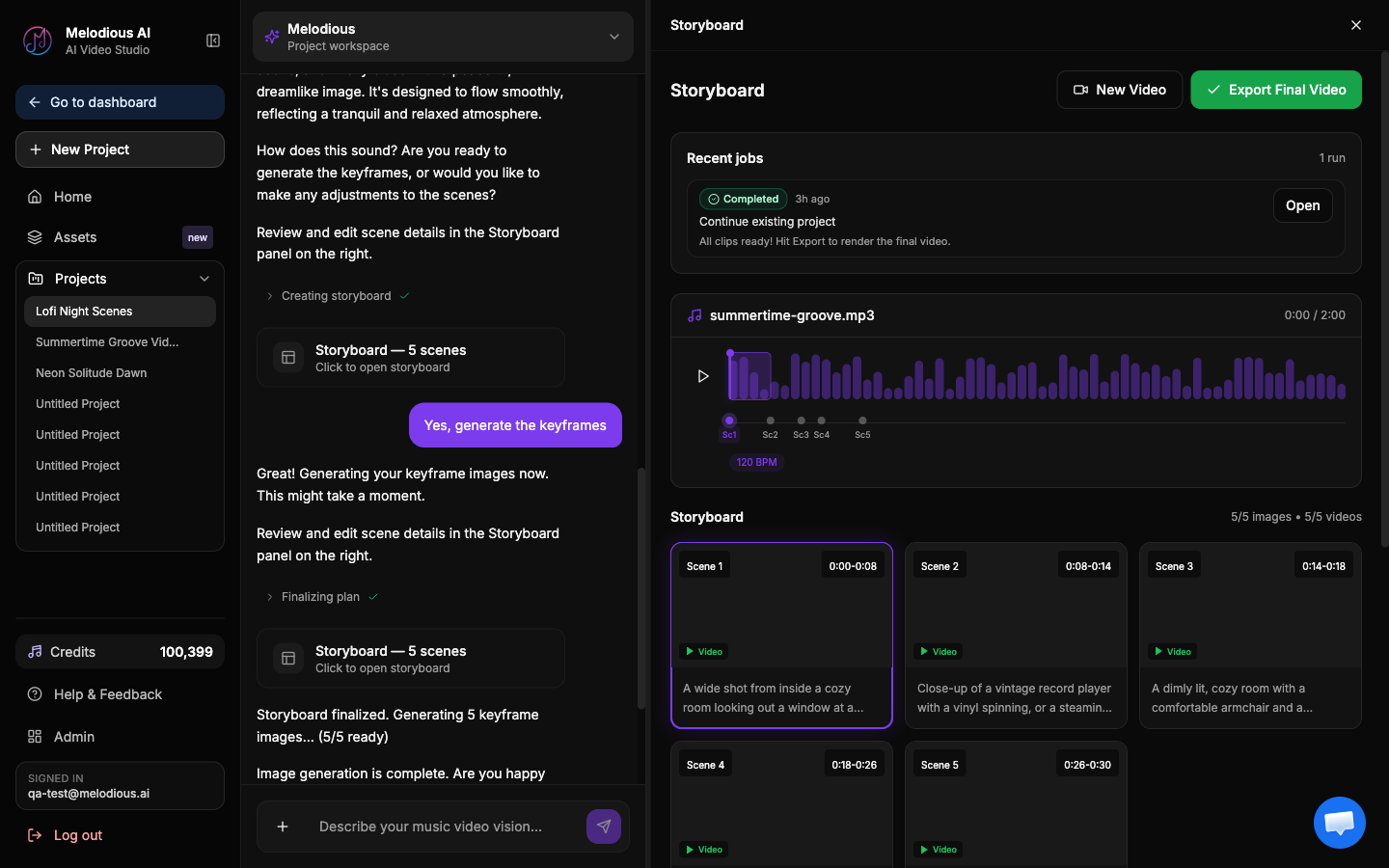
Melodious renders lyric videos as a first-class output, not a subtitle overlay. Attach your song, let the AI director storyboard it against the track's real structure, then set the output type to Lyric video and choose a caption style: Karaoke Highlight (each word sweep-fills as it's sung), Line Reveal (lines fade in over the visuals), or Bold Center (large centred word-pop).
Two details matter for the YouTube problem above. Word timing is derived from the audio itself — the vocal is isolated and the timings aligned against your actual lyrics — rather than estimated by a language model, so lines land where they're genuinely sung. And the extracted lyrics are shown for you to correct before anything renders, which is where you catch a mis-heard word instead of finding it baked into a file you've already uploaded. By the compression rules above, Bold Center is the safest of the three for a YouTube upload — it's the heaviest type at the largest size. And if you are still deciding whether to pay for any of this, the real cost of a free lyric video maker sets out where the free routes run out.
Start a lyric video in Melodious — attach a track, storyboard it, then set the output to Lyric video and pick your caption style.
If the upload is for a service rather than a release, worship lyric videos covers what changes when a volunteer team has to repeat this every week.
Frequently asked questions
What resolution and bitrate should I upload a YouTube lyric video at?
1920×1080 (16:9) is the practical baseline, encoded as H.264 in an MP4 with AAC audio. YouTube's own recommended upload settings put 1080p at 24–30fps around 8 Mbps, rising to about 12 Mbps at 48–60fps. Uploading well above that ceiling doesn't hurt — YouTube re-encodes everything anyway, and giving the transcoder a cleaner source is the one thing you control.
Should I put 'Lyric Video' in the YouTube title?
Yes. The convention is Artist – Song Title (Lyric Video), and it does real work: it separates this upload from your official audio and your music video in search results, and it matches the phrasing people actually type on YouTube. Adding 'Official' is fine if it's your song. Don't bury the artist and title behind adjectives — YouTube truncates long titles in the sidebar and on mobile.
Will YouTube claim my lyric video for copyright?
If you didn't write or don't control the song, very likely — a lyric video uses the composition as well as the recording, so both rights are in play. A Content ID claim is automated and is not a copyright strike: it usually means ads run against the video and the money goes to the rights holder, though a claim can also restrict the video in some territories. If it is your own song, you can still get claimed by your own distributor's Content ID registration; the fix is asking them to whitelist your channel, not disputing it.
Do I need a subtitle file if the lyrics are already burned into the video?
Burned-in text is standard for the format — it's the visual — but YouTube can't read pixels, so burned-in lyrics contribute nothing to search or accessibility. YouTube usually auto-generates captions from your audio regardless — less reliably for sung vocals than for speech — and those can double up on screen for viewers who have CC switched on. The tidy options are to unpublish the automatic track from Studio → Subtitles, or to upload a proper caption track and accept the duplication in exchange for indexable text.
Can I post the same lyric video as a YouTube Short?
Not as-is. Shorts are vertical 9:16 at 1080×1920, so a 16:9 lyric video posted there gets letterboxed or crops your text off the sides. Cut the strongest 30–60 seconds — usually the hook — and re-compose it for the tall frame, which means re-laying out the lyric text rather than scaling the landscape version down. Melodious's music video size and aspect ratio guide has the exact dimensions per platform.
Does Melodious make lyric videos I can upload to YouTube?
Yes. Attach your song, let the AI director build a storyboard, then set the output type to Lyric video and pick a caption style — Karaoke Highlight, Line Reveal, or Bold Center. Word timing is derived from the audio rather than guessed by a language model, and the extracted lyrics are shown for you to correct before anything renders. It exports at 16:9 for standard YouTube, and lyric captions aren't a Pro-only feature.
Make the lyric video, then publish it
Attach your track, pick one of three caption styles, and correct the extracted lyrics before a frame renders.
Start a lyric video