Melodious v0.63.0 — preview every shot and choose up to 4K
Melodious v0.63.0 bundles three releases. You can preview any shot with one tap, up to three at once, and previews you keep come off the video's price, so if every shot has a preview, Put the video together costs 0 credits. The director asks what quality you want, 360p, 720p, 1080p or 4K, priced at 10, 25, 35 or 60 credits per second of song, plus 25 per lip-synced second. New accounts start with 200 credits, and you can put several people and any images in one video.
Plans from $29/month, cancel anytime. Starter makes a 30-second video with lip sync a month.
What changed in v0.63.0
The short answer: Melodious v0.63.0 bundles three releases, v0.61 to v0.63, of the AI music video maker. You can preview any shot with one tap, up to three at once, and every preview comes off your video's price. The director asks what quality you want, from 360p to 4K. New accounts start with 200 credits, and you can put several people and any images in one video. For the full process, see how to make a music video from your song.
| What | What it does |
|---|---|
| Preview | One tap films a shot in its frame; up to three at once; previews come off the video's price |
| Quality | 360p, 720p, 1080p or 4K, asked by the director, locked by your first filmed shot |
| Starting credits | 200 for every new account, enough for the plan, the storyboard and a few seconds of preview |
| Credits | Credits pay for ideas, the plan, the storyboard and the video; chat is free up to a daily limit |
| Skip ideas | Go straight from your brief to the plan for 15 credits |
| People and images | Several people, logos, covers and places in one video |
| Edit prompt | See and change the full prompt each picture is drawn from |
| Lip sync | A switch on every shot, off unless you ask |
Preview any shot with one tap
Tap Preview on a storyboard frame and that shot is filmed straight away, with a spinner in the frame and no questions. It then plays right there with your song under it, and you are told how many credits it used and how many you have left. Tap Preview on another shot while one is filming: up to three film side by side, and if three are already filming, wait for one to finish before you tap a fourth. Nothing is charged for a tap that has to wait.
What you spend on previews comes off the price of the video, as long as those shots stay unchanged. If every shot has a usable preview, Put the video together costs 0 more credits: it just joins your shots with the song. If you change a shot you have already previewed, you are told first that the preview will be out of date and what filming it again costs.
Choose your quality: 360p to 4K
The director now asks What quality should the video be? with the first questions: 360p for a quick draft, 720p, 1080p HD or 4K Ultra HD.
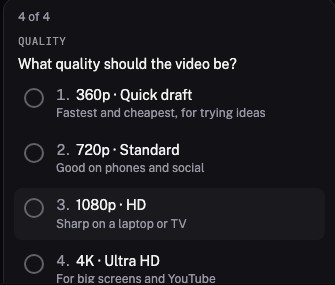
On the plan and the storyboard, the Video quality row shows your choice, and you can change it there until your first preview is filmed.

Your first filmed shot locks the quality for the whole video, so every shot matches.

How much does a Melodious video cost?
A video costs 10, 25, 35 or 60 credits per second of song at 360p, 720p, 1080p or 4K, plus 25 credits per second of lip-synced singing at every quality. The quote shows the lines and the total is on the button. Plan prices are on the pricing page.
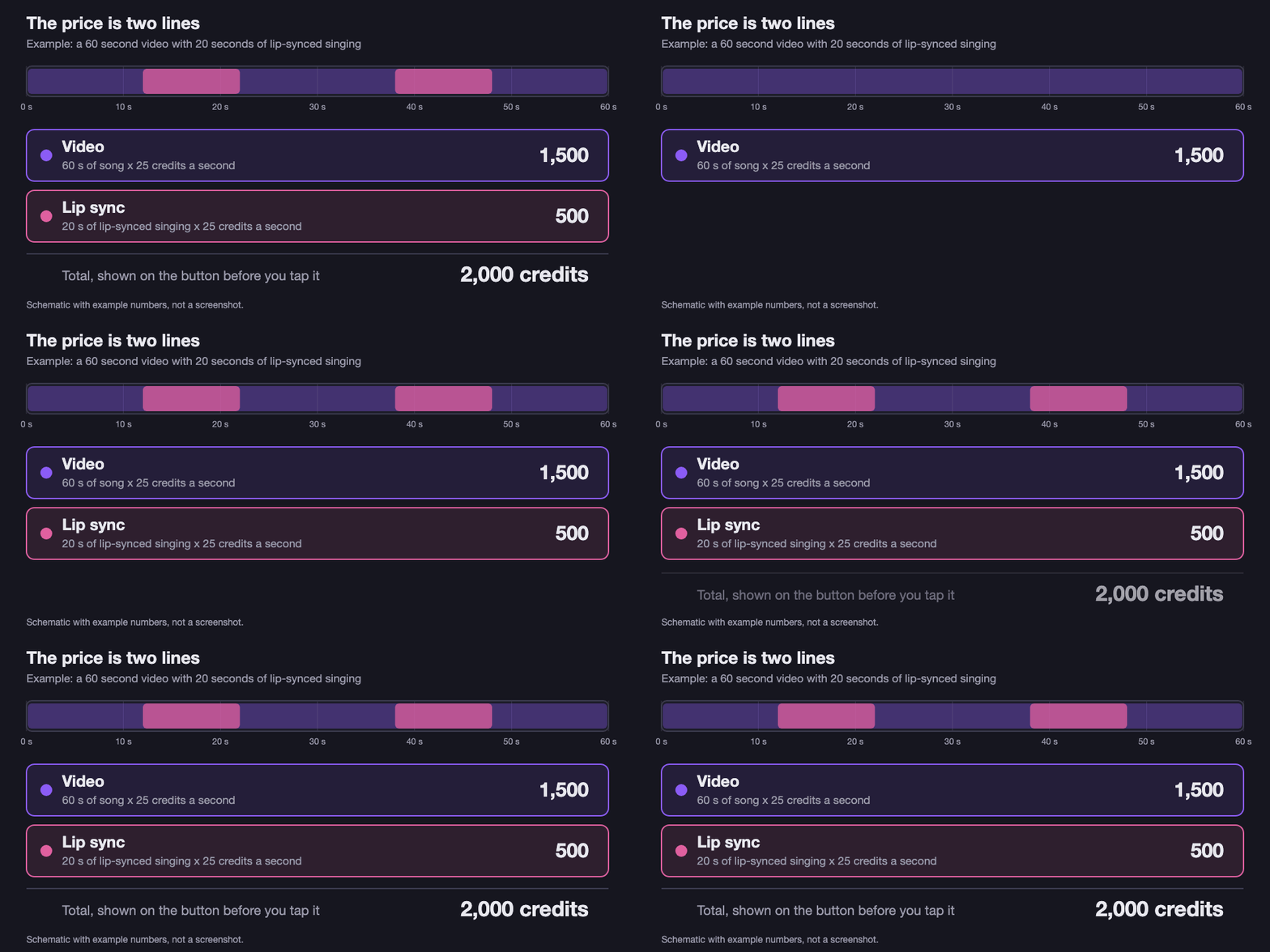
The numbers above are an example at 720p, not a screenshot.
200 credits to start
Every new account now starts with 200 credits, once, for 7 days: use them toward a short project's plan, storyboard and previews. What they cover depends on the length, quality and lip sync. A finished video costs more than that: add credits when you are ready to make it. Credits pay for what you do, from ideas and the plan to the storyboard and the video. Chatting with the director is free up to a daily limit, and no video is ever watermarked.
If a tap needs more credits than you have, you hear it at the tap: one card shows the price, what you have and how many more you need, with Add credits.
Skip the ideas, go straight to the plan
If your idea is already clear, tap Skip ideas, write the plan at Lock in. One idea is written from your brief and the plan from it, for 15 credits, and the storyboard opens on it.
Several people and any images in one video
Tap + → Add songs or photos and add several images at once: a photo of each person in the video, your logo, your cover art, a place. Each image is checked first, and the chat says what it found, for example "I added 4 images (2 people, 1 logo, 1 artwork)".
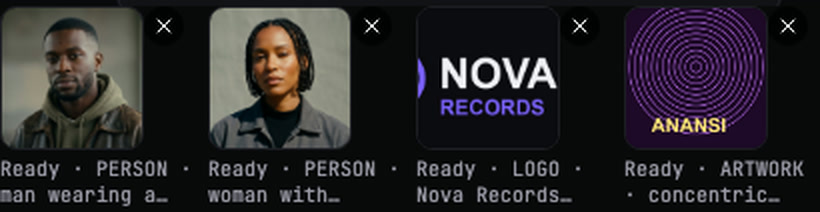
The director asks who each person is, and who sings on screen. Everyone you add appears under People & images at the top of the storyboard, with the singer marked Sings on screen.
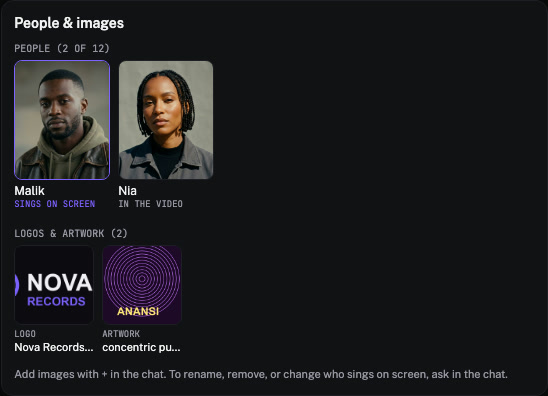
The plan casts every person you added and draws each shot from its own images, using each person's photo as the reference for their face. Open a shot to see Images used for this frame. A logo or cover drawn into a shot is close to the original but not pixel exact.
The photos in these screenshots are test images on our test site.
One storyboard, the same shots everywhere
The plan, the song bar above it and the drawn storyboard now show the same shots, for a 30 second hook or a full song. Count them anywhere and you get the same number. We call each one a shot, from the plan to the finished video, so there is one word to learn.
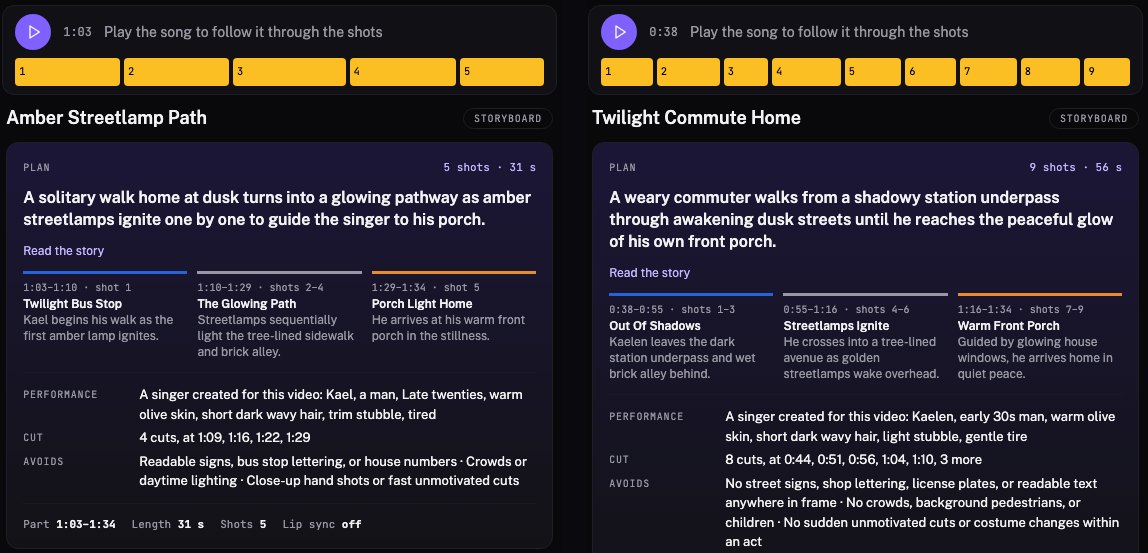
Each shot tile shows its time, section, title and lyric, with three controls under it: Lip sync, Edit prompt and Preview.
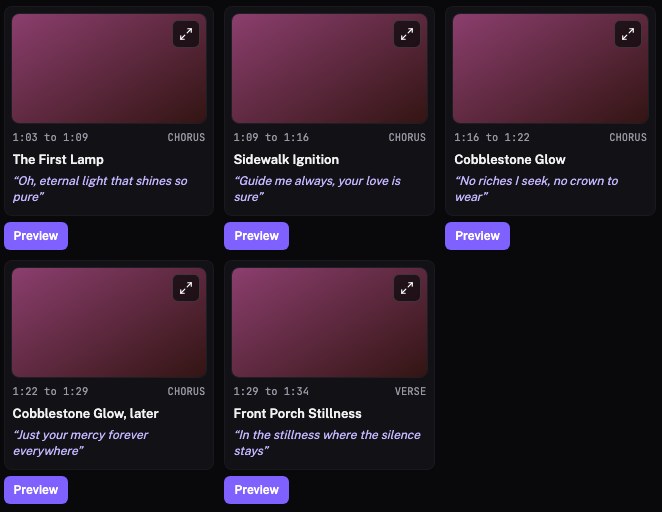
The tile pictures are placeholders from our test environment. The board around them is the real one.
Edit prompt shows the whole prompt
Open Edit prompt on any shot and you see everything the picture is drawn from, in four rows: what the shot shows, the camera, the person and the look. Under them is the full prompt that goes to the image model. What you read there is what is sent.
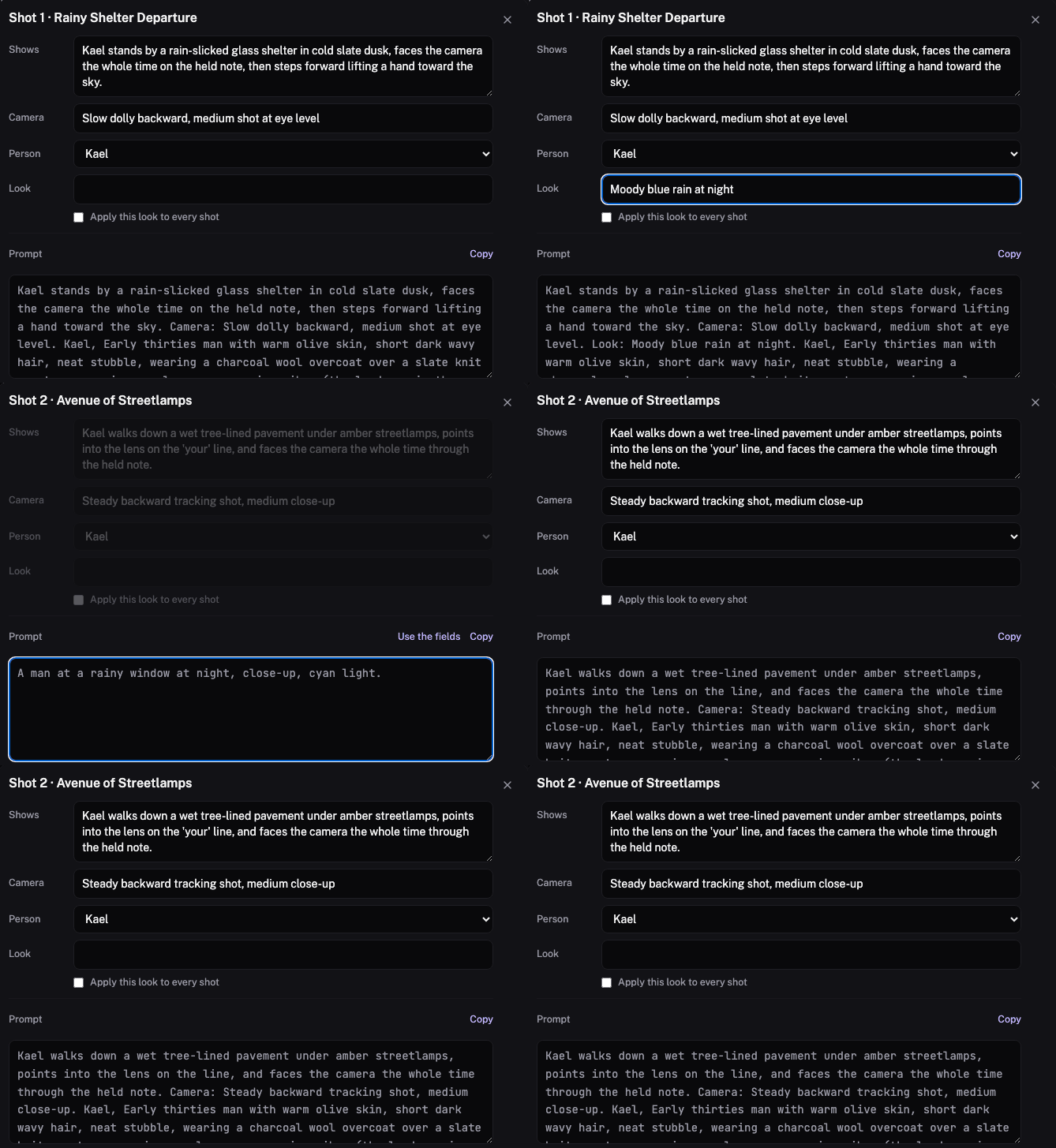
You have three ways to work:
- Change a row. Edit what the shot shows, the camera or the person, and the prompt below updates.
- Apply a look to every shot. Type a look, tick Apply this look to every shot, and the whole storyboard takes it.
- Write the prompt yourself. Type in the prompt box and it becomes yours, sent word for word with nothing added. Use the fields puts the rows back.
On the plan, Save prompt saves straight away. On a shot that is already drawn, the button reads Redraw picture with its price, and it redraws just that one picture. Nothing else on the board changes.
Lip sync on the shots you choose
Lip sync is off unless you ask for it, and it only goes on shots where your singer sings to camera. Every shot has its own switch, so you decide shot by shot.
You can change your mind after the pictures are drawn. On a drawn shot, one tap turns lip sync on or off, with no redraw, and the price moves by that shot's lip sync seconds. It works until the video starts.
With several people, lip sync goes only on shots where your singer sings to camera. For how lip sync looks on screen, read AI music video lip sync.
Ask the director for many changes at once
You can now ask for several shots in one message, such as "make shots 1 and 3 moodier and shot 5 a close-up". The director checks every change first and saves them as one new version of the plan, so nothing is half done. If one change cannot be made, none is saved and you are told why.
Fix a shot after your video is made
If a shot that isn't sung doesn't look right in your finished video, ask the director to film it again from its picture, or to redraw its picture first. It costs the same as that clip did in your video.
Clips that match, and your brief's rules checked
An isolated clip with a colour shift can be brought closer to the clips around it. Filmed clips are also checked against the must-haves in your brief, and any rule a clip breaks is flagged for you.
Smaller changes
- The director answers in your language. Write in Korean, Spanish or any language and it replies in it.
- Your song comes first. Pressing Start without a song keeps what you typed and points you to the song slot.
- Four new free converters. OGG to MP4, AAC to MP4, MP3 to YouTube video, and add an image to audio. Each turns a sound file and a picture into a video on your device.
- Billing on your phone. The phone menu now has Billing & credits with your balance, Help & Feedback and Log out.
- Choose a plan goes straight to checkout. The plan button in the chat opens checkout for that plan.
- Plain answers when something goes wrong. Errors in the chat are one clear sentence, and a photo upload tells you when a file isn't an image or is too large.
- Your song is never "missing". A song you attached shows as listening while we analyse it, and you get Try again within two minutes if setup stalls.
- Long, detailed ideas are welcome. A long creative brief is no longer turned away.
Fixed
- Lock in is asked once. The director no longer asks "ready to lock in?" before showing the Lock in button.
- A storyboard only needs its own price. Each step checks only its own price, not the whole video's.
- Photo file names are never used as names. A photo named by your camera is no longer treated as a person's name.
- Tapping through setup never uses your chat limit.
- Lip sync and Edit prompt on a drawn storyboard. Switching a drawn shot's lip sync or saving its prompt no longer says the storyboard is busy.
- Finish without a shot works again. When the video model refuses one shot, Finish without it now makes your video from the shots that were made. A missing shot holds the picture before it.
- Trims and timing changes land. An edit to a finished video that takes a while to render now finishes in the background and plays when it is ready, instead of quietly timing out.
- Finished videos open as finished. Some finished videos showed as still rendering and refused every change. They now open as finished and can be edited.
- The director stays on your project. No stray working notes in its replies, no "Which idea?" after you picked one, and asking for a change never offers a whole new video.
- "No lip sync" is always heard. Typing it once turns lip sync off in every shot, even in a longer message.
Try it
Open the dashboard, tap +, add your song and say or type one sentence. Pick your quality, preview a shot, and check the price before you tap. For the full process, start with how to make a music video from your song.
Make your next video with your own song
Add a song and say or type your idea. Read the plan, choose your quality, then preview a shot. Check each button's credit price before you tap. Chatting with the director is free up to a daily limit; drawing, previewing and filming cost credits, and each shows its price on its own button.
Open the studioFrequently asked questions
What does Preview do, and am I charged twice?
Tap Preview on a storyboard frame and that shot is filmed straight away, in its frame, with your song under it. You can film up to three at once. What you spend on previews comes off the price of the video while those shots stay unchanged, and if every shot has a usable preview, Put the video together costs 0 more credits.
Which video qualities can I choose, and what do they cost?
360p (quick draft), 720p, 1080p (HD) or 4K (Ultra HD), at 10, 25, 35 or 60 credits per second of song. Lip sync stays 25 credits per lip-synced second at every quality. The director asks with the first questions, and you can change it on the plan or storyboard until your first preview is filmed, which locks it for the whole video.
How many credits does a new account get?
200 starting credits, once, for 7 days, for new verified accounts. Use them toward a short project's plan, storyboard and previews; what they cover depends on the length, quality and lip sync. A finished video costs more than that: add credits when you are ready to make it. Chatting with the director is free up to a daily limit.
Can I put more than one person in a Melodious video?
Yes. Add a photo of each person with the + button, plus logos, covers and places. The director asks who each person is and who sings on screen, and the director uses each person's photo as the reference for their shots.
Can I see the exact prompt a picture is drawn from?
Yes. Edit prompt shows what the shot shows, the camera, the person and the look, and below them the full prompt that goes to the image model. Type in the prompt box to write it in your own words.
Can I skip the ideas?
Yes. If your idea is already clear, tap Skip ideas, write the plan at Lock in. One idea is written from your brief and the plan from it, for 15 credits.