VHS Effect Music Video: What It Looks Like and Three Ways to Get It
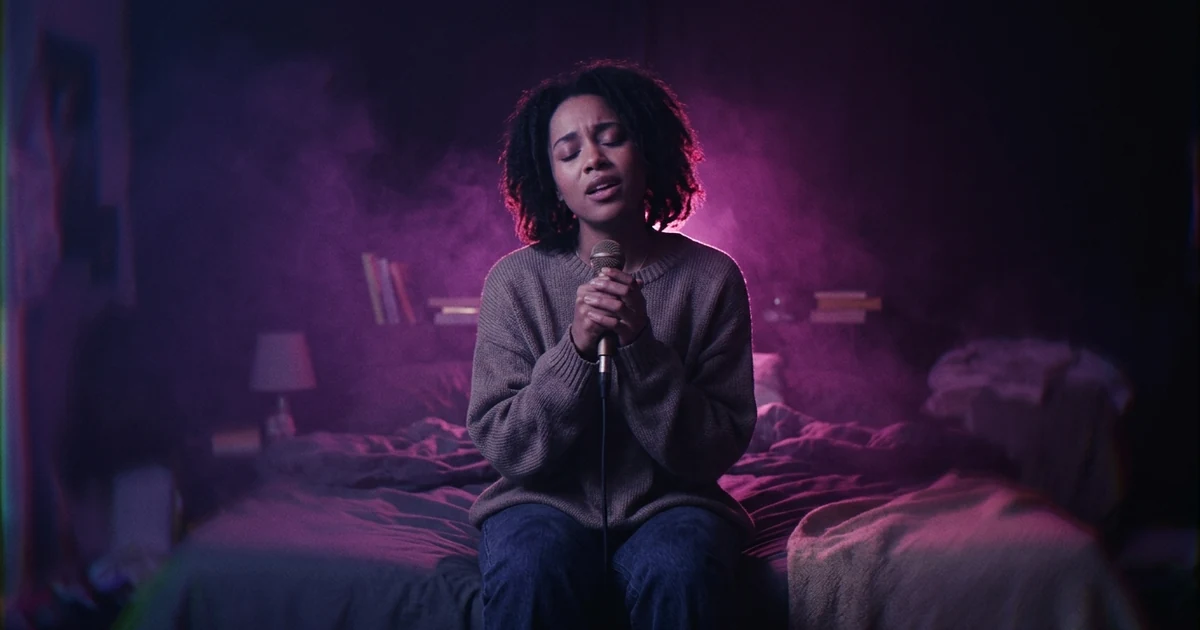
A VHS effect music video looks like it was recorded on tape: soft detail, colours that bleed sideways, washed-out blacks and moving noise, sometimes with scan lines. You can get it three ways. Lay an overlay or filter on footage you already have, using an editor such as Kapwing or an app such as VSCO. Build it by hand from those parts. Or, in Melodious (an AI music video generator), pick the 90s tape look, which prompts the images to look camcorder-shot and then adds a tape-style finish to the whole cut when the video renders.
Your first 30-second storyboard is free. Plans from $19/month.
What is a VHS effect music video, and how do you get one?
The short answer: A VHS effect music video looks like it was recorded on tape: soft detail, colours that bleed sideways, washed-out blacks and moving noise, sometimes with scan lines. You can get it three ways. Lay an overlay or filter on footage you already have, using an editor such as Kapwing or an app such as VSCO. Build it by hand from those parts. Or, in Melodious (an AI music video generator), pick the 90s tape look, which prompts the images to look camcorder-shot and then adds a tape-style finish to the whole cut when the video renders.
If you searched "VHS effect" or "VHS video effect", the pages you found are mostly tools that put an effect on video or photos you already have. That is the right answer if you have footage. If you are making a music video from a song and want it to feel like a tape someone found in a drawer, there is a second approach, and it comes with trade-offs. This guide covers both and says when to leave the effect off. If your real question is what made 90s videos look the way they did, the 90s music video look covers four distinct styles, and how to make an AI music video is the full route from song to finished video.
Route 1: how do you add a VHS overlay to footage you already have?
This is what most tools do. In Kapwing's VHS tool, for example, the steps on its page are to upload a video, search its image library for a VHS effect overlay, place it over the video and lower its opacity, then export. VSCO lists a VHS filter for video in its app, and Descript and Cloudinary both offer one-click VHS effects.
Good for: real footage, a performance clip, a phone video from rehearsal. Watch for: an overlay with scan lines and glitches can look pasted on. Lower the opacity, then add a little blur and colour smear underneath it so the picture itself, not just the top layer, looks like tape.
What does the VHS effect look like?
A tape picture is a stack of small failures. Knowing them lets you judge any filter, and build your own:
- Soft detail. Tape recorded far less detail than modern video, so edges are gentle.
- Colour bleed. Colour information was recorded at lower resolution than brightness, so colours smear sideways past the edges of objects.
- Washed colour and lifted blacks. Blacks are grey rather than black, and saturation is low, often with a slight magenta cast.
- Moving noise. Grain that changes every frame, not a texture laid over a still.
- Optional extras. Scan lines, jitter, tracking glitches and an on-screen date stamp. These are common in overlays and are the most "costume" part of the look.
The first four do most of the work. The extras are what make an effect read as a joke rather than a memory.
Route 2: how do you build the VHS look by hand?
In an editor with blur, colour and noise controls, you can stack the first four items: a small blur on the picture, a horizontal shift of the colour channels, lowered contrast with lifted blacks and a faint magenta tint, then animated noise. This is slower than an overlay, but you decide how far to take each part, and it avoids the stock-effect look. The guide to what makes a music video look cinematic covers the other choices, such as light and framing, that decide whether the effect feels intentional.
Route 3: can you generate a video with a tape look?
This is what Melodious does, and it is not a filter you add afterwards in the usual sense, nor purely a generated style either. It is both:
- The images are prompted for it. With the 90s tape look, each keyframe is described as shot on a 1990s consumer camcorder, with soft detail, video noise, slight colour bleed, natural skin texture and available light. The scene, the clothes and the gear are drawn to match.
- A tape finish is applied at render. When the video is rendered, a finish goes over the whole cut: a slight blur, colour smeared sideways, softer colour, washed colour with lifted blacks, moving noise and a vignette. It changes no timing, so the cut and the audio sync are untouched.
What it is not: it does not add a REC date stamp or tracking glitches, and it is not an editor for footage you shot yourself. For that, use Route 1.
On the brief page there are three looks, each with a real example: 35 mm film, 90s tape and Clean. If your brief mentions the 80s, 90s or 2000s, 90s tape is picked for you and the page says why. You can change it at any time, and again on the render screen before you pay; changing it is free. Because the finish is applied at render, the storyboard stills and the rough cut show without it. The images are drawn to look like tape, and the finish ties them together.
When should you not use a VHS look?
- When it has no link to the song. A retro texture on a modern ballad reads as a trend, not a choice. How to choose a music video style is a better starting point.
- When the video is animated or illustrated. Tape noise on a cartoon reads as a fault. Melodious starts an animated or illustrated look on Clean.
- When you need faces clear. Soft detail and colour bleed hide a mouth. If you are using lip sync, test a line with the look on.
- When most people watch on a phone. Fine noise can turn to mush at small sizes, so check a clip on your own phone before you commit.
Related reading: how to choose your film look, preview your AI music video before rendering.
Which route should you pick?
If you have footage, use an editor's overlay and lower the opacity. If you want control, build it from the four parts. If you are starting from a song and no footage, generate it with the 90s tape look and compare it with Clean on a short render first. For the full path from song to finished video, see how to make an AI music video.
Frequently asked questions
What does a VHS effect music video look like?
A VHS effect imitates the look of a VHS tape or a 1990s camcorder. The common ingredients are softened detail, colours that smear sideways, lifted and washed-out blacks, noise that crawls from frame to frame and, in some filters, scan lines, jitter and tracking glitches. Editors apply it either as an overlay on top of your footage or as an adjustable effect.
How do I add a VHS effect to a video?
In an editor such as Kapwing, you upload the video, search its image library for a VHS effect overlay, place it over the clip and lower its opacity until it feels right, then export. Apps such as VSCO list a VHS filter for video in their effects. In Melodious there is no overlay: you choose the 90s tape look on the brief and it is applied when the video renders.
Is the Melodious 90s tape look a filter?
Partly, and we want to be plain about it. The images are prompted as if shot on a 1990s consumer camcorder, with soft detail, video noise and slight colour bleed. Then, when the video renders, a tape finish is applied across the whole cut: a slight blur, colour smear, washed colour with lifted blacks, moving noise and a vignette. So it is both a prompted image style and a render-time finish. It does not add a REC date stamp or tracking glitches.
Can I use the VHS look on my existing footage in Melodious?
No. Melodious generates the video from your song and brief; it is not an editor for footage you have shot. If you want a VHS effect on your own clips, use an editing tool that applies overlays and filters to uploaded video.
When should I not use a VHS look?
Skip it when the song or story has no link to the era, when the video is animated or illustrated, and when the tiny detail matters, such as a face you want clear in a lip-sync shot. Heavy tape texture also hides detail on a small phone screen. Melodious defaults an animated or illustrated look to Clean for that reason.
When does the 90s tape look appear in my video?
Only when the video renders. The storyboard stills and the rough cut show without it, and a video you already rendered keeps its look until you render again. Changing the film look is free and uses no credits, so you can compare tape, 35 mm film and Clean before you pay for a render.
Get a 90s tape look on a generated video
Pick 90s tape on the brief, see a real example of it, and change the look any time before you render.
Choose my film look