Suno Song to Video: How to Turn Your Suno Song Into a Music Video
There is no Suno integration to set up. You download the finished song from Suno as an audio file, upload that file to Melodious, and the connection between the two products is complete. From there: attach the track, type what you want to see, and press send. Melodious analyzes the audio for tempo and section structure, writes a storyboard against it, and starts generating the keyframe images in the same run — no interview questions, no length picker, and nothing to approve before images appear. The credit cost of that run is shown under the box before you send, because pressing send is the decision to spend. The storyboard stays fully editable afterwards, and turning those stills into video clips still needs its own explicit approval click. If your song has lyrics, they can be timed against the vocal and put on screen instead.
How do you turn a Suno song into a music video?
The short answer: There is no Suno integration to set up. You download the finished song from Suno as an audio file, upload that file to Melodious, and the connection between the two products is complete. From there: attach the track, type what you want to see, and press send. Melodious analyzes the audio for tempo and section structure, writes a storyboard against it, and starts generating the keyframe images in the same run — no interview questions, no length picker, and nothing to approve before images appear. The credit cost of that run is shown under the box before you send, because pressing send is the decision to spend. The storyboard stays fully editable afterwards, and turning those stills into video clips still needs its own explicit approval click. If your song has lyrics, they can be timed against the vocal and put on screen instead.
The gap is a familiar one. You spent an evening iterating on prompts, you finally got a take that made you sit up, and now you have a three-minute audio file and nowhere to put it. Every platform that would actually get the song heard — YouTube, Reels, TikTok, Shorts — wants a picture, and the song doesn't come with one.
This guide is the honest walkthrough of closing that gap, including the parts that are annoying. If you want the commercial version with the feature table and the pricing, that lives on the Suno AI music video generator page. If your track came from a microphone rather than a model, the same steps apply and the broader guide is how to make a music video for your song.
Is there a Suno integration?
Start with the thing most pages in this category are cagey about: Melodious has no connection to Suno. No API, no plugin, no connected account, no import button, no partnership. It is an independent product and it does not know Suno exists.
What connects them is that Suno's output and Melodious's input are the same object — an audio file. You download your song the way you normally would, then you upload it. That is the whole handoff.
It's worth being blunt about this for two reasons. The first is that "works with Suno" is doing a lot of quiet lying across this corner of the internet, and if a tool implies an integration, it's fair to ask what the integration actually does. The second is more useful to you: because there's no integration, there's no lock-in. The same door takes a DAW bounce, a studio master, a stem mixdown, or a track from a completely different AI music tool. Nothing you learn here becomes worthless if you switch where your songs come from.
Suno solves the song. This solves the thing you need thirty seconds after the song is done.
Export the right file
This is the least interesting step and the one that quietly wrecks the most first attempts. Give it thirty seconds of care.
Download the finished, full-length track as MP3 or WAV. Both are fine — the difference in what the analysis can read from a decent MP3 versus a WAV is not the thing standing between you and a good video.
What does matter:
- Full length, not a preview. A trimmed or partial export gets analyzed as though it were the whole song, so the storyboard is planned against a structure your actual track doesn't have.
- The audio file, not a recording of it. A screen capture of a player adds compression artifacts and often clips the start.
- The version you'll actually release. If you're going to re-render the song with different vocals tomorrow, wait — the timeline is built from the file you upload.
The file you hand over is the file that gets read: its tempo, its section boundaries, its vocal, its ending. Everything downstream is planned against that, so a sloppy export is a sloppy plan.
What happens when you send the first message
Attach the song, type what you want to see, press send. That's the whole interaction, and it produces more than it used to.
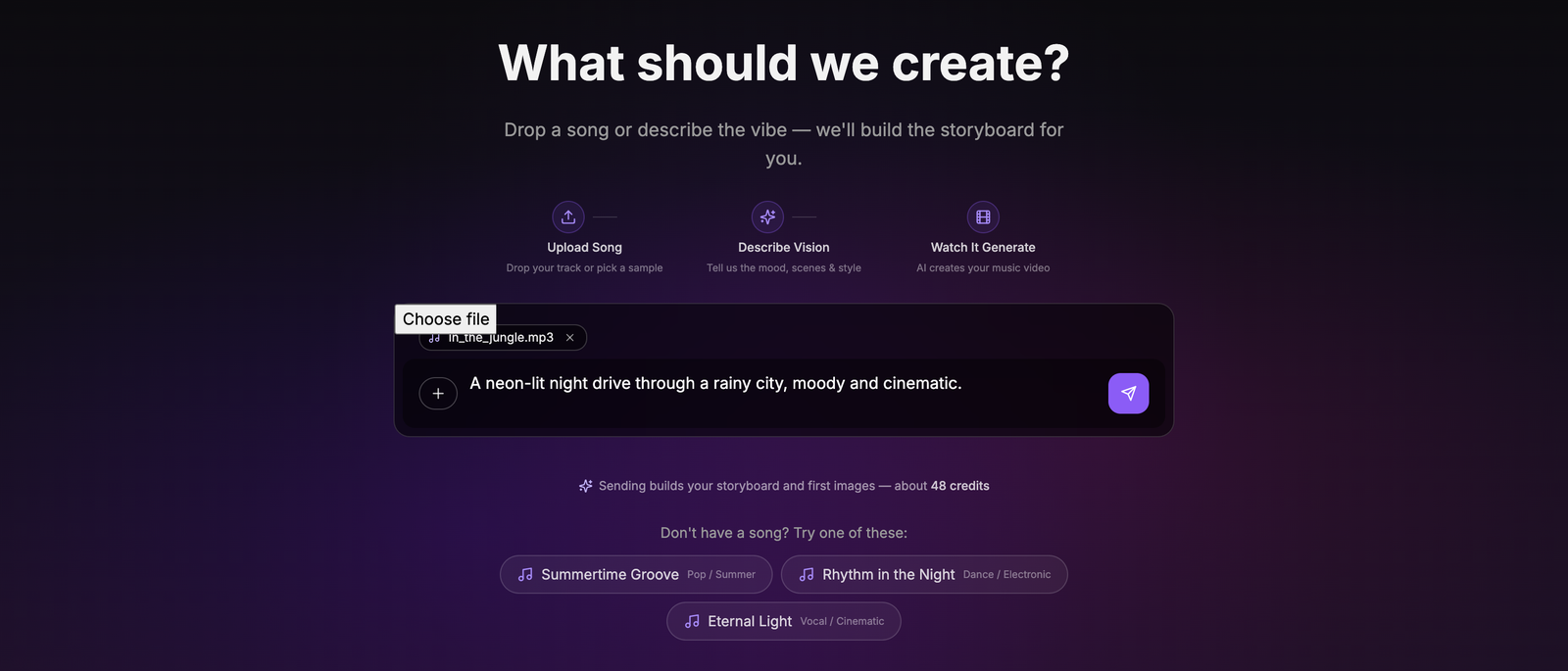
Two things to notice before you press it.
The credit cost is stated under the box. Because there is no approval step between sending and the images appearing, pressing send is the decision to spend. The number comes from the same pricing that produces the charge, so what you see is what you pay. It reads "about" because the estimate prices a standard 30 seconds while the charge prices the shot list actually written, which can land a credit or two either side.
Your song is analyzed while you type. Tempo, energy sections and lyrics are worked out the moment you attach the file, not when you hit send — so the wait, if there is one, happens while you're still deciding what to write.
Then send, and leave it alone:
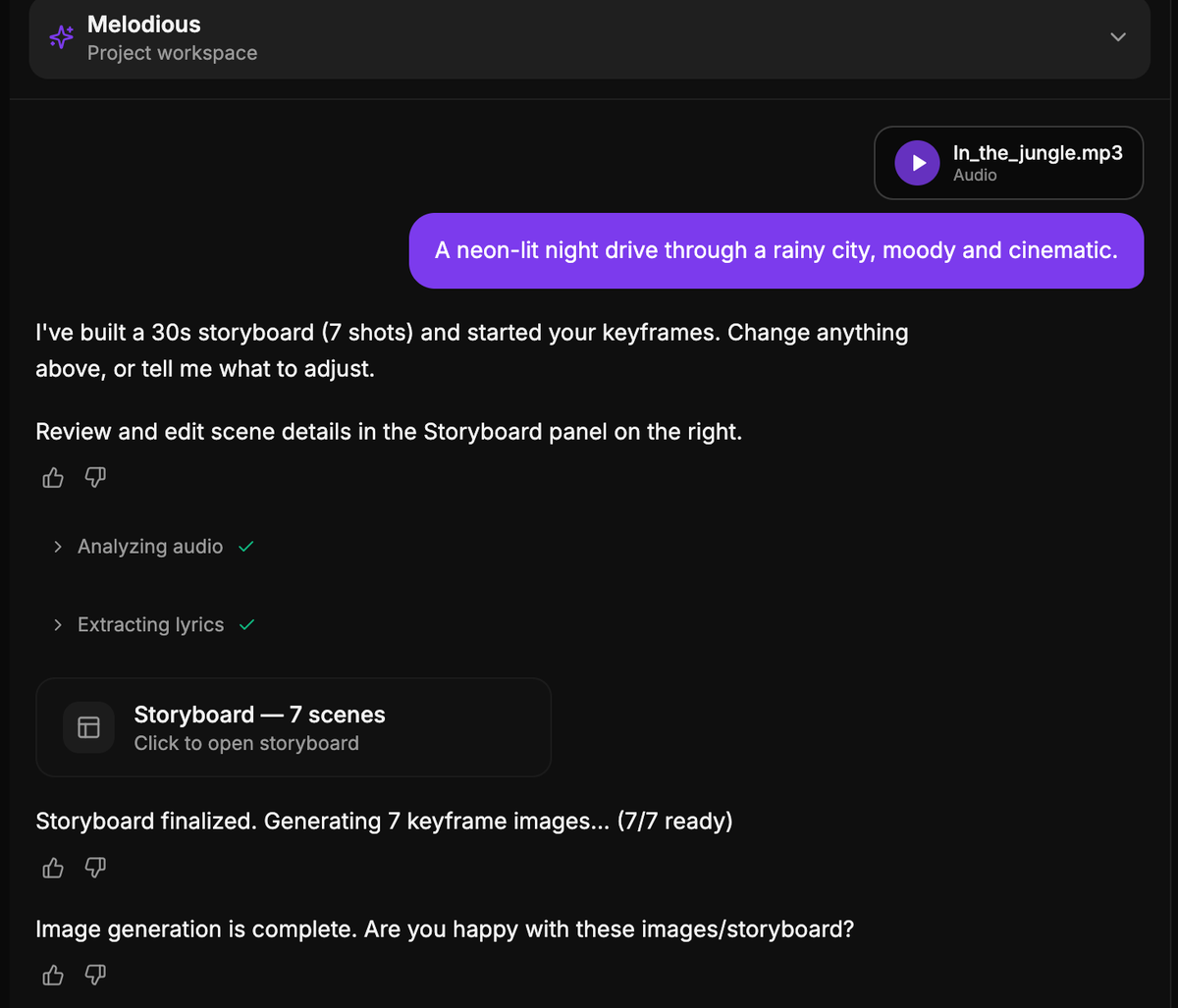
One message in, you have a finished storyboard and a set of keyframe images. You clicked nothing in between. Melodious made the calls you'd otherwise have been interviewed about:
| Decision | What it picks | How you change it |
|---|---|---|
| Length | 30 seconds, fixed on a first run | Ask in chat, then regenerate |
| Cut speed | Read from your song's tempo — fast, balanced or slow | Ask in chat |
| Shot count | Whatever fills 30 seconds at that cut speed (roughly 4–7) | Add or delete scenes in the storyboard panel |
| Look and content | Read from your prompt plus the song's sections and lyrics | Edit scene prompts, or reply in chat |
The tempo link is the one worth knowing about: a track at roughly 118 BPM or above is packed mostly into four-second shots and lands around seven of them, a ballad at 90 BPM or below gets mostly eight-second shots and lands around four, and everything in between gets a mix. A drum-and-bass track and a piano ballad don't get the same storyboard with different words in it.
The 30 seconds is deliberate rather than a limitation: it's the cheapest artifact worth judging. A three-minute automatic run would spend six times as much before you'd seen anything, and asking for a longer version after you've seen a storyboard is a much easier judgement than picking a length before anything exists.
The one thing that still needs a click is the video render. That gate has not moved. Turning keyframes into animated clips is the expensive stage and it keeps its own separate approval — Melodious will never start a render because you sent a chat message. The shape of a project is: one message buys you a storyboard and stills, you look at them and change what you want, then you approve the render explicitly.
Nothing in the storyboard is locked because it was written automatically. You can edit any scene's title or prompt, add or remove scenes, regenerate a single keyframe that missed without touching the others, or just reply in the composer — "make it darker", "put it on a rooftop", "make it 60 seconds" — and the plan is rebuilt.
What to actually type in that first message
Since the first message now spends credits, it deserves more than "make a music video for this".
The useful instinct is to describe mechanics rather than adjectives. "Epic and cinematic" is not executable — it means something different to everyone, including a model. "One hard light from the left, deep shadow, amber and blue only, wide frames with the singer small in the space" is a set of instructions.
Name three things explicitly:
- A place. A rain-slick city street at 2am, a bare concrete room, a field at golden hour. A named location decides the light, the palette and the props all at once — "a bare concrete room" gets you hard shadows, grey, and nothing to look at but the performer, without you specifying any of the three.
- A palette. Two colors and a neutral. Repeating a limited palette across every shot is the single strongest signal that a video is one piece rather than a pile of clips.
- Who's in it, if anyone. A performer, a stranger, nobody at all. This decides whether you need the character workflow below.
If you'd rather plan before spending anything, send a message with no song attached and Melodious talks it through with you conversationally — the automatic run only fires when a prompt and an analyzed song are both present on a project's first message. For the longer version of what to put in a brief, see how to write a brief for your AI music video director.
The parts that are genuinely fiddly with an AI-generated song
Everything above works the same whether the song was generated or recorded. These three don't.
There is no artist to point a camera at
With a recorded track there's usually a real performer whose face you already have. With a song that came out of a model, the performer doesn't exist — and if you don't decide who they are, each scene will invent someone new. A different singer in the verse and the chorus is the most common reason an AI music video reads as a pile of clips rather than a video.
The fix is to save the performer once as a reusable character — a reference image plus a short written brief, something like "close-cropped hair, wire-frame glasses, faded green field jacket" — and @mention that character in every scene they appear in. Each keyframe then generates from the saved reference instead of guessing. The reusable characters guide covers the workflow, and how to write a character brief that holds covers the harder half: writing a description specific enough to survive a dozen regenerations.
You can also decide the answer is nobody. A performance-free video — objects, landscapes, abstraction — sidesteps the whole problem, and for a lot of instrumental or atmospheric tracks it's the better call rather than the lazier one.
Your lyrics live somewhere the video can't reach
The lyrics you wrote or generated exist as text in one product and as sung audio in the file you exported. Nothing carries the timing across, and an AI-generated song rarely arrives with clean, timed lyric metadata attached.
That's a solved problem, but it's solved by re-deriving the timing from the audio rather than by importing anything — which is the next section.
Iteration now costs something at the first step
The old flow let you talk indefinitely before anything generated. The new one generates on the first send, which means a vague first message buys you a vague storyboard you'll want to redo.
This isn't expensive — the keyframe stage is roughly 8% of what a 30-second video costs, and the render is where the real money is. But it changes the habit: spend a minute on the first message rather than treating it as a throwaway. And if you genuinely want to think out loud first, the song-free conversational path is still there.
If you want the lyrics on screen
For plenty of songs the right output isn't a narrative video at all — it's the words, timed to the vocal, over something moving. Melodious has that path, and the timing comes from the audio rather than from a guess.
The mechanism: the vocal is isolated from your mix, word-level timings are derived from that isolated vocal, and those timings are aligned onto the lyrics you've confirmed. So a line lands where it's actually sung rather than where a language model estimated it might be. Crucially, you correct the extracted lyrics before anything renders — which matters more than it sounds, because a misheard word caught at that point never reaches the final file, and AI vocals get misheard more often than clean studio takes do.
Three caption styles ship today:
| Style | What it does |
|---|---|
| Karaoke Highlight | Each word fills as it's sung |
| Line Reveal | Lines fade in over the visuals |
| Bold Center | Large centered word-pop, built for social |
Captions aren't restricted to the Pro plan. The full walkthrough is in how to make a lyric video, and the tool page is AI lyric video maker.
Mistakes that cost you a render
| Mistake | What happens | Do instead |
|---|---|---|
| Uploading a preview or trimmed export | The storyboard is planned against a structure your song doesn't have | Upload the full-length finished file |
| A vague first message | You spend credits on a storyboard you'll rewrite | Name a place, a palette and who's in it |
| No saved character | A different singer in every scene | Save the performer once and @mention them |
| Adjectives instead of mechanics | "Cinematic" produces whatever the model thinks that means | Describe light, color and framing concretely |
| Approving the render to "see how it looks" | The expensive stage runs on a plan you weren't happy with | Fix it at the storyboard and keyframe stage — that's what it's for |
| Deciding the aspect ratio at the end | A 16:9 video cropped to vertical loses the composition | Pick the shape before you render |
All six have the same root: a decision made at the expensive stage that belonged at the cheap one. The storyboard and the stills exist so that the render is a confirmation rather than a gamble.
Pick the shape before you render
Where the video is going determines how it should be framed, and that's a decision to make before the clips exist rather than a crop to apply afterwards. 16:9 is the YouTube default and composes wide naturally. 9:16 is Reels, Shorts and TikTok, and it's a different craft problem rather than a crop — it forces tighter, more centered framing and removes the horizontal space that wide compositions depend on.
If the track has to live in both places, plan for both. The aspect ratio guide covers what changes between them, and ten minutes there saves a render.
Start with one message
The workflow, compressed: export the full-length track from Suno, upload it, write one message that names a place, a palette and a performer, and press send. You get a storyboard and a set of images back without answering a single question. Edit what's wrong, save a character so the face holds, then approve the render when the stills look like the video you wanted.
You already know what the song sounds like. The fastest way to find out what it looks like is to stop imagining it and go and look — upload the export. What the render costs is on the pricing page; what it takes to get to one is a single message.
Frequently asked questions
Am I charged as soon as I send the first message?
Yes — for the keyframe images, at the figure shown under the composer before you send. That is roughly 8% of what a full 30-second video costs; the other ~92% is the video render, which is still a separate, explicit approval. The number says 'about' because the estimate prices a standard 30 seconds while the charge prices the shot list actually written, so it can land a credit or two either side.
Does this work with songs from other AI music tools, or only Suno?
Any of them, and non-AI songs too. Nothing in the workflow is Suno-specific because nothing in it reads Suno — it reads an audio file. A bounce from your DAW, a studio master, a track from a different AI music generator and a Suno export all arrive through the same upload box and are analyzed the same way. Suno appears in this guide because it is the most common place people finish a song and then realize they have nothing to watch.
Why did my first video come out at 30 seconds when my song is longer?
The automatic first run is always a 30-second clip, deliberately. It is the cheapest thing worth looking at, and it puts a real storyboard and real images in front of you fast. Longer versions are available — ask for one in chat once you have seen the storyboard, and it is rebuilt at the new length. Judging a length after you have seen the shots is much easier than picking one before anything exists.
My song didn't storyboard automatically — what went wrong?
The automatic run needs three things present on the first message of a project: an attached song, some text describing what you want, and the song's analysis to have finished. Miss any one of the three — most often you sent before the analysis completed, or you sent a prompt with no file — and you get the normal conversational flow instead, where Melodious talks it through with you first. Nothing is broken and nothing is lost.
How do I stop the singer changing between scenes when there is no real artist?
Save the performer once as a reusable character — a reference image plus a short written brief — and @mention that character in each scene that needs them. Every keyframe that mentions the character is then generated from the same saved reference instead of being invented from scratch. This matters more for an AI-written song than for a recorded one, because there is no real person in the room to point a camera at, so the face has to be decided and then locked.
Should I upload the MP3 or the WAV?
Either works. What matters more is that it is the full-length finished export rather than a preview, a trimmed section, or a screen recording of a player — the file you upload is exactly the file that gets analyzed, so its tempo, its sections and its ending are what the storyboard is planned against.
You have the song. Give it a picture.
Upload your export, describe what you want to see in one message, and watch the storyboard and first images build themselves.
Upload my song