How to Make a Music Video for Your Song (Bring Your Own Track)
To make a music video for your song, upload the finished track to an AI tool like Melodious. The track is analyzed once for tempo, section structure, and lyric timings, and that analysis becomes the video's timeline. Next, pick a director style to set the visual look, then describe the scenes you want in plain language. The AI plans a storyboard mapped to your real song structure — verse, chorus, bridge — and you review it before anything renders. If the artist appears in more than one scene, save them once as a reusable character so the same face holds every shot. When you generate, each shot becomes a keyframe, then an animated clip; the clips are stitched in order and synced to your original audio into one finished video you download. No camera, editor, or crew needed — just your track and a clear vision.
Plans from $19/month, cancel anytime. Starter makes one 30-second video a month.
What does it take to turn your song into a music video?
The short answer: To make a music video for your song, upload the finished track to an AI tool like Melodious. The track is analyzed once for tempo, section structure, and lyric timings, and that analysis becomes the video's timeline. Next, pick a director style to set the visual look, then describe the scenes you want in plain language. The AI plans a storyboard mapped to your real song structure — verse, chorus, bridge — and you review it before anything renders. If the artist appears in more than one scene, save them once as a reusable character so the same face holds every shot. When you generate, each shot becomes a keyframe, then an animated clip; the clips are stitched in order and synced to your original audio into one finished video you download. No camera, editor, or crew needed — just your track and a clear vision.
You already did the hard part: the song is written, recorded, and mixed. What's missing is the visual — and hiring a crew or learning a video editor to get one is where most independent tracks stall out. This guide is the fast path for that exact situation: you have a finished track and you want a video that actually fits it. If you want the deeper end-to-end walkthrough of the whole system, read the pillar guide, How to Make an AI Music Video — this post stays focused on going from your recorded song to a finished video.
How do you upload your track?
Everything hangs off the audio, because your song is the timeline. When you upload a track — a standard MP3 or WAV export from your DAW or distributor, or a download from Suno, which is the same file route — it's analyzed once: tempo, section structure (intro, verse, chorus, bridge), and the lyrics with their timings. That analysis is what lets the storyboard land visual beats on your actual chorus instead of a generic 30-second mark.
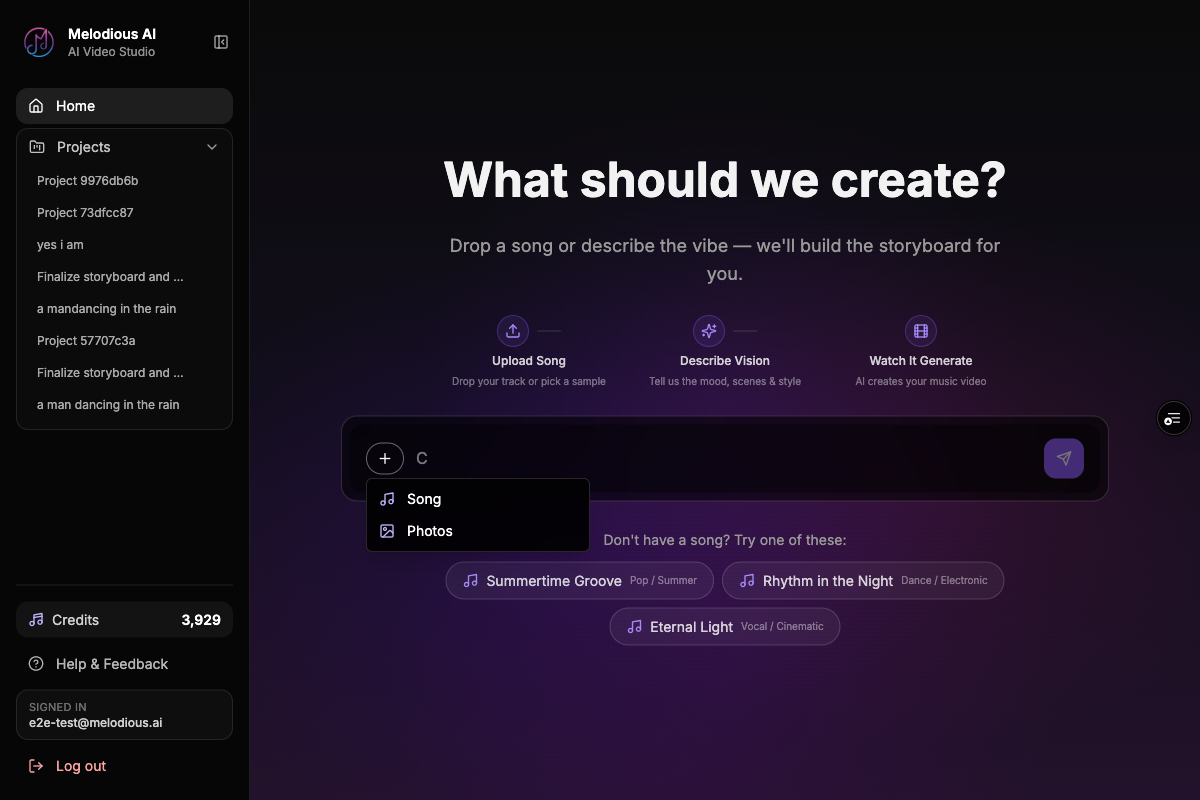
Two things worth knowing before you upload. First, a song is analyzed a single time and the result is stored on the track, so every later reuse loads instantly — no "analyzing audio" wait when you come back for a remix or an alternate cut. Second, you don't have to commit your unreleased single to test the tool: every account ships with three demo songs, so you can learn the flow first and upload your real track once you know it fits. If you landed here from a search like MP3 to video, uploading the audio is literally step one.
How do you choose a look for it?
This is the decision that makes your video feel intentional instead of generic, and it's a single click. Before your first message, pick a director style from the composer's + menu — it sets the visual lens for the entire project.
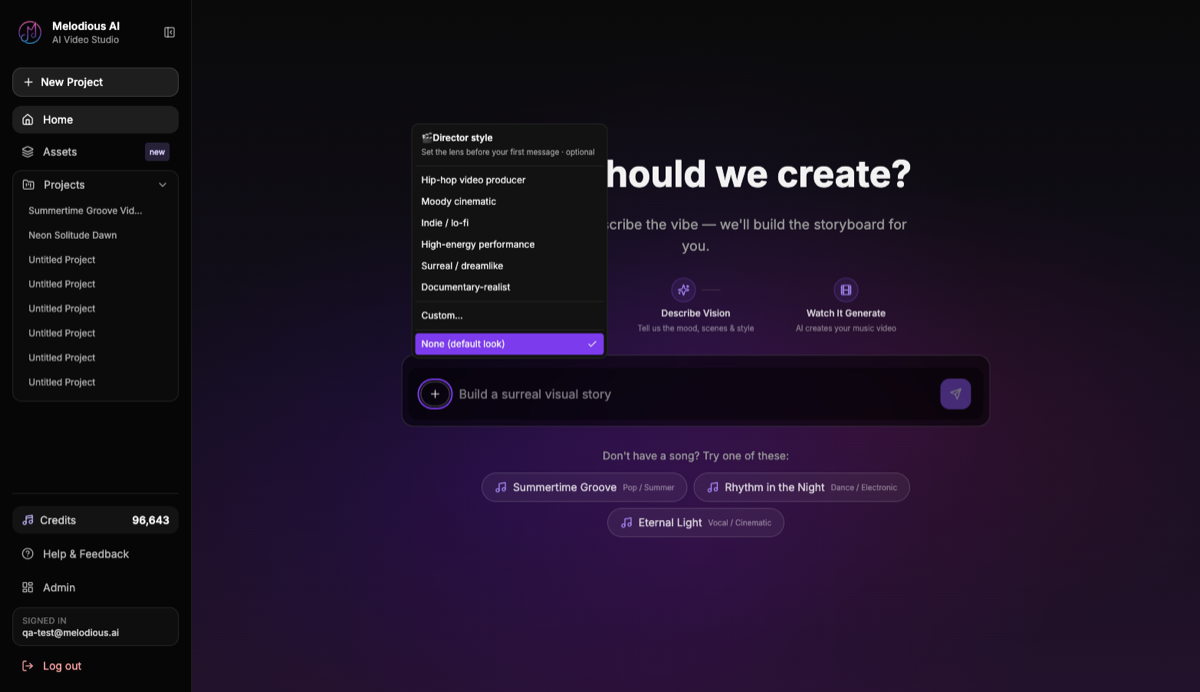
The same track produces a visibly different video depending on the style you pick, so choose the one that matches the song's energy:
| Director style | The look it steers toward |
|---|---|
| Cinematic | Filmic framing, dramatic lighting, wide establishing shots |
| Hip-hop | High-energy, performance-forward, bold urban settings |
| Indie | Warm, lo-fi, intimate and handheld |
| Performance | The artist front-and-centre, stage-and-spotlight focus |
| Surreal | Dreamlike, impossible spaces, unexpected transitions |
| Documentary | Grounded, observational, real-world texture |
A stripped-back acoustic ballad wants Indie or Performance; a hard-hitting single wants Hip-hop or Cinematic. Set this before you describe anything, because it steers your very first turn — switching later means regenerating shots to apply the new look.
How do you describe the scenes you want?
With the look locked in, you brief the AI the way you'd brief a director — in plain language, not shot lists. "A late-night drive through a rain-slick city, the singer alone at the wheel, neon reflections on the windshield." You describe the feeling and the story; the model turns that into concrete shots planned against your song's structure.
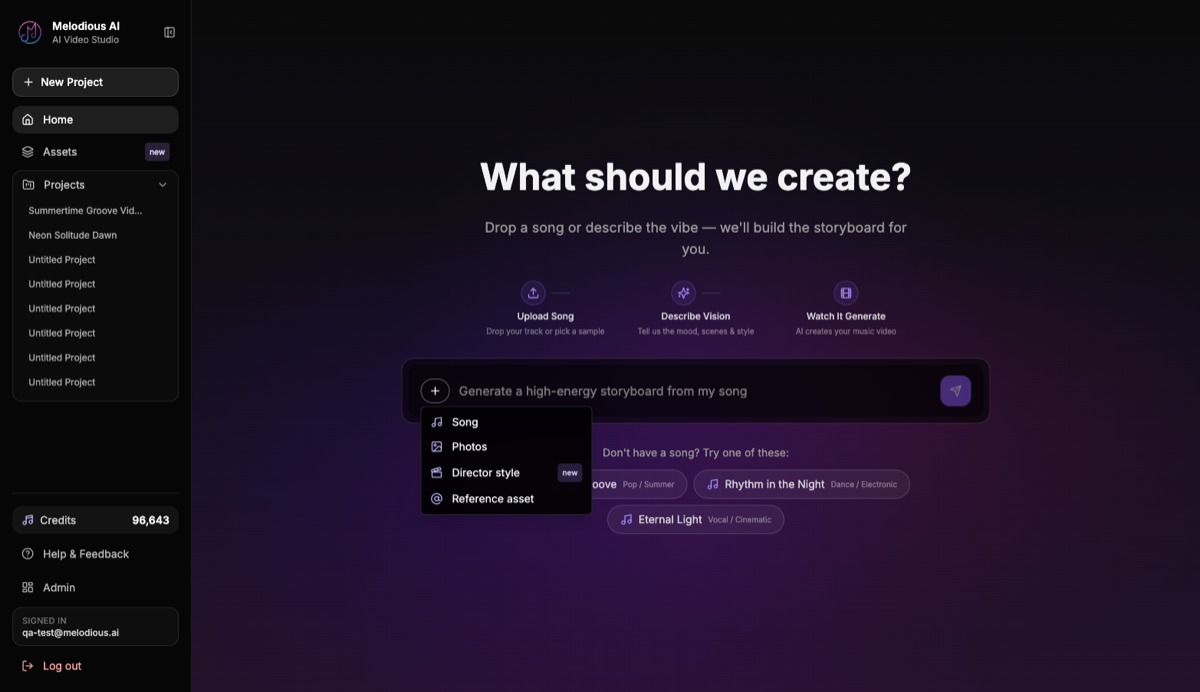
It's a conversation, so you refine across turns: change the time of day, add a location for the bridge, ask for a bigger moment on the chorus. Because the AI is holding your song's real structure the whole time, each tweak lands against the actual track. This is also the cheap stage to get right — you're shaping ideas, not re-rendering video, so spend your creative energy here before you generate.
How do you keep it consistent?
To keep the same singer across every scene (and, if the singer should also sing on camera, five lip sync tools compared), save them once as a reusable character and @mention that character in each shot — the model then conditions on their saved reference image instead of inventing a new face each time. It matters because one-shot text-to-video tools generate every scene independently, so without a saved reference your first-verse singer can turn into a different person by the chorus. For a music video — where the artist usually is the subject — that inconsistency is a dealbreaker.
Setting one up takes a reference image (your own photo works) plus a short brief — something like "close-cropped hair, wire-frame glasses, faded green field jacket" — saved to your library. From then on, every keyframe that @mentions the character is generated from that reference, so the same face is anchored across the whole video rather than guessed from scratch. And because the character lives in your library, you reuse the same artist persona on your next single, too. For the deeper how-to — how many reference images you actually need, what to put in a brief, and how to hold a character across a whole release — see reusable AI characters for music videos.
How do you export the finished video?
Once the storyboard looks right, you generate — and the pipeline runs each shot through three stages, with no editor for you to touch:
- Keyframe — each shot becomes a still image; shots that
@mentionyour saved character condition on that reference so the face is preserved. - Clip — each keyframe is animated into a short video clip that matches the shot's motion and mood.
- Stitch and sync — every clip is concatenated in order and your original audio is muxed onto the cut, producing one finished video synced to your song.
The result appears in your workspace as a player you can download. And because keyframes, clips, and final videos all auto-save to your library, closing the tab mid-render doesn't lose anything — the work is still there on reload. That's what makes a second video for your next release fast: the analyzed song and your character both carry over.
What are the common mistakes — and the fixes?
| Mistake | What happens | Do instead |
|---|---|---|
| Uploading a rough mix | Timing and lyrics analyze imperfectly | Upload the finished, mixed track you'll release |
| Skipping the director style | Generic, style-less shots | Pick a look before your first message |
| Prompting for character consistency | A different singer every scene | Save the artist and @mention them |
| Generating before reviewing the storyboard | Expensive re-renders to fix ideas | Fix shots at the cheap storyboard stage |
| Re-uploading the same song each time | Repeated "analyzing audio" waits | Reuse the saved, already-analyzed track |
The thread through all of these: make your calls at the cheap stages. Your track, the look, the scenes, and the storyboard are all reviewable and cheap to change — generation is the expensive part. Front-load the decisions and the render is just confirming a plan.
You've already got the song. Pick a plan and start a music video for it with one of the three demo songs — or upload your own track — in Melodious, pick a look, describe the scenes, and watch your recording become a finished, synced video.
Frequently asked questions
Can I make a music video for a song I already recorded?
Yes — that's the whole point. Upload your finished MP3 or WAV, and the tool analyzes it once for tempo, sections, and lyric timings. That analysis becomes the video's timeline, so every shot lines up with the actual structure of your track instead of a generic clock.
What audio format do I need to upload my song?
A standard MP3 or WAV export from your DAW or distributor works. Upload the mixed, finished track you plan to release — the AI reads its tempo, sections, and lyrics directly, so you don't need stems or a separate lyric file.
Will the music video actually sync to my song?
Yes. Because the track is analyzed for section structure and lyric timings up front, the storyboard maps shots to your real chorus, verse, and bridge. At the final stage your original audio is muxed onto the cut, so the finished video is synced to the song you uploaded — not a rough approximation.
How do I make sure the same singer appears in every scene?
Save the artist once as a reusable character — a reference image plus a short brief — then @mention them in each scene. The saved image conditions every keyframe, so the same face holds across the whole video instead of changing shot to shot.
Do I have to upload my song to try it first?
No. You pick a plan first, from $19 a month. Every account then comes with three demo songs, so you can run the whole flow — look, storyboard, characters, generation — before committing your own track. Upload your real song once you know the workflow fits.
How is this different from a lyric video maker?
A lyric video puts words on screen. This builds an actual narrative music video — director-styled scenes, characters, and camera-style shots planned against your song — then renders and syncs it to your audio. It's a video for the song, not captions over a waveform.
Make your next music video in Melodious
Attach your song and an AI director builds the storyboard scene by scene — with characters that stay consistent the whole way through. Plans from $19/month, cancel anytime. Starter makes one 30-second video a month.
Make your music video