Spotify Canvas: What It Is, the Specs and How to Get One
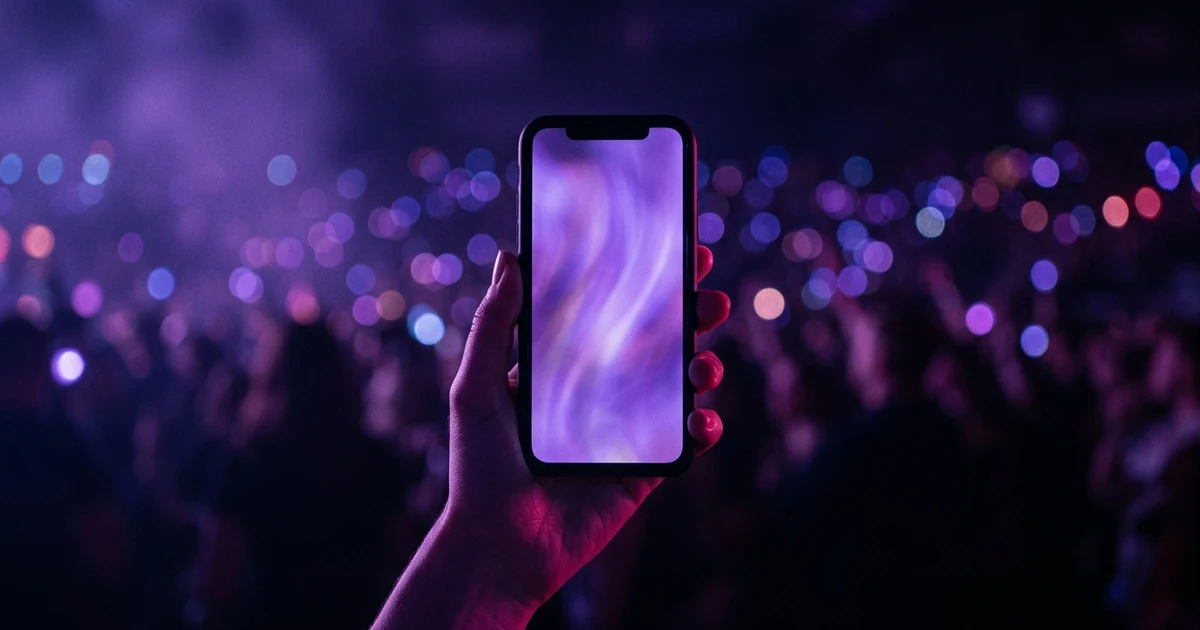
Spotify Canvas is a short vertical looping video that plays in the Now Playing view of the Spotify mobile app instead of static cover art. Spotify's guidelines call for a 9:16 video, 3 to 8 seconds long, 720 to 1080 pixels tall, as an MP4 or JPG. Artists add one per track in Spotify for Artists. At the time of writing it plays only in the mobile app, so it does not show on desktop or the web player. Spotify recommends footage without talking, singing or rapping, and without rapid cuts or intense flashing graphics.
Your first 30-second storyboard is free. Plans from $19/month.
What is Spotify Canvas?
The short answer: Spotify Canvas is a short vertical looping video that plays in the Now Playing view of the Spotify mobile app instead of static cover art. Spotify's guidelines call for a 9:16 video, 3 to 8 seconds long, 720 to 1080 pixels tall, as an MP4 or JPG. Artists add one per track in Spotify for Artists. At the time of writing it plays only in the mobile app, so it does not show on desktop or the web player. Spotify recommends footage without talking, singing or rapping, and without rapid cuts or intense flashing graphics.
This page is the overview. Canvas questions branch quickly into the file spec, the artist upload, the listener setting, what to do when it does not show, and how to make one, and each of those has its own guide here. Start with the section that matches your question.
Which question do you actually have?
| If you are asking... | Read |
|---|---|
| What size, length and format must the file be? | Spotify Canvas size and dimensions |
| How do I switch it on, as a listener or as an artist? | How to turn on Spotify Canvas |
| It is uploaded but I or my listeners cannot see it | Spotify Canvas not working |
| Can I save a Canvas I saw? | How to download a Spotify Canvas |
| I wanted a visualizer for Spotify | Music visualizer for Spotify |
The rules Spotify sets for the file
Spotify's Canvas guidelines set the technical limits: vertical 9:16, 3 to 8 seconds, 720 to 1080 pixels tall, MP4 or JPG. They also give three ways a loop can behave:
- Continuous loop: the end flows seamlessly into the start.
- Hard cut: the loop has a visible edit point where it restarts.
- Rebound: the clip plays forward and then in reverse.
On content, Spotify's guidance is to choose footage without talking, singing or rapping, to avoid rapid video cuts or intense flashing graphics, and to consider leaving out your song and artist name, since the app already shows both. Spotify's guidelines, as we read them, do not spell out the reason. Our reading is that the loop runs independently of the music, so lip movement drifts out of sync, and a busy loop competes with the song title and controls drawn over it. Our size and dimensions guide goes through the spec in full.
Why it is a mobile-only feature
Canvas plays only in the Spotify mobile app, so a listener on desktop or the web player sees cover art. That is an easy thing to overlook, and it is why "my Canvas is not showing" has a different answer depending on who is asking. If you are the artist, check your upload; if you are the listener, check your settings. The not-working guide separates the two.
Where a Canvas comes from
You have four routes to a Canvas, and the right one depends on what footage you already have.
- Cut it from a vertical music video. Find three to eight seconds without lip movement, hard camera moves or burned-in text. Cropping a landscape video down to 9:16 usually loses the subject, so start from a vertical cut.
- Use footage from a shoot. Atmospheric or abstract footage works better than narrative, because eight seconds cannot establish a subject.
- Use a visualizer. An abstract, audio-reactive loop avoids subject matter that falls out of sync, but check that the file is a vertical MP4 before uploading.
- Generate it with the song. In Melodious you upload the finished track, write a brief for free, and choose Vertical 9:16 in the brief's "Where's it going?" question. The video is made vertical, never cropped, and the finished screen of a vertical render has a Spotify Canvas download: a short rebound loop cut from the video. A landscape project shows why it has none and offers to make a vertical version. The storyboard's first keyframes are a one-time free allowance and a plan is needed to render; the pricing page lists the plans.
If you are promoting a release, the Canvas is one piece of a larger plan. How to promote a song puts it in sequence, and turning one video into a month of content shows how the same footage feeds the other platforms.
Where a Canvas shows up
Spotify's Canvas page for artists says a Canvas appears in the Now Playing view, that it can be discovered through visual feeds on Home and in playlists, and that when you or a listener shares a track from the Spotify app to Instagram Stories, the Canvas loops in the background of the Story. It also says artists can refresh their Canvas regularly. Spotify describes these as benefits and says artists can see how a Canvas performs in its metrics. Outside write-ups quote aggregate lift figures and attribute them to Spotify; we could not confirm them on a Spotify page, so we do not repeat them, and an average would not predict your track anyway.
That list tells you what to design for. The loop has to read at phone size behind overlaid controls, it has to look right as a background to a shared Story, and because you can swap it, it does not need to be your only one. A new Canvas can follow a campaign: one for the release week and a calmer one afterwards.
What each guide in this cluster settles
The size and dimensions guide covers what the spec does not make obvious. Spotify's guidelines give a vertical 9:16 frame between 720 and 1080 pixels tall, 3 to 8 seconds, MP4 or JPG, and add two points most people miss: consider leaving the song title and artist name out, because the app shows both elsewhere, and expect the edges to be cropped on some phones. It also explains why performance footage is discouraged. Read the size guide.
The turn-on guide untangles two questions that use the same words. A listener switches on Canvas in the Videos and Canvas section of Spotify's content settings and makes sure Data Saver is off. An artist has no global switch and adds a Canvas to each track individually in Spotify for Artists. Read the turn-on guide.
The not-working guide is a triage. Half the causes are on the artist's side and half on the listener's, and re-uploading cannot fix the second half. It starts with the mobile-only rule, then Data Saver and the listener's setting. Read the troubleshooting guide.
The download guide answers a question Spotify does not support: there is no official way to download another artist's Canvas, and third-party downloader sites work by extracting media from the service, which Spotify does not offer; we have not checked whether they breach Spotify's terms, so read those before using one. For your own track, keep the original export. Read the download guide.
The visualizer guide is for people who searched the wrong word. As far as we can tell Spotify's current apps have no built-in visualizer, so if you want reactive visuals for your own music on Spotify, the feature you are looking for is Canvas. Read the visualizer guide.
How a Canvas fits a release
A Canvas is easiest to make when you are already making a video. If you plan a release with a full video and short clips, the loop is the cheapest extra asset: the footage exists, and you only choose the best three to eight seconds. A sensible order is to make the vertical video first, pick the loop from it, then upload the Canvas once the track is on Spotify. How to promote a song lays out where it sits in the release timeline, and the aspect ratio guide explains why the vertical version is worth making properly rather than cropping.
Keep one thing in mind when you judge the result: view it on a phone, in the app, with the track playing. A loop that looks good full-screen on a laptop can look very different with the song title, progress bar and buttons drawn on top of it.
A short checklist before you upload
- The file is 9:16, 3 to 8 seconds, MP4 or JPG, and 720 to 1080 pixels tall.
- There is no song title or artist name burned into it.
- There is no singing or rapping to the camera, and no rapid cuts or flashing.
- You kept the original export in case you need to re-upload.
- You know it only plays in the mobile app, so you check it on a phone.
Related reading: what 9:16 video means.
Mistakes people make with Canvas
| Mistake | Why it hurts | Do instead |
|---|---|---|
| Cropping a landscape video to vertical | The composition loses its subject | Make the vertical version from the start |
| Using performance footage | Lip movement drifts from the song | Use atmosphere, texture or objects |
| Checking on desktop | It never shows there | Check in the mobile app |
| Burning in the title | The app already draws it | Leave it out |
For a Canvas to be worth uploading it needs footage worth looping. Make a vertical video from your song and take the loop from the finished render.
Frequently asked questions
What is Spotify Canvas?
A short looping video that fills the screen behind a song in the Now Playing view of the Spotify mobile app instead of the cover art. Artists attach one to each track. Listeners see it only if their app and settings allow it.
What are the Spotify Canvas specs?
Per Spotify's guidelines: vertical 9:16, 3 to 8 seconds long, between 720 and 1080 pixels tall, as an MP4 or JPG. Three loop types are offered: continuous loop, hard cut and rebound, where the clip plays forward and then in reverse.
Can anyone add a Canvas?
Artists add one to their own tracks through Spotify for Artists. It is added per track, not as a global switch. Our how-to-turn-on guide covers the artist path and the listener setting separately.
Why does my Canvas not show?
Work out whether the cause is on your side or the listener's. Canvas plays only in the mobile app, and listener-side settings such as Data Saver and the Videos and Canvas setting can hide it. The not-working guide linked below sorts the causes.
Can I download a Canvas from Spotify?
There is no official way to download another artist's Canvas, and downloader sites work by extracting media from the service. For your own track, keep the file you exported before uploading. The download guide below explains the options.
Does Melodious make Spotify Canvases?
It makes the footage. You upload your song, make a vertical 9:16 video, and the finished screen of a vertical render has a Spotify Canvas download, a short rebound loop. A landscape video has none, and Melodious does not cut a Canvas from it by cropping.
A Canvas needs a few seconds worth looping.
Make a vertical video from your song, see the storyboard for free, and download a Canvas loop from the finished render.
Make my Canvas footage