Make your first music video
A guided, screenshot-by-screenshot walkthrough that takes a brand-new account from sign-in to a finished AI music video.
By the end of this guide you'll have a complete music video — a storyboard, AI-generated keyframes, and video clips cut to the beat of your song. It takes about five minutes of setup; the AI does the rest. Every stage runs on credits, and you buy those before anything starts: the $19 First Video covers the whole run, from the audio analysis to the finished 30-second clip.
Before you start
- A song you own, or one of the three demo songs seeded into every account.
- Credits. Melodious has no free tier — buy the $19 First Video and it covers this whole walkthrough end to end. See Credits & plans.
- That's it. You don't need any editing experience — you describe the video in plain language and the AI directs it.
1. Sign in
Go to melodious.ai and buy the First Video ($19). Checkout takes the card first, then you choose how to log in — continue with Google, or set a password on the email you paid with. Your credits are on the account by the time you reach the studio.
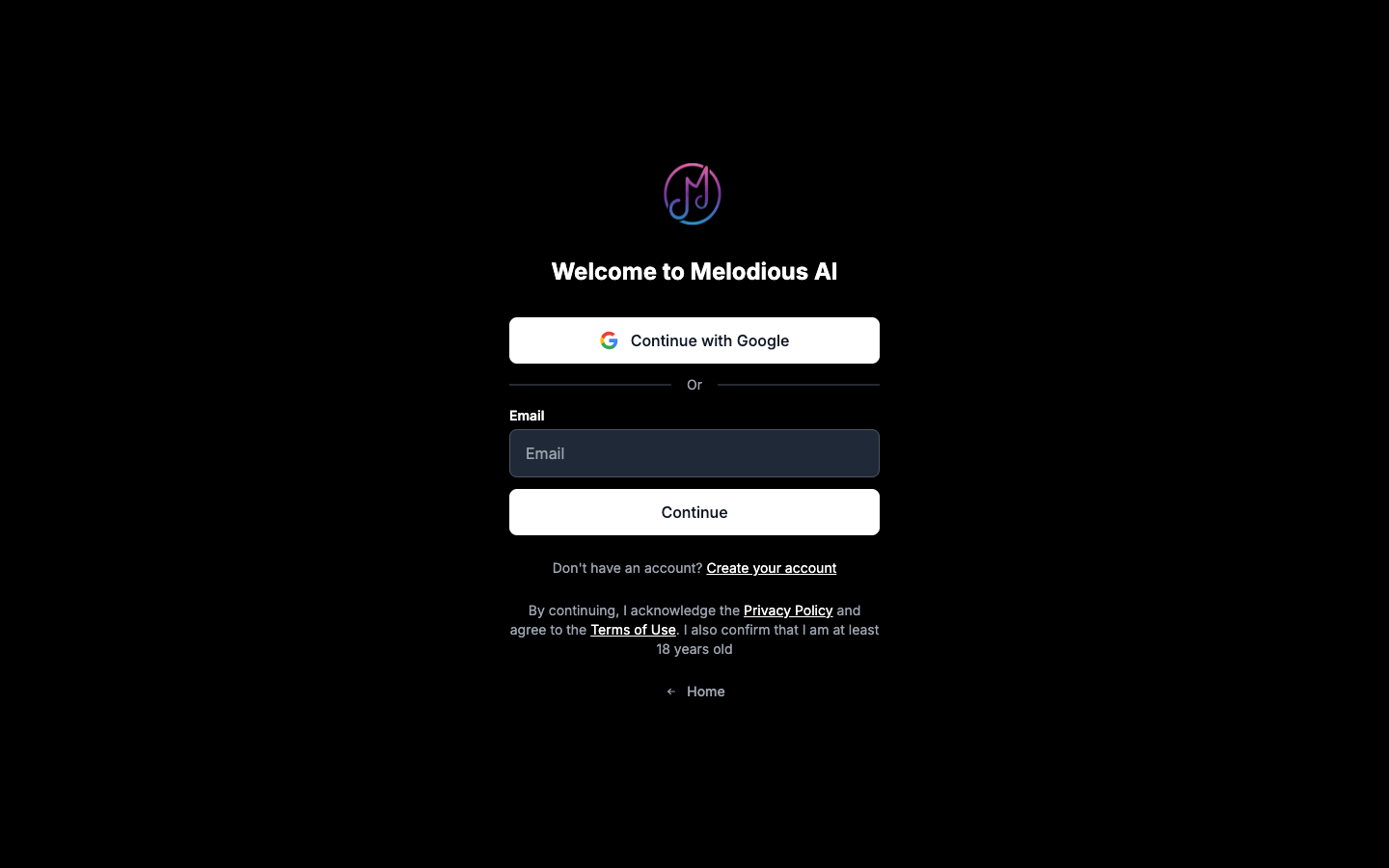
If you create an account without buying, you'll be held on the start page instead — nothing in the studio runs on an unpaid account.
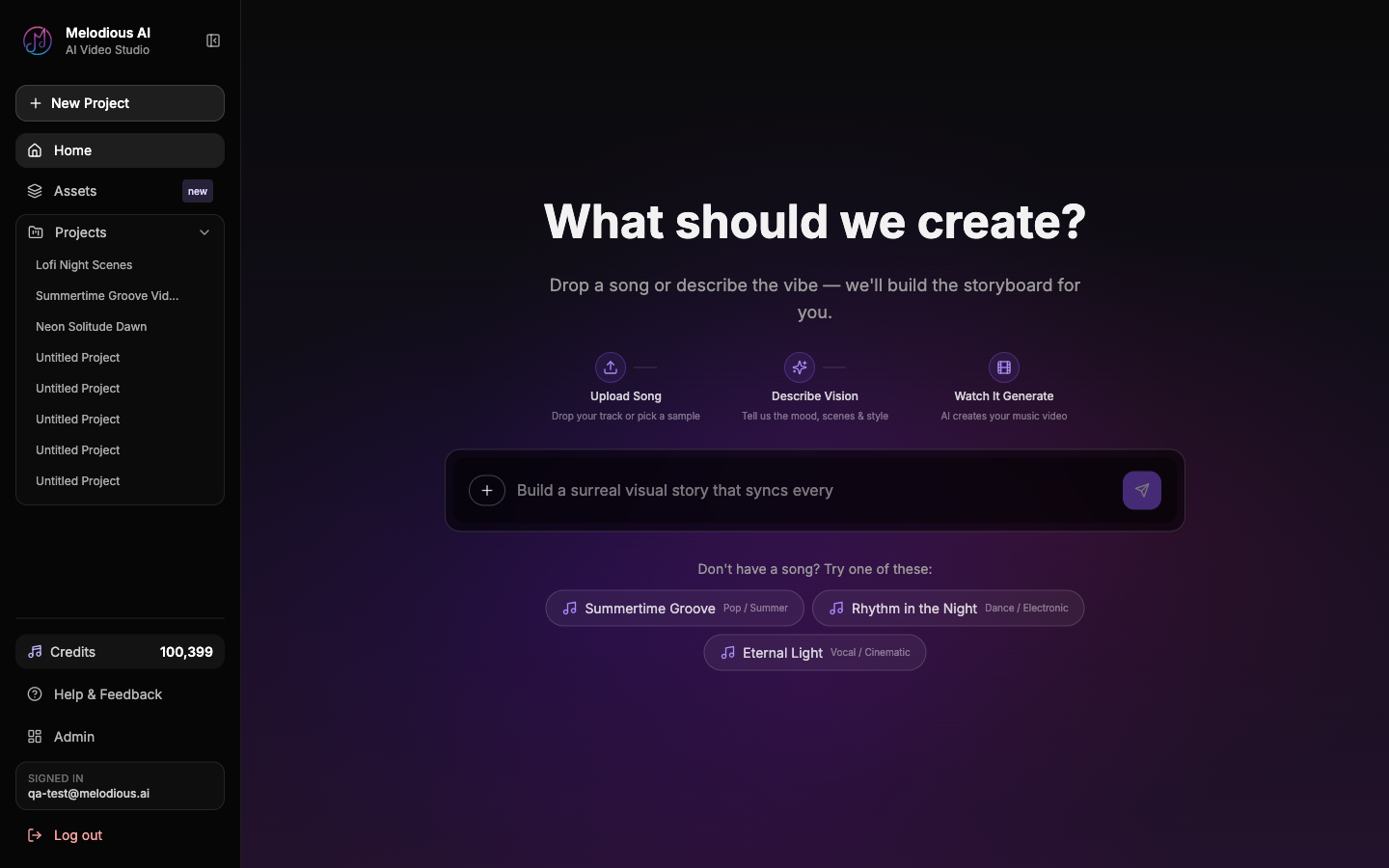
Once you're paid, you land on the create screen — the "What should we create?" page above, with the composer at the centre. This is where every video begins.
2. Pick or upload a song
The video is built around your song, so start there. Open the + menu next to the composer and choose Song.
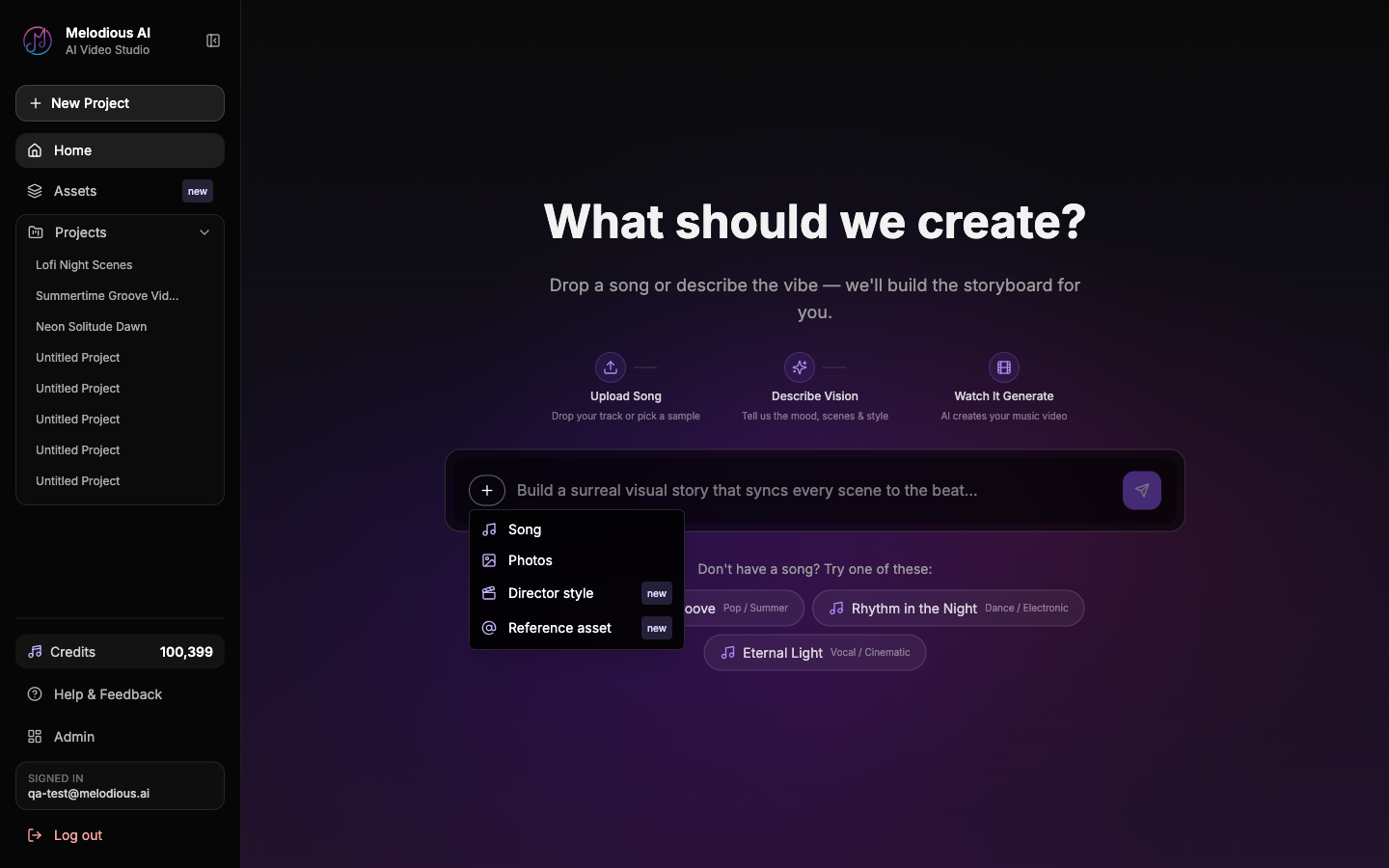
You have two options:
- Upload your own track — MP3, WAV, M4A or FLAC, up to 50 MB.
- Try a demo song — click one of the three seeded tracks (Summertime Groove, Rhythm in the Night, Eternal Light) shown under "Don't have a song? Try one of these." They're there so you have something to work with if your track isn't to hand; they use credits exactly like your own song does.
As soon as a song is attached, the AI analyses it — tempo, energy sections, and lyrics — so the storyboard can sync to the music. This runs on the credits you already bought; there's no separate charge for it.
Tip: Use a demo song for your very first video if your own track isn't ready. It's the fastest way to see the whole flow end to end.
3. Pick a director style (optional)
Before you type anything, you can set the lens the AI directs through. Open the + menu again and choose Director style.
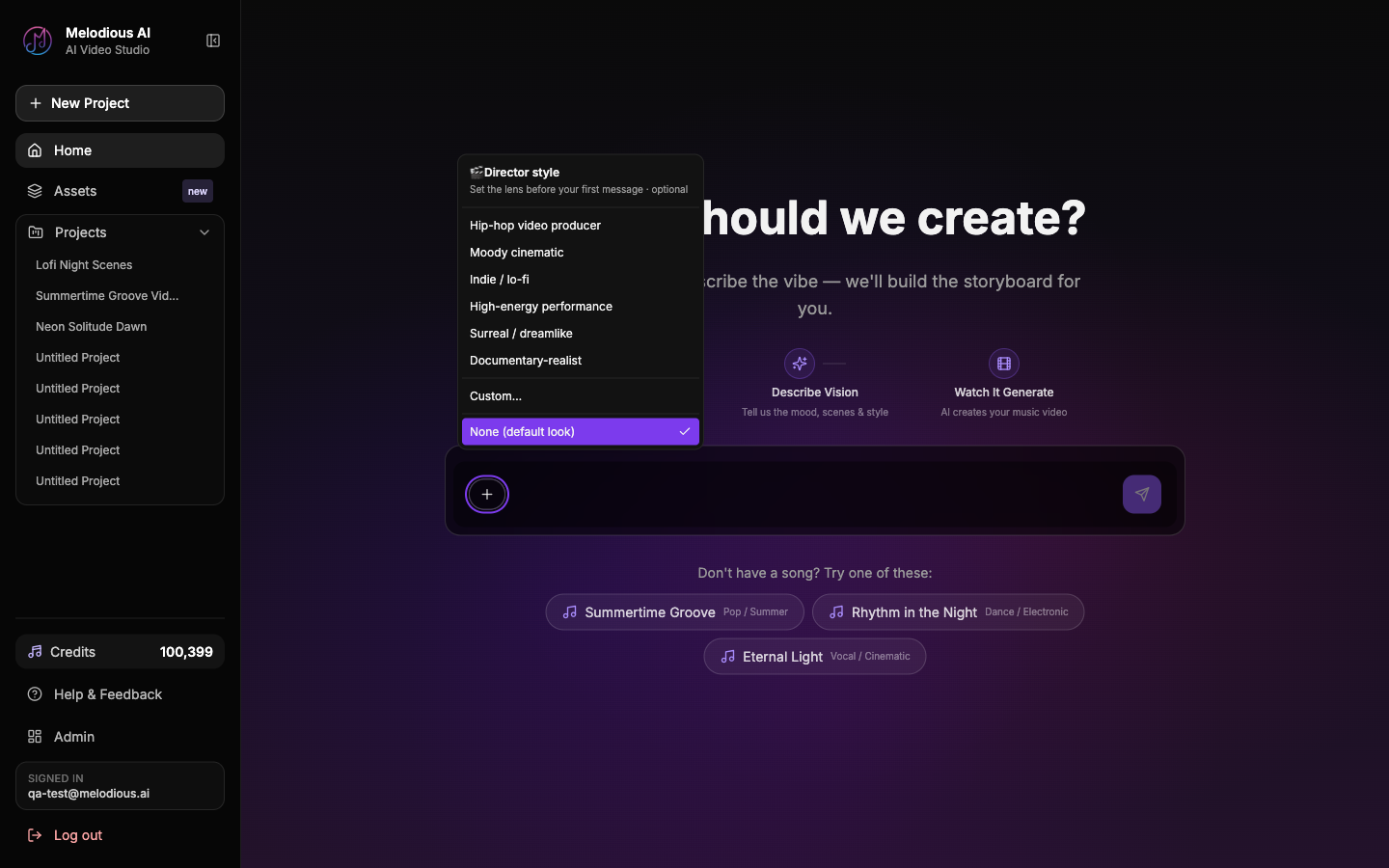
Pick a preset, write your own with Custom, or leave it on None for the default look. The style shapes the whole storyboard and every shot — the same song under "Moody cinematic" and "Hip-hop video producer" produces visibly different videos.
| If you want… | Pick | |---|---| | Rap / trap / high-energy performance | Hip-hop video producer | | Slow, atmospheric, film-grade scenes | Moody cinematic | | Warm, intimate, handmade feel | Indie / lo-fi | | Live-feel fast cuts and stage energy | High-energy performance | | Abstract, otherworldly visuals | Surreal / dreamlike | | Grounded, naturalistic, real-world | Documentary-realist |
4. Describe your vision
In the composer, type what you want to see. Be specific about mood, setting, and style — for example:
"A cinematic music video with dramatic rain scenes at night, neon reflections on wet streets, and a lone figure walking."
If you want to appear in the video or keep a consistent look, attach Photos (up to 4 character photos, up to 10 style references) from the + menu before you send.
Check the line under the composer before you press send. It tells you what this costs — "Sending builds your storyboard and first images — about 48 credits" — because there's no approval step after this point. Pressing send is the decision.
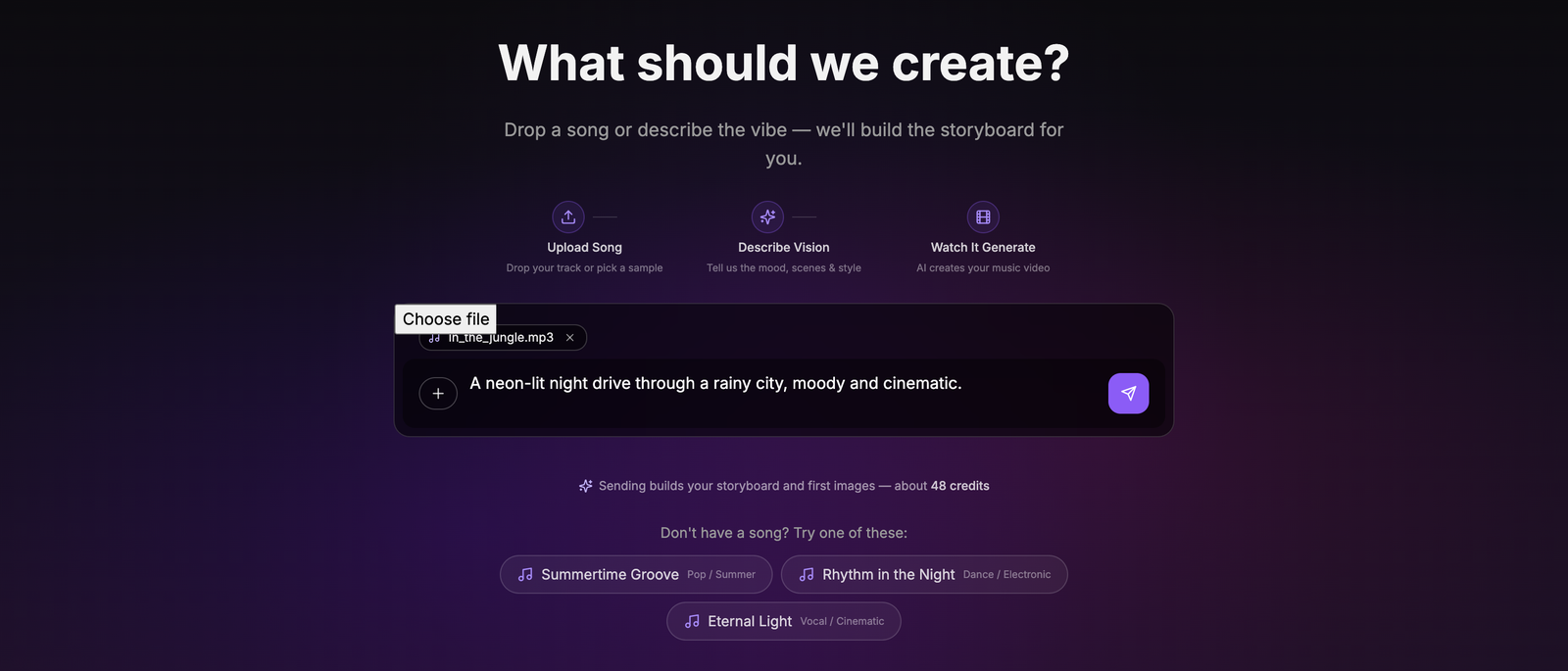
Press send and leave it alone. Melodious writes the storyboard and starts generating your keyframe images in one run — it picks the length (30 seconds), the pacing and the shot count from your song's tempo and sections, so there's nothing to answer and nothing to approve. See One-message storyboards for what it decides and how to change it.
5. Review the storyboard and keyframes
The storyboard is a scene-by-scene plan synced to your song. Each scene has a time window, a description, and the visual prompt that drove its keyframe. The storyboard panel opens on the right, and the keyframes fill in as they finish.
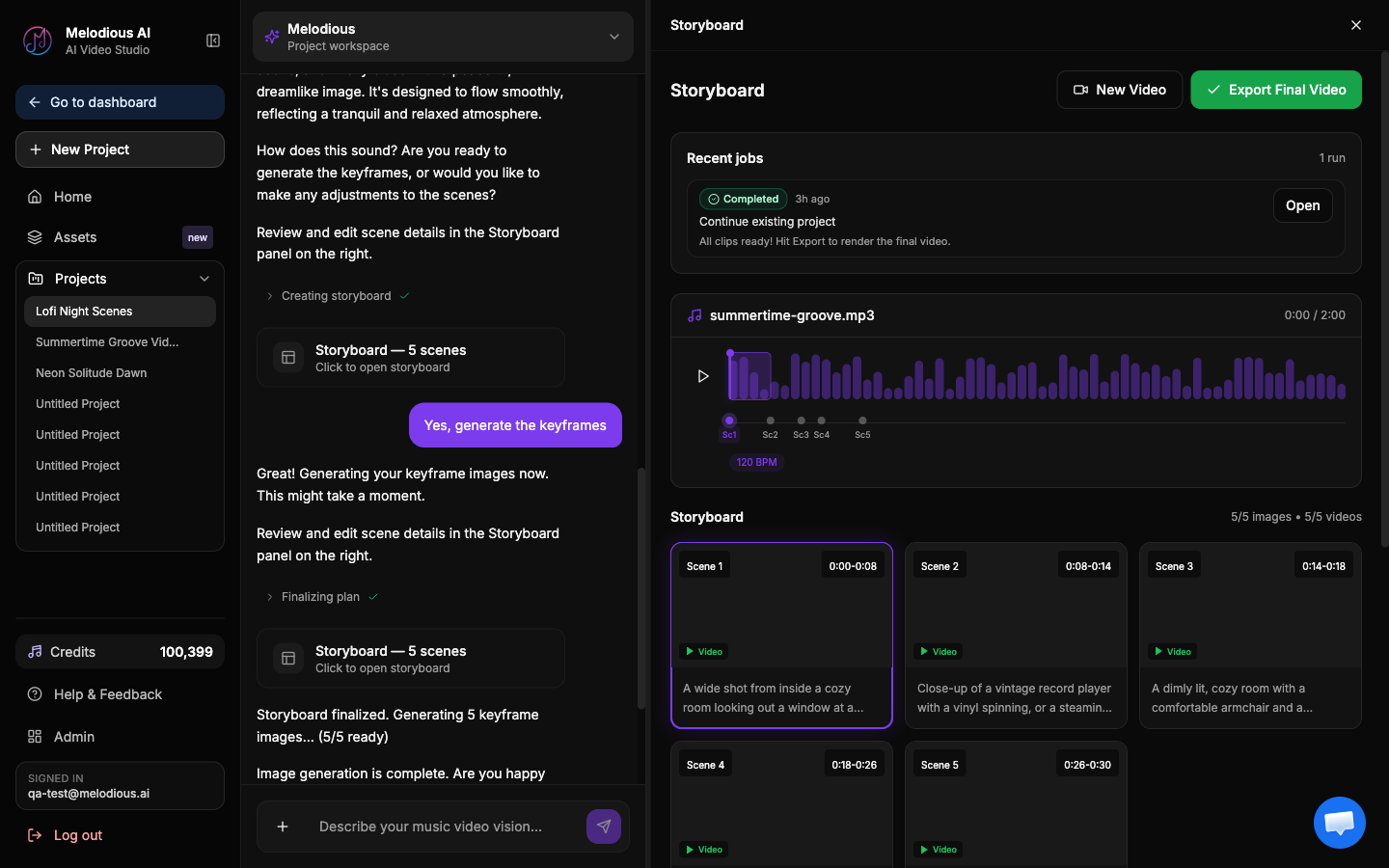
This is the cheapest place to make changes — fix the stills here and you never pay for a video render that was wrong from the start. You can:
- Edit any scene's title or prompt (changes save as you type).
- Add or remove scenes.
- Regenerate a single keyframe that missed (about 12 credits) without touching the others.
- Reply in the composer to refine the whole plan ("make it darker," "add a city skyline," "make it 60 seconds").
Analysis, the conversation and the storyboard plan don't carry a separate charge — they're covered by the images your first message generates, which reserve roughly 8% of the video's total credits. The remaining ~92% is the video render, and it hasn't been touched yet.
6. Generate the video
Your keyframes already exist, so one stage is left — and it's the one that still needs your say-so:
Generate Videos turns each keyframe into a video clip, then merges them with your audio into the final cut. This reserves the remaining ~92% of the credits and is the expensive step, which is why it has its own explicit approval and never starts on its own. The full render takes 3–10 minutes depending on length.
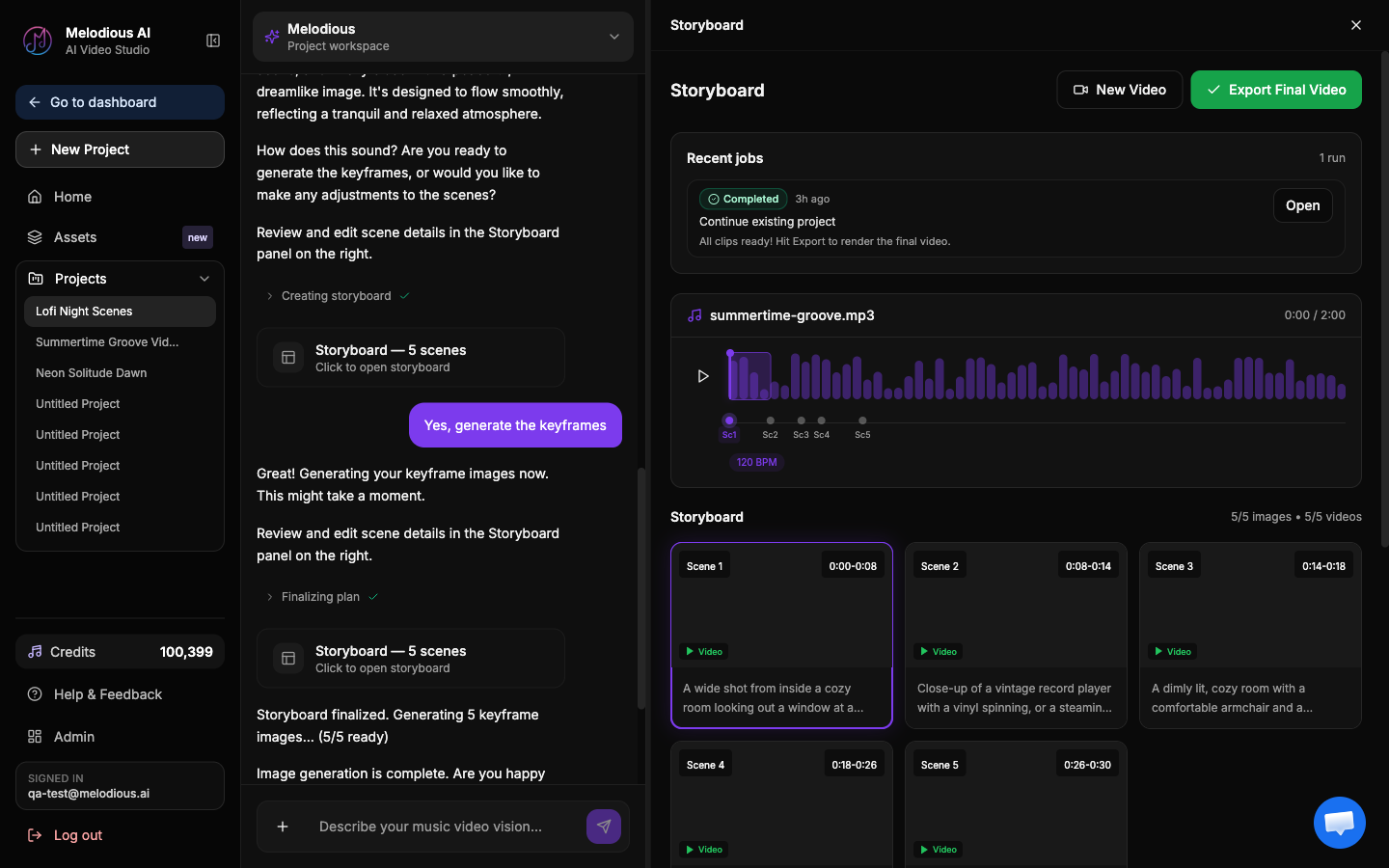
When it finishes, hit Export Final Video to download your music video. Your keyframes, clips, and the final video are all auto-saved to your Assets library — you won't lose work if you close the tab.
Note: Rendering spends the bulk of your credits — the $19 First Video's 750 credits cover one finished 30-second clip at 720p with no watermark, plus a regeneration if a shot misses. It's one per account. Longer durations (Standard, Extended, Full song) need the $97 Full Video pack or a Pro plan — see Credits & plans.
Common questions
How much does my first video cost? $19. The First Video pack (750 credits) covers one finished 30-second clip — you pick which 30 seconds of your song it covers — at 720p with no watermark. A 30-second video costs 600 credits across both stages (about 48 of keyframes, the rest for the render); the extra 150 is there so you can regenerate a shot that didn't land. Analysis, chat and the storyboard are covered by that same purchase, not charged separately. If you go on to buy a Full Video within 14 days, the whole $19 comes off it.
When am I actually charged? For the keyframes, when you send your first message — the cost is stated under the composer before you send. For the video, when you approve the render. Nothing else spends credits.
Do I have to upload a song? No. Every account comes with three demo songs you can use immediately. They're a convenience, not a free trial — generating from one spends credits just like your own track.
Can I change the look after I've started? Yes. Edit scene prompts or change the director style, then regenerate. Changing the style never silently rewrites scenes you've already approved.
What if a keyframe comes out wrong? Regenerate just that one scene (~12 credits) instead of redoing the whole video. Fix keyframes before the video stage to avoid wasting credits.
Will I lose my work if I close the tab mid-render? No. Outputs auto-save to your Assets library as they're generated.
Troubleshooting
My song won't upload → Check it's MP3, WAV, M4A or FLAC and under 50 MB. Convert or trim if needed, or use a demo song to keep going.
The storyboard doesn't match what I described → Reply in the composer with a correction, or edit individual scene prompts in the storyboard panel, then regenerate. The plan is conversational — keep steering it.
I ran out of credits mid-flow → Whatever was already generated is saved, and so is the storyboard. To generate more images or the video, top up or upgrade on the billing page. Running out doesn't send you back to the start page — you're a customer, and the studio stays open.
Next steps
- One-message storyboards — what the first run decides for you, and how to change it
- How Melodious works — the mental model behind director → storyboard → keyframes → clips
- Director styles — steer the whole video before you type a word
- Assets library & @mention — reuse a character, style, or song across videos
- Credits & plans — what each action costs
- Start creating →