How Melodious works
The mental model behind Melodious — an AI director reads your song, builds a storyboard, generates keyframes, and renders video clips synced to the music.
Melodious turns a song into a music video the way a real production does: a director interprets the music, lays out a storyboard, locks in the look with keyframes, then shoots each scene as a video clip — all cut to the beat. Understanding these four stages is the key to getting the result you want, because each stage is something you can steer.
The four stages
You stay in control at every stage. Each one is editable before you spend credits on the next, and only the last two cost credits.
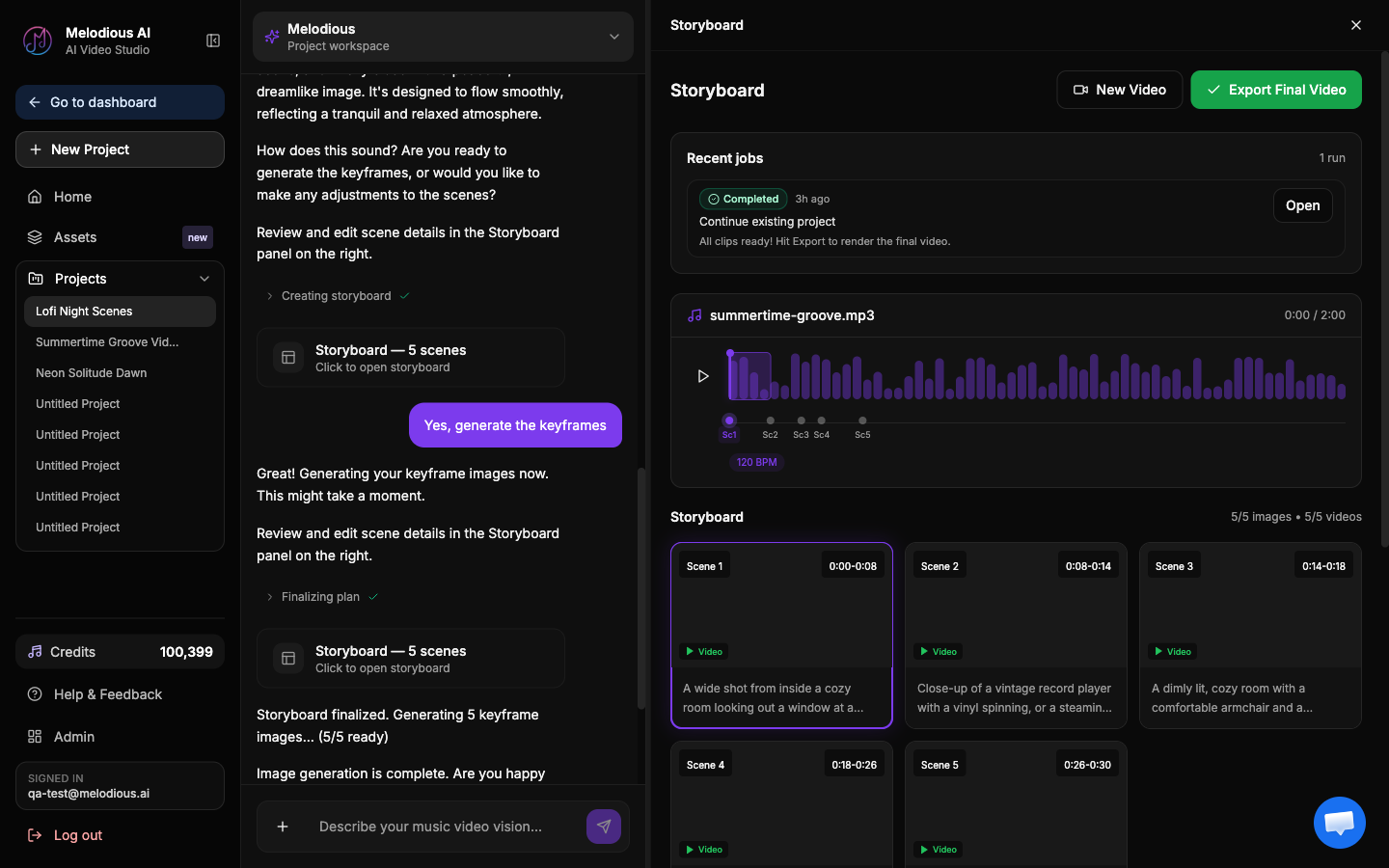
| Stage | What happens | What you control | Cost | |---|---|---|---| | 1. The director reads your song | The AI analyses tempo, energy sections, and lyrics, then interprets them through a director style | The director style (the lens) and your text vision | Included | | 2. It builds a storyboard | A scene-by-scene plan, each scene a time window on the song with a description and a visual prompt | Edit scene prompts, add/remove scenes, refine the whole plan in chat | Included | | 3. It generates keyframes | One still image per scene — the look locked in before motion | Review and regenerate any single keyframe | ~8% of credits | | 4. It renders video clips | Each keyframe becomes a moving clip, then all clips merge with your audio into the final cut | Regenerate scenes; export the final video | ~92% of credits |
Every stage runs on the credits your purchase bought — there is no free step, and nothing runs before a payment. Your first video is $19, which buys a finished 30-second clip with room for a regeneration.
The staging still matters, though, and it is what the $19 actually protects: the storyboard and keyframes together cost about 8% of a render, so you see the whole plan and every still image while ~92% of your credits are still unspent. Reject the look at that point and you have spent pennies; only then does the expensive video stage run.
1. The director reads your song
When you attach a song, Melodious analyses it: the tempo (BPM), where the energy rises and falls, and the lyrics. A director style — a creative-director persona like Moody cinematic or Hip-hop video producer — then decides how that music becomes pictures. The same song under two directors yields two visibly different videos.
2. It builds a storyboard
The director lays the song out on a timeline and splits it into scenes, each a window of time (e.g. 0:00–0:08). Every scene gets a description and a visual prompt that will drive its image. Because the scene boundaries follow the song's energy, the video's pacing matches the music. On a project's first message this happens automatically, along with the keyframes — no questions, no approval step. The storyboard stays conversational either way: reply in the composer to reshape it, or edit any scene directly.
3. It generates keyframes
A keyframe is a single still image that defines a scene's look — the composition, subject, lighting, and palette. Generating keyframes first (rather than jumping straight to video) lets you lock in the visual style cheaply and regenerate any scene that misses before the expensive step.
4. It renders video clips
Each approved keyframe is animated into a short video clip. The clips are then stitched together and merged with your original audio into the final music video, synced to the beat. Export it, and you're done.
Tip: Treat keyframes as your checkpoint. Get every still looking right first — regenerating one keyframe costs ~12 credits, while regenerating a whole video is far more expensive.
The key nouns
Three objects show up everywhere in Melodious. Knowing what each one is makes the rest of the docs click.
| Noun | What it is | |---|---| | Song | The audio track your video is built around. Upload your own (MP3/WAV/M4A/FLAC, ≤50 MB) or use one of the seeded demo songs. Analysed once, then reusable. | | Asset | A reusable input or output — a saved character, style, location, prop, or song (inputs), plus every keyframe, clip, and final video you generate (outputs, auto-saved). | | Project | One music video in progress: its song, storyboard, scenes, and generated media, saved together so you can leave and come back. |
Assets: your reusable cast and crew
Assets are how a character, look, or song stays consistent across scenes and across videos. Save one once, then pull it into any project by typing @. Everything you generate is auto-saved here too, under Outputs, so you never lose work.
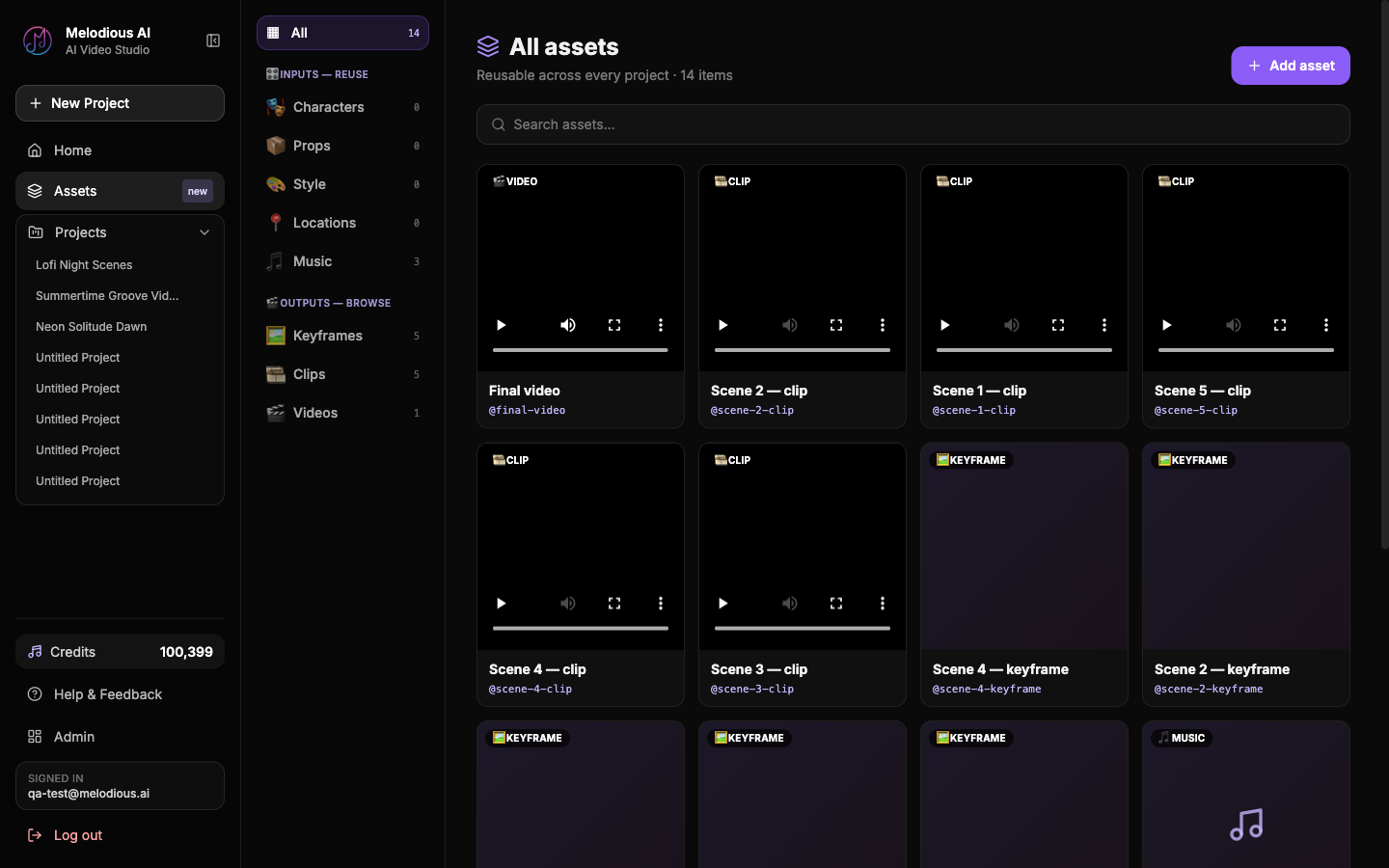
A saved image is fed into the keyframe generator as a conditioning image, which is why the same character holds its likeness from a rooftop scene to a subway scene instead of being re-invented each time.
How it all fits together
Song  ──►  Director reads it  ──►  Storyboard (scenes on a timeline)
                                          │
                                          ▼
                                   Keyframes (one still per scene)
                                          │
                                          ▼
                              Video clips  ──►  Final video (synced to audio)

Assets feed in at any stage (a saved character, style, or song)
and every output is auto-saved back to Assets.
Common questions
What's the difference between a keyframe and a clip? A keyframe is a still image that defines a scene's look; a clip is that keyframe turned into motion. Keyframes come first and are cheap to redo; clips are the final, expensive render.
Why does the video render need my approval when the storyboard and keyframes didn't? Because that's where the money is. The plan and the keyframes together are ~8% of a video's cost, so producing them straight away spends almost nothing of what you bought and gives you something real to react to. The render is the other ~92%, so it keeps its own explicit approval — see One-message storyboards.
Is a song the same as a project? No. A song is the audio; a project is one whole video built around it (storyboard, scenes, generated media). The same song can be reused across many projects.
Do assets carry between projects? Yes — that's their whole point. A saved character or style can be @mentioned in any project, which is how a look stays consistent across multiple videos.
Next steps
- Make your first music video — run the full flow end to end
- Director styles — the lens the director directs through
- Assets library & @mention — reuse characters, styles, and songs
- Scene editing & regeneration — refine the storyboard before you render
- Credits & plans — how the staged billing works