Free Music Visualizer: How to Make One in Your Browser
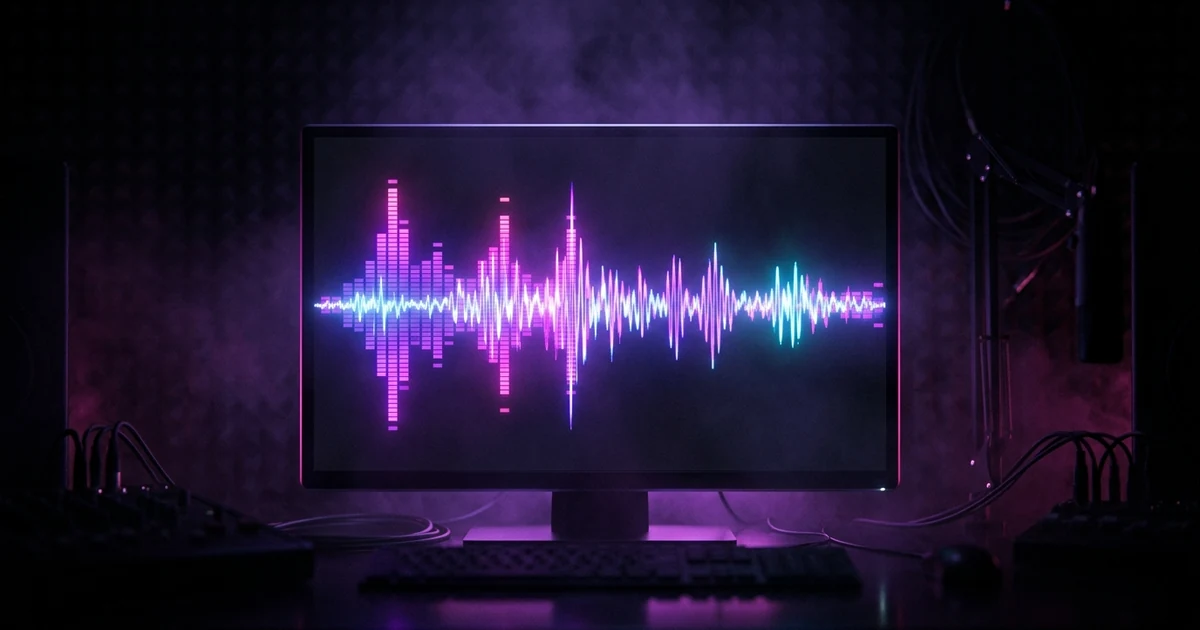
A free music visualizer turns an audio file into a video whose picture is generated from the sound — spectrum bars, a waveform or a radial burst that moves with the track. The genuinely free options now run entirely in a browser using the Web Audio API, which means no account, no install and no upload: the file is analysed on your own device and never leaves it. The trade-off is that browser recording happens in real time, so a three-minute song takes three minutes to capture, and the file you get out is usually WebM rather than MP4. YouTube accepts WebM directly. Instagram Reels and TikTok organic uploads want MP4 or MOV, so a conversion step is needed before posting there.
The short answer: A free music visualizer turns an audio file into a video whose picture is generated from the sound — spectrum bars, a waveform or a radial burst that moves with the track. The genuinely free options now run entirely in a browser using the Web Audio API, which means no account, no install and no upload: the file is analysed on your own device and never leaves it. The trade-off is that browser recording happens in real time, so a three-minute song takes three minutes to capture, and the file you get out is usually WebM rather than MP4. YouTube accepts WebM directly. Instagram Reels and TikTok organic uploads want MP4 or MOV, so a conversion step is needed before posting there.
What "free" usually means
Search the term and most of what comes back is not free. The common patterns are a watermark you pay to remove, a resolution cap that makes the output unusable, an export limit of one or two videos, or a signup wall that trades your email for a trial.
There is a structural reason for this. Any tool that renders your video on a server has a real cost per video — compute, storage, bandwidth — and has to recover it somehow. Free, in that model, is always the first half of a funnel.
A tool that renders in your browser has no such cost. Your own machine does the analysis and the drawing, the operator pays for nothing but the page, and free can simply mean free. That is the distinction worth checking before you invest three minutes of recording in something: not whether the word "free" appears, but where the rendering happens. Our own audio visualizer is the browser kind, and the walkthrough below uses it.
This is also why generating an actual music video — real scenes, a subject, something happening — is priced rather than free: that work happens on a server and costs money per video. If you are not yet sure which of the two you want, the difference between a music video and a visualizer is the thing to settle first.
How it actually works
A visualizer reads two properties of the sound, and everything you see is built from them.
Loudness over time — the signal's amplitude, sampled many times a second. This is what a waveform draws directly, and what makes a graphic pulse on the beat: the amplitude spikes when the kick lands.
The balance of frequencies — the audio is split into frequency bands many times a second and the energy in each is measured. This is what spectrum bars show, bass on the left and treble on the right, each bar's height being how much energy the track carries there at that instant.
Everything else is presentation. Particles, colour cycling and camera moves are all driven by those same two streams of numbers.
One consequence is worth knowing, because it explains a result that otherwise looks broken: most tools deliberately ignore the top of the frequency range. Analysis reports evenly up to half the sample rate, so on a normal file the upper half of the spectrum covers roughly 11–22kHz, where recorded music has almost nothing. Draw all of it faithfully and most of your screen is a flat line — which makes a loud, full track look dead.
Making one, free, in about four minutes
The audio visualizer takes four steps. There is no account, no watermark and no upload.
- Load your track. MP3, WAV, M4A, FLAC and OGG all decode. It is read from disk, not sent anywhere.
- Pick a style — bars, waveform or radial spectrum.
- Record. This runs in real time, so a three-minute song takes three minutes. Leave the tab in the foreground.
- Download. You get a video file with the audio already muxed in.
Use Chrome or Firefox. Safari's recording support is unreliable and tends to fail at the export rather than at the start, which is the worst possible moment.
The export detail that catches people out
The file you get is usually WebM, and this is where a lot of guides are simply wrong.
YouTube accepts WebM directly; it is on their published list of supported upload formats, so for a YouTube upload you are already finished. Instagram Reels and TikTok organic uploads want MP4 or MOV, so those need a conversion step.
Be aware of what that step actually is, because plenty of guides get it wrong. It is not a container swap. A browser recording is VP9 video with Opus audio; the MP4 those platforms reliably accept is H.264 with AAC, so both streams genuinely get re-encoded. In practice this is a non-event — HandBrake, FFmpeg or any online converter will do a three-minute video in well under three minutes, and at a sensible bitrate you will not see the difference — but budget a real encode rather than an instant relabel.
Safari is the exception: where its recording works at all, it produces MP4 directly, and there is nothing to convert.
Where a visualizer stops being the right answer
It is worth being straight about the ceiling. A visualizer will always be in time with the music and it will never be about anything. Nothing happens in it. The same template applied to two different songs produces two videos that look essentially alike, and that is inherent to the method rather than a matter of execution — a better palette does not fix it.
So nobody shares a spectrum animation, because there is nothing in it to tell a friend about. What it does do is clear the bar: YouTube will not accept a bare audio file, Spotify Canvas needs a short vertical loop, and short-form platforms are video-first. Without some moving image the track simply has fewer places to exist.
The useful way to decide is by job. Use a visualizer when the job is to give audio a surface — catalogue tracks, beat uploads, livestream backdrops, B-sides. For the release you actually want remembered, make something with subject matter; how to make an AI music video walks through what that involves. If the destination is a Spotify Canvas specifically, the size and dimension spec is the shorter read.
Frequently asked questions
Is there a genuinely free music visualizer with no watermark?
Yes. Our audio visualizer runs in the browser, requires no account, and adds no watermark. The reason it can be free is that it costs us nothing to run — the analysis and the recording both happen on your device using the Web Audio API, so there is no server rendering your video and no per-video cost to recover.
Do I have to upload my song?
Not to a browser-based tool. The track is decoded and analysed locally, so the audio never leaves your machine. This matters for unreleased material: an upload means handing an unreleased song to a third party, and there is rarely a reason to.
Why does recording take as long as the song?
Because the browser captures the animation as it plays rather than rendering it faster than real time. A three-minute track takes three minutes. Desktop software can render offline and beat that, which is the clearest advantage it still has.
What file format do I get, and will it upload everywhere?
Usually WebM. YouTube accepts WebM directly — it is on their published list of supported upload formats. Instagram Reels and TikTok organic uploads want MP4 or MOV, so convert first. Be aware that this is a real re-encode rather than a container swap: browser recordings are VP9 video with Opus audio, and the MP4 those platforms expect is H.264 with AAC. Free tools do it — HandBrake, FFmpeg, any online converter — in far less time than the song takes to play, and at a sensible bitrate the difference is not visible. Some browsers, Safari among them, record MP4 in the first place, in which case there is nothing to convert.
Which browser should I use?
Chrome or Firefox. Both handle the recording step reliably. Safari's MediaRecorder support is patchy: when it works you get an MP4, which is convenient, but it can also fail on export even when the live preview plays perfectly — a frustrating way to lose three minutes. Record in Chrome or Firefox and convert afterwards rather than gambling on it.
Will a visualizer help my song perform better?
It helps it exist, which is not the same thing. YouTube will not take a bare audio file and most short-form platforms are video-first, so without a moving image the track has nowhere to go. What a visualizer will not do is give anyone a reason to share it — there is nothing in it to describe to someone else. Treat it as the floor, not the strategy.
A visualizer reacts to the sound. A music video shows something.
Attach your track and say what you want to see. Melodious writes the storyboard and generates the keyframes in the same run, so you see the whole thing before deciding to render.
Storyboard your song